
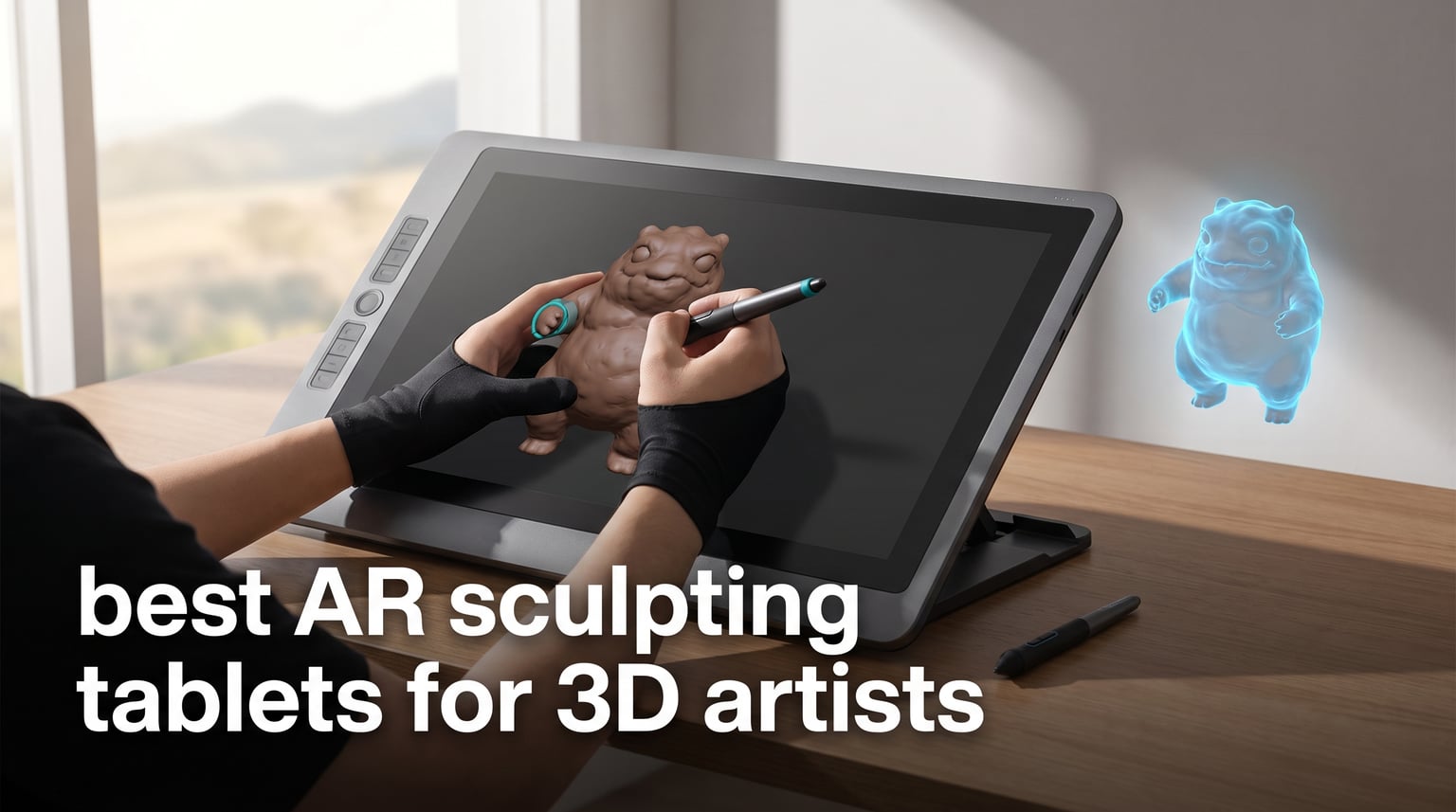
The best AR sculpting tablets for 3D artists split into two useful groups: standalone screens for mobile sketching and compatible sculpting-app work, plus computer-connected pen displays for a desktop ZBrush, Blender, or Maya setup. My first pick is the XPPen Magic Drawing Pad because it combines a 12.2-inch 2160 x 1440 screen, Android 14, 16,384 pressure levels, and a stated 13-hour battery life in one portable device.
For a fixed desk, the XPPen Artist Pro 22 Gen 2 is the stronger first look: its 21.5-inch 2.5K display, Calman Verified color, included stand, and wireless Keydial give sculpting strokes room to breathe. Artists who place color grading and close texture work ahead of portability should instead look closely at the XPPen Artist Ultra 16 and its 4K OLED panel.
AR sculpting tablets are pen-based devices that translate stylus position, pressure, and tilt into digital-clay strokes. A pen display puts that motion directly on a screen, while a standalone tablet removes the computer connection but makes the operating system and app requirements part of the decision.
This guide ranks eight real products by the facts that matter when I am choosing sculpting hardware: display size, resolution, pressure response, tilt, physical controls, portability, and stated operating-system support. If your work also includes 2D concept art, our guides to the best drawing tablets for digital illustration and the best tablets for drawing offer useful adjacent comparisons.
Table of Contents
The top 3 picks for AR sculpting tablets answer the main workflow needs
The Magic Drawing Pad is my Editor’s Choice for artists who want a self-contained Android canvas with unusually high listed pen sensitivity. The Artist 13.3 Pro V2 is the Best Value pick for a compact computer-connected pen display with a dial, eight keys, and a laminated screen, while the Artist Ultra 16 is the Premium Pick for its 4K OLED color specification.
Those labels are workflow labels, not promises that one device fits every software stack. A desktop pen display still needs a compatible computer and a clean driver setup, whereas a standalone Android device needs the particular sculpting app you plan to use.

These AR sculpting tablets for 3D artists make the full shortlist in 2026
The quick overview below puts all eight products in one place. Read the display size and connection type first: that immediately separates an on-the-go Android workflow from a pen display that lives beside a Windows, macOS, Linux, ChromeOS, or compatible Android host.
Pressure-level numbers are useful context, but they are not a substitute for screen position, shortcut access, and reliable app support. A sculptor making broad forms may care more about a comfortable arm angle and responsive navigation controls than a larger sensitivity figure on its own.
| Product | Specifications | Action |
|---|---|---|
| XPPen Magic Drawing Pad |
|
View Details |
 XPPen Artist Pro 22 Gen 2 XPPen Artist Pro 22 Gen 2 |
|
View Details |
 XPPen Artist 13.3 Pro V2 XPPen Artist 13.3 Pro V2 |
|
View Details |
 PicassoTab X11 PicassoTab X11 |
|
View Details |
 XPPen Artist Ultra 16 XPPen Artist Ultra 16 |
|
View Details |
 XPPen Artist 12 3rd XPPen Artist 12 3rd |
|
View Details |
 XPPen Artist Pro 24 Gen 2 4K XPPen Artist Pro 24 Gen 2 4K |
|
View Details |
 HUION KAMVAS Slate 11 HUION KAMVAS Slate 11 |
|
View Details |
1. XPPen Magic Drawing Pad is the best standalone pick for a mobile sculpting routine
- Standalone Android 14
- 16K pressure and 60 degree tilt
- 13 hour stated battery
- Android app limits
- Higher entry commitment
The Magic Drawing Pad answers the “no computer needed” brief more completely than the connected displays in this list. Its Android 14 platform, 8GB of running memory, 256GB of storage, and microSD expansion up to 1TB make it the device I would shortlist when carrying a desktop workstation is not practical.
The 12.2-inch LCD has a 2160 x 1440 native resolution, an anti-glare etched surface, and a stated 115% sRGB gamut. That is a sensible physical canvas for blocking a character, working through a creature study, or refining a concept without sitting at the main desk.
The supplied X3 Pro Slim stylus lists 16,384 pressure levels and 60-degree tilt recognition. Its 8,000mAh battery is rated for 13 hours of continuous creation, and the tablet weighs 590 grams, so the portability claim has practical support in the supplied specifications.
I would treat the Android operating system as the key tradeoff rather than assume desktop software behaves the same way here. Before committing a production project, check the exact requirements for your preferred AR sculpting app, Nomad Sculpt workflow, or mobile drawing app and confirm how files will move back to your desktop tools.
Its standalone workflow suits artists who need a portable screen
This is a good fit for an artist who wants one device for sketches, reference capture, and stylus-driven creation away from a computer. Bluetooth 5.1, dual-band Wi-Fi, USB, a headphone jack, and front and rear cameras add practical flexibility around that mobile routine.
The paper-like anti-glare surface and TÜV Rheinland eye-comfort certification also speak to extended viewing comfort. Those traits do not replace a well-positioned stand, but they are relevant when your session involves repeated close inspection of small forms.
Its software boundary matters before desktop-first sculpting
Choose this tablet only after checking that the apps you rely on are available and suited to Android 14. The product record identifies an Android tablet, not an independent Windows or macOS workstation.
Artists whose projects depend on desktop Blender sculpt mode, full ZBrush workflows, or Maya should keep a computer-connected display in the running. In that situation, the device is strongest as a mobile companion rather than an assumed replacement for the workstation.
2. XPPen Artist Pro 22 Gen 2 is the best large pen display for a desk setup
- Large 2.5K display
- 99 percent Adobe RGB
- 40-key wireless Keydial
- Computer required
- 5534 gram body
The Artist Pro 22 Gen 2 makes sense when the model stays at a desk and the canvas needs physical scale. Its 21.5-inch 2560 x 1440 ADS-IPS display gives more room to see a reference image, the mesh, and the details of a sculpt without crowding the interface.
The listed color specification is unusually clear: Calman Verified status, Delta E below 1, 99% Adobe RGB, 99% sRGB, and 94% Display P3 coverage. For texture painting and color-conscious asset review, those numbers make this the display I would compare first against a smaller full-HD screen.
Its X3 Pro stylus offers 16,384 pressure levels, a digital eraser, and 60-degree tilt. The bundled ACK05 wireless Keydial has 40 customizable keys, which can put brush radius, zoom, undo, and commonly used tool commands closer to the non-pen hand.
The included ACS02 adjustable stand helps, but the 5,534-gram weight makes this a permanent-desk item rather than a travel screen. It connects by HDMI and USB and lists support for Windows, macOS, Linux, ChromeOS, and eligible Android versions, so host-device and driver checks belong in your setup plan.
Its larger panel helps when interface space is part of the problem
A 21.5-inch pen display is useful when you regularly open dense palettes or keep reference boards beside the sculpt. The 178-degree viewing angle and full-laminated AG Nano Etched Glass are welcome supporting details for that broad desktop view.
Artists who work on long sessions should still adjust display height and tilt until the wrist is neutral. Forum discussions repeatedly flag wrist strain, and a larger screen only helps if it stops you from hunching toward it.
Its connected design asks for a deliberate workstation check
This product requires a computer connection, so it belongs in a desktop software workflow rather than a standalone tablet comparison. Verify the ports on the host computer and install the current driver before mapping keys to sculpting commands.
Windows users can also compare host and tablet requirements with our guide to the best drawing tablets for Windows. That extra check is worthwhile because artists often report that driver changes after operating-system updates can interrupt a familiar workflow.
3. XPPen Artist 13.3 Pro V2 is the best compact pen display with direct controls
XPPen Artist 13.3 Pro V2 Drawing Tablet with Screen, 16K, Red Dial, 8 Keys
- Laminated anti-glare screen
- red dial and 8 keys
- adjustable stand included
- Computer required
- 1920 x 1080 resolution
The Artist 13.3 Pro V2 is the practical middle ground for someone who wants to sculpt directly on screen but does not need a large desk display. Its 13.3-inch 1920 x 1080 IPS panel is paired with full lamination and an anti-glare film, reducing the gap between the pen tip and the displayed cursor.
I like the control layout for sculpting because the red dial is a physical reference point, not another tiny on-screen target. With eight customizable shortcut keys alongside it, you can assign actions such as zoom, undo, brush size, or a frequently used navigation command after checking how your host application maps them.
The X3 Pro stylus lists 16,384 pressure levels and 60-degree tilt, while the display lists 125% sRGB, 107% Adobe RGB, and 95% Display P3 coverage. These are strong on-paper ingredients for 3D sculpting, texture studies, and digital illustration in a portable desktop setup.
Its 2.5-pound weight and included AC42 adjustable stand are more manageable than the large 22- and 24-inch options. The limit is simple: it is not standalone and requires a compatible computer connection through full-featured USB-C.
Its dial-centered layout speeds repeated sculpting adjustments
When sculpting, the same adjustments come back every few minutes: brush radius, zoom level, undo, and tool changes. A dial and eight keys give those actions a consistent place, which can reduce the interruption of searching through menus.
That benefit depends on taking time to create a sensible shortcut layout. I would start with only a few high-frequency commands, then add more after the placement feels automatic rather than crowded.
Its full-HD panel suits compact desks more than microscopic detailing
The 1920 x 1080 resolution is adequate for a 13.3-inch display, but it does not match the fine pixel density of the 4K screens below. Artists who spend much of a session inspecting tiny texture edges or dense interface panels may want a larger or higher-resolution display.
For character-blockout work, learning pen control, and a smaller desk, the compact dimensions are an advantage. The right choice is the display that leaves enough room for an ergonomic keyboard position, reference device, and forearm support.
4. PicassoTab X11 is the best guided standalone option for new digital artists
11″ Standalone Drawing Tablet, Portable PicassoTab, No Computer Needed -X11
- No computer needed
- laminated 2K screen
- apps tutorials and accessories
- 4096 pressure levels
- Custom OS limits
The PicassoTab X11 puts a ready-to-use creative bundle ahead of desktop-style specifications. It is an 11-inch standalone tablet with a fully laminated 2560 x 1440 screen, an octa-core CPU, 6GB of RAM, 128GB of storage, and an included stylus, glove, case, screen protector, and chargers.
Its product listing includes Concepts Lifetime PRO, Infinite Painter, FlipaClip, and Artixo tutorial VIP access. That combination makes sense for a beginner who wants structured drawing practice and a portable screen without building a computer-connected pen-display station first.
The stylus has 4,096 pressure levels, which is lower than the 16,384-level products above. Pressure sensitivity is the range of force the stylus can report; more levels can make fine variation available, but learning stroke control and maintaining a comfortable posture remain more important than chasing a number alone.
Multi-touch and front and rear cameras make the X11 flexible for broader tablet use, but its custom graphics-tablet operating system demands a software check. It is not the product I would select by default for desktop-only sculpting applications without confirming the particular app and file workflow first.
Its included learning tools fit a first mobile art setup
A full accessory kit removes several early setup chores, and the included apps and tutorials give a clear place to begin practicing. That is valuable for a student building basic pen confidence before moving into more involved 3D techniques.
The 11-inch laminated 2K panel is also easier to carry than a big connected display. It can serve as a focused sketchbook for references, thumbnails, and concept work while you build a broader digital workflow.
Its 4096-level pen and custom OS need realistic expectations
This is a standalone drawing tablet, not a stated replacement for a desktop workstation. Check both application availability and export options before making it the center of a 3D project pipeline.
Users moving from a mouse to a stylus should expect an adaptation period rather than instant precision. Forum reports describe a learning curve with pen tablets, so short, regular sculpting sessions are a better opening plan than one long session that strains the hand.
5. XPPen Artist Ultra 16 is the best OLED display for color-critical sculpting
- 4K OLED and 10-bit color
- dual pressure styli
- touch and 40-key Keydial
- Computer required
- Touch support varies by OS
The Artist Ultra 16 is the most display-focused choice in this group. Its 15.6-inch OLED screen has a 3840 x 2160 resolution, a 100,000:1 contrast ratio, 10-bit color depth, and listed coverage of 99% Adobe RGB, 99% sRGB, and 98% Display P3.
For a 3D artist, that specification is appealing when sculpting flows into texture painting, look development, or reviewing richly colored assets. The panel is Calman Verified with Delta E below 1.1, and the full-laminated anti-glare etched glass has an anti-fingerprint coating.
XPPen includes two 16,384-pressure styluses: an X3 Smart Chip Pro and X3 Pro Slim. The tablet also offers X-Touch multi-point interaction, dual reversible USB-C connections, and an ACK05 shortcut remote with 40 customizable keys, providing many ways to keep navigation near the canvas.
This is still a computer-connected drawing monitor, and the listing limits touch support by operating system: Windows 10 or later, macOS 12 or later, and Ubuntu 20.04 LTS or later for Linux. Treat those limits as a pre-purchase checklist item, particularly if touch gestures are central to your method.
Its OLED panel serves artists who judge color and contrast closely
OLED, 4K resolution, and broad gamut coverage are most meaningful when visual review is part of the job rather than an occasional task. The 15.6-inch size is large enough for a serious desktop canvas without reaching the physical footprint of a 23.8-inch display.
If your pipeline also reaches iPad illustration or external-screen work, our roundup of the best monitors for Procreate users offers a related display perspective. It is a companion read, not a statement that this pen display replaces a dedicated monitor.
Its touch support needs an operating-system match
The pen function has broad listed support across Windows, macOS, ChromeOS, Linux, and eligible Android devices, while touch support has narrower version requirements. Verify the host operating system, port arrangement, and exact driver support before planning gesture-heavy navigation.
The 1,530-gram weight makes it transportable around a studio, but it still expects a computer connection. Artists seeking a fully independent tablet should look back to the Magic Drawing Pad, PicassoTab X11, or HUION Slate 11 and compare app availability first.
6. XPPen Artist 12 3rd is the best light pen display for a flexible desk
XPPen Artist 12 3rd 11.9″ Drawing Tablet with Screen, 16K, X4 Pen, AG Glass
- Light 1.58 pound build
- AG glass and lamination
- two dials and 8 keys
- Computer connection needed
- Full HD resolution
The Artist 12 3rd is built around compactness without leaving out physical controls. It has an 11.9-inch 1920 x 1080 display, weighs 1.58 pounds, and includes a foldable stand at a 20-degree angle, making it easier to fit into a temporary work area or a small desk.
Its AG etched glass and full lamination are important for the drawing feel: the listed design reduces glare and keeps the apparent cursor close to the pen tip. The magnetic X4 pen offers 16,384 pressure levels, 60-degree tilt support, and 2g initial pressure according to the product information.
Two X-Dial wheels and eight customizable keys are the defining workflow feature here. One artist may map a wheel to brush size and the other to zoom, while the side keys can hold undo, navigation, modifier functions, and application-specific commands.
The panel lists 99% sRGB, Delta E below 1.5, and 16.7 million colors. Its stated compatibility covers Windows, macOS, Android, ChromeOS, and Linux, though this remains a computer-connected setup and needs the right cable and host-device support.
Its low weight helps artists who cannot dedicate a large desk
Small studios and shared desks often reward a display that can be put away rather than a large monitor that dictates the whole surface. The Artist 12 3rd is the most naturally portable computer-connected option in this ranking.
Portability does not mean working with the display flat on a lap for hours. Use the foldable stand or another stable support, keep the elbow supported, and take a break when you notice a tight grip or lifted shoulder.
Its dual dials reward artists who personalize shortcuts
Two physical dials offer more room for a personal control scheme than a single wheel. They are especially handy for repetitive canvas and brush changes, but the real benefit arrives after you map them to tools that you use every session.
The single USB-C arrangement may not suit every host-device setup, and the listing also mentions 3-in-1 HDMI and USB connectivity. Check your computer’s available ports and the needed cable path before assuming a one-cable desktop connection.
7. XPPen Artist Pro 24 Gen 2 4K is the best studio-scale canvas for detailed assets
- Large 4K canvas
- wide color coverage
- dual styli and wireless Keydial
- Computer required
- 19 pound display
The Artist Pro 24 Gen 2 4K is the largest pen display here and is built for a settled studio workstation. Its 23.8-inch 3840 x 2160 LCD panel can hold a sculpt, reference material, and dense tool palettes at a comfortable scale, which is useful for detail work that suffers on a small screen.
The color record is equally serious: Calman Verified status, Delta E below 1 in sRGB, 99% Adobe RGB, 99% sRGB, 98% P3, and 1.07 billion colors. Its AG Nano Etched and AF-coated glass is intended to minimize glare and fingerprints while retaining a textured drawing surface.
Two X3 Pro Chip styluses with 16,384 pressure levels and 60-degree tilt are included. The ACK05 wireless Keydial provides a physical dial and 10 by 4 customizable keys, offering wide control access without filling the display bezel with buttons.
The physical cost is space, not just weight: the unit weighs 19 pounds and measures 29.9 by 20.1 inches. It uses DisplayPort, HDMI, and USB connections and needs a computer or compatible host device, so this is a studio decision rather than a portable-tablet decision.
Its 23.8-inch 4K canvas supports dense desktop sculpting interfaces
A large 4K display can make a complicated desktop application feel less compressed, particularly when you keep reference images or texture panels visible beside the model. That benefit is strongest for artists who already work in a consistent, dedicated space.
Desk depth matters as much as screen diagonal. Leave enough room to position the display at a comfortable viewing distance, place the Keydial without twisting the shoulder, and avoid resting the wrist on a hard edge.
Its permanent footprint suits a stable workstation rather than travel
At 19 pounds, this display is not the one I would choose for frequent transport. It is designed for a stationary setup where the computer, cables, and stand can remain connected and arranged correctly.
The listed operating-system support includes Windows, macOS, Android with USB 3.1 DP 1.2, ChromeOS, and Linux. Confirm the host computer’s graphics output and driver support before replacing an established tablet in a production pipeline.
8. HUION KAMVAS Slate 11 is the best smooth Android sketchpad for mobile creation
HUION KAMVAS Slate 11 Standalone Drawing Tablet No Computer Needed, 10.95″
- Standalone Android 14
- 90Hz display
- anti-glare laminated screen
- 4096 pressure levels
- Not a desktop replacement
The HUION KAMVAS Slate 11 is a standalone Android 14 tablet centered on lightweight mobile art. Its 10.95-inch 1920 x 1200 screen has 207 PPI, a 90Hz refresh rate, full lamination, and nano-etched anti-glare glass, while the body weighs 0.51 kilograms.
The H-Pencil lists 4,096 pressure levels and 60-degree tilt recognition. That is lower than the 16,384-level pen displays in this guide, but the stated 90Hz refresh rate, 99% sRGB gamut, and paper-like matte surface give it a distinct set of priorities for sketching and motion around the interface.
Inside are an 8-core CPU, 8GB of RAM, 128GB of storage expandable up to 1TB, and an 8,000mAh battery. Clip Studio Paint and ibisPaint X come pre-installed according to the supplied record, adding a ready mobile-art starting point.
For AR sculpting tablets for 3D artists who need desktop applications, this one needs the same careful app check as every standalone Android option. The product description itself says it is not a Windows or Mac drawing-tablet replacement for professional desktop workflows.
Its 90Hz screen prioritizes a responsive mobile drawing feel
A 90Hz refresh rate means the display can refresh more often than a standard 60Hz panel. In practice, that is a relevant specification for artists who want smooth screen movement while drawing or manipulating mobile-app canvases.
The anti-glare, full-laminated screen should also be appealing if reflections distract you during a mobile session. Pair it with a stable support rather than relying on a low lap angle that forces the neck and wrist into a cramped position.
Its Android platform fits mobile apps instead of assumed desktop software
Choose the Slate 11 for portable Android drawing and compatible app workflows, not because you expect a desktop package to run natively. Confirm the current app requirements for your intended 3D sculpting process and the export format you need.
Bluetooth and Wi-Fi suit a mobile device, and the expandable storage helps with local files. When a project grows into a desktop Blender, ZBrush, or Maya workflow, a connected pen display paired with a capable computer remains the clearer path.
The right buying guide starts with your sculpting software and work location
Start with the application, not the tablet. If you use desktop Blender sculpt mode, ZBrush, or Maya, select a computer-connected pen display and verify the host operating system, ports, graphics output, and current driver support before making a final choice.
If you want an independent screen for mobile drawing and compatible sculpting-app work, focus on the Android models: Magic Drawing Pad, PicassoTab X11, and HUION KAMVAS Slate 11. They remove the computer connection, but their operating system means you must confirm the exact app, input features, file export, and cloud or cable transfer process that your work needs.
A display tablet places the pen on the art while a screenless tablet changes the learning curve
A display tablet shows the cursor under the stylus, so the hand and eyes work in the same place. None of the eight selected products is a screenless graphics tablet, but this distinction still matters because many sculptors compare the lower physical footprint of a pen tablet with the direct feel of a screen tablet.
Forum feedback is consistent on the adjustment: screenless devices can take time to learn, while many display-tablet users prefer the direct experience once they adapt. For long sculpting sessions, direct drawing should be paired with a stand and wrist-friendly viewing angle, not mistaken for automatic ergonomic comfort.
Pressure sensitivity and tilt should support control rather than decide the purchase alone
Pressure sensitivity measures the stylus force range reported to software, and tilt recognition tracks the angle of the pen. The XPPen products in this list state 16,384 pressure levels with 60-degree tilt on their listed styluses, while PicassoTab X11 and HUION Slate 11 state 4,096 pressure levels and the Slate also lists 60-degree tilt.
Those figures help describe the input hardware, but your brush settings, pen grip, and practice will shape the result. For sculpting, I would choose a comfortable pen, a stable screen angle, and shortcuts for undo and brush adjustment before treating pressure-level count as the whole answer.
A larger higher-resolution display helps detail work but needs more desk planning
The 23.8-inch 4K Artist Pro 24 Gen 2 and 15.6-inch 4K OLED Artist Ultra 16 are aimed at close visual inspection. The Artist Pro 22 Gen 2 offers a large 21.5-inch 2560 x 1440 alternative, while the smaller Artist 13.3 Pro V2 and Artist 12 3rd use full-HD panels for tighter spaces.
Color-focused artists can compare the listed gamut and calibration details: Artist Pro 22 has 99% Adobe RGB and Delta E below 1, Artist Ultra 16 lists 99% Adobe RGB with Delta E below 1.1, and Artist Pro 24 lists 99% Adobe RGB with Delta E below 1. A display spec is only one part of a color-managed workflow, but it is meaningful when you judge texture color closely.
Shortcut controls can protect focus during repeated brush and navigation tasks
Keydials, dials, and shortcut keys let the non-pen hand handle repeated operations. The Artist Pro 22, Artist Ultra 16, and Artist Pro 24 each include an ACK05 wireless Keydial with 40 customizable keys, while the Artist 13.3 Pro V2 has a red dial plus eight keys and the Artist 12 3rd has two dials plus eight keys.
Map only the commands you repeat often at first: undo, redo, zoom, brush size, and a familiar navigation action. A sparse layout is usually easier to learn than filling every button with a rarely used command.
A healthy working angle matters as much as display technology
Long sessions can aggravate wrist strain when the tablet is flat, the shoulder is raised, or the forearm hangs unsupported. Use the included adjustable stand where available, keep the wrist near neutral, and place the display high enough that you are not folding the neck toward it.
Left-handed artists should also check physical-control placement and driver options before settling on a model. Our guide to the best drawing tablets for left handers can help frame that decision beyond the specifications alone.
A compatible computer completes every desktop pen-display setup
A pen display does not replace the computer running your desktop art software. For a new workstation or a refreshed one, see our selections of the best laptops for digital art artists and the best 2-in-1 laptops for digital artists.
Before the tablet arrives, confirm whether the computer offers full-featured USB-C, HDMI, DisplayPort, or the specific adapter path the product requires. Install the manufacturer driver, test pen pressure in the software you actually use, and keep a record of your shortcut layout so recovery after an update is simpler.
These frequently asked questions answer the main 3D sculpting tablet decisions
What is the best tablet for 3D sculpting?
The XPPen Magic Drawing Pad is the best standalone pick in this guide because it combines Android 14, a 12.2-inch 2160 x 1440 display, 16,384 pressure levels, 60-degree tilt, and a stated 13-hour battery. For a desktop setup, choose a computer-connected display such as the XPPen Artist Pro 22 Gen 2 when a larger 21.5-inch screen and Calman Verified color are more important.
Which tablet is best for 3D modeling?
For fixed desktop 3D modeling, the XPPen Artist Pro 22 Gen 2 is a strong match because its 21.5-inch 2560 x 1440 display, 16,384-pressure stylus, stand, and Keydial suit a computer-based workflow. The Artist Pro 24 Gen 2 4K is the better fit when a 23.8-inch 4K canvas is needed, while the Magic Drawing Pad favors mobile Android-based creation.
Can you use a graphics tablet to sculpt a 3D model?
Yes. A graphics tablet translates stylus position, pressure, and sometimes tilt into sculpting strokes, giving many artists more natural control than a mouse. For desktop Blender, ZBrush, or Maya work, verify that the connected pen display, host computer, driver, and software version work together; for standalone Android tablets, verify the particular mobile sculpting app and file workflow.
What tablets do professional artists use?
Professional artists use both computer-connected pen displays and standalone tablets according to their software and workspace. In this list, the XPPen Artist Ultra 16 and Artist Pro 24 Gen 2 4K offer high-resolution, wide-gamut displays for color-conscious studio work, while the Artist Pro 22 Gen 2 offers a large calibrated display and physical shortcut controls for a desktop workflow.
The best final choice matches your software instead of chasing one specification
The XPPen Magic Drawing Pad is my all-around recommendation for a portable, standalone Android creation device with a 16K stylus. The XPPen Artist Pro 22 Gen 2 is the desktop choice for a large calibrated screen and Keydial, while the Artist Ultra 16 is the color-centered choice for a 4K OLED display.
For AR sculpting tablets for 3D artists in 2026, make the software check first, then choose the screen size and controls that keep your arm relaxed through a session. Artists building a dedicated desk setup can also compare our best drawing tablets for professional artists before selecting the display that fits their studio.