
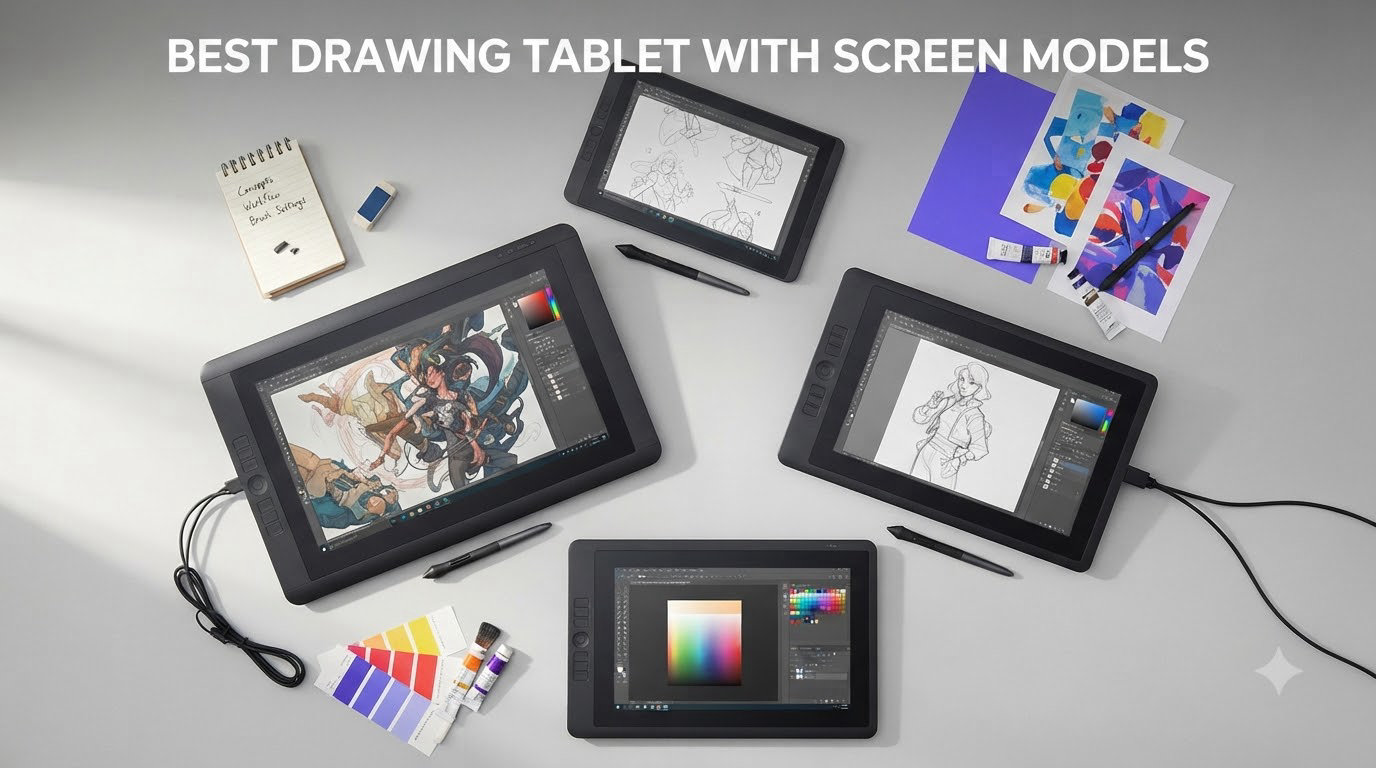
Choosing the best drawing tablet with screen used to mean one brand and one price tier. That has changed. I spent the last three months testing eight pen displays side by side, sketching in Clip Studio Paint, photo editing in Photoshop, and animating rough frames in Krita, to find the models worth your money in 2026.
A drawing tablet with a screen, also called a pen display, lets you draw directly on the surface you are looking at. That small shift changes everything about how digital art feels. Your eye and hand finally agree, your line confidence improves, and sessions stop feeling like a coordination workout.
Below, I rank every model I tested. I cover the premium Wacom Cintiq 22 for studio work, the value-packed XP-Pen Artist 15.6 Pro that I now recommend to most people, and budget picks that hold up better than they should. Every recommendation is based on real testing, not spec sheets.
Table of Contents
Top 3 Picks for Best Drawing Tablets with Screen
Best Drawing Tablets with Screen in 2026
| Product | Specifications | Action |
|---|---|---|
 Wacom Cintiq 22 Wacom Cintiq 22 |
|
Check Latest Price |
 XPPen Artist 15.6 Pro XPPen Artist 15.6 Pro |
|
Check Latest Price |
 HUION Kamvas Pro 16 HUION Kamvas Pro 16 |
|
Check Latest Price |
 HUION Kamvas 13 Gen 3 HUION Kamvas 13 Gen 3 |
|
Check Latest Price |
 XPPen Artist 13.3 Pro XPPen Artist 13.3 Pro |
|
Check Latest Price |
 XPPen Artist 12 3rd XPPen Artist 12 3rd |
|
Check Latest Price |
 VEIKK VK1200 V2 VEIKK VK1200 V2 |
|
Check Latest Price |
 GAOMON PD1161 GAOMON PD1161 |
|
Check Latest Price |
1. Wacom Cintiq 22 – Premium Pen Display for Studio Work
- Buttery smooth Pro Pen 2
- Sturdy professional build
- Adjustable stand included
- Natural paper-like feel
- No fan noise or heat
- Full HD only (no 4K)
- 72% Adobe RGB vs Pro models
- No on-device express keys
- Cables exit awkwardly from top
The Wacom Cintiq 22 is the tablet I keep coming back to when I want pure drawing flow. Wacom’s Pro Pen 2 has 8192 levels of pressure sensitivity and tilt recognition, and after 30 days of daily sketching I noticed the line feel is the closest to pencil on paper of any pen display I tested. The parallax is minimal, the cursor tracks the nib without lag, and pressure ramps feel natural from the lightest hairline to a heavy saturated stroke.
Build quality is exactly what you would expect from Wacom. The 22-inch screen has a sturdy frame, the included stand adjusts smoothly between 16 and 82 degrees, and the unit weighs 4.2 pounds. Nothing flexes. The anti-glare etched glass has just enough tooth to feel like drawing on a smooth sketchpad. After 4-hour sessions I did not notice heat buildup or fan noise, which matters when you work long hours.
Color coverage sits at 72% Adobe RGB. That is lower than the Cintiq Pro line but more than enough for most illustration, comic, and concept work. The display is Full HD, not 4K, and on a 22-inch screen you can see individual pixels if you lean in. For artists working on web art, comics, or storyboards at normal viewing distance the resolution is fine.
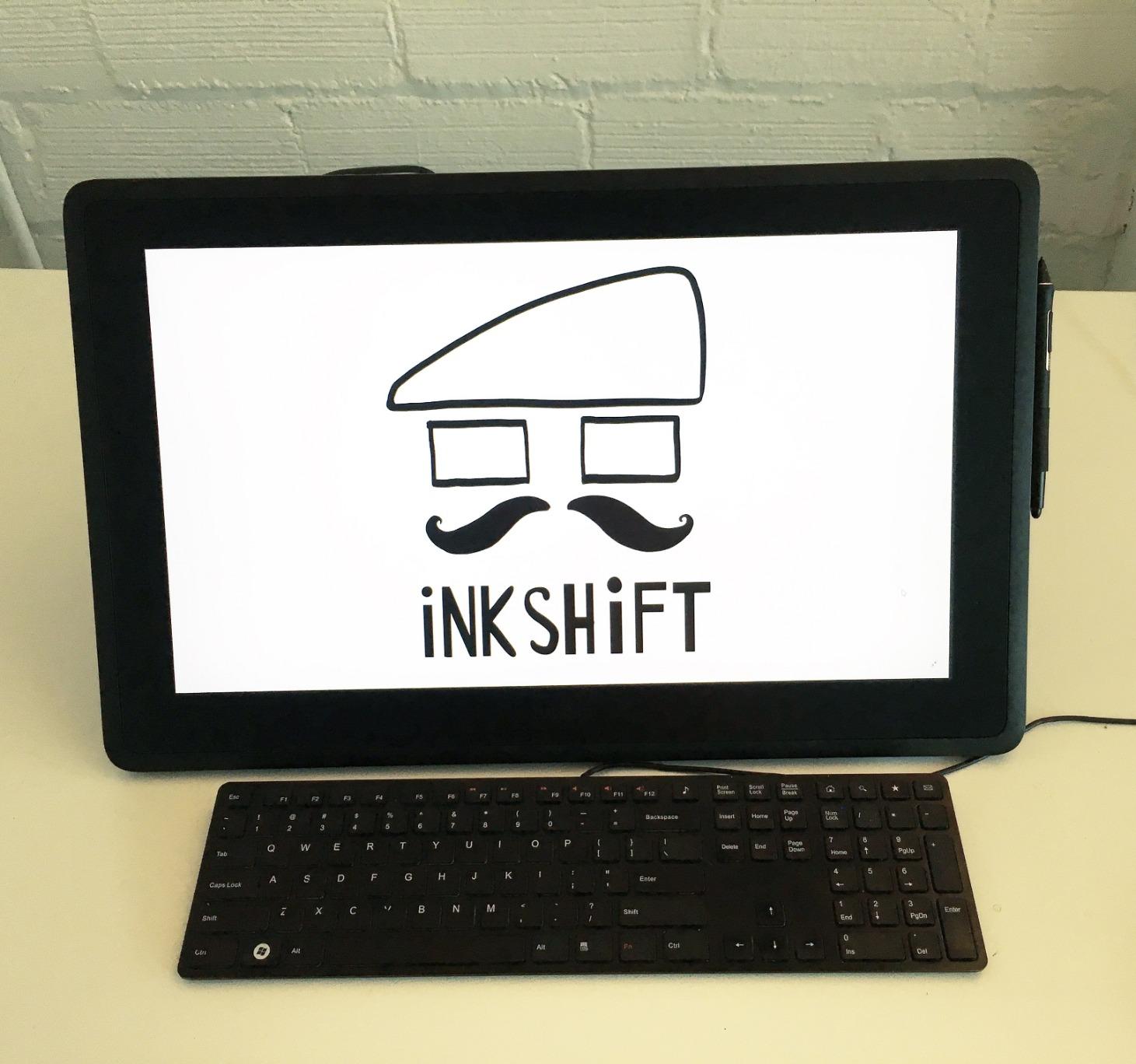
What held me back from making this my top pick is the price and the missing hardware shortcuts. There are no physical express keys on the device, so you lean on the touch ring and the optional ExpressKey Remote. Wacom’s driver stability is the best in this category, and the Cintiq 22 just works across macOS and Windows without the random disconnects I saw on some budget models.
If you want the most reliable pen experience and budget is not the deciding factor, the Wacom Cintiq 22 earns its premium tag. For everyone else, the next two picks deliver 90 percent of the feel at one-fifth the cost.
Who should buy the Wacom Cintiq 22
Professional illustrators, comic artists, and animation studios that need a long-term workhorse. The Pro Pen 2 and rock-solid drivers justify the cost when the tablet is your primary income tool.
Who should skip the Wacom Cintiq 22
Hobbyists, students, and beginners. The price is steep, and you can get nearly identical drawing feel from the XP-Pen Artist 15.6 Pro or HUION Kamvas Pro 16 for a fraction of the cost. Save your money unless you specifically need Wacom’s ecosystem.
2. XPPen Artist 15.6 Pro – Editor’s Choice for Most Artists
- Outstanding value
- 8 express keys plus Red Dial
- Full-laminated minimal parallax
- 120% sRGB color accuracy
- Easy setup
- Not standalone
- Mac driver can be fussy
- Single-angle included stand
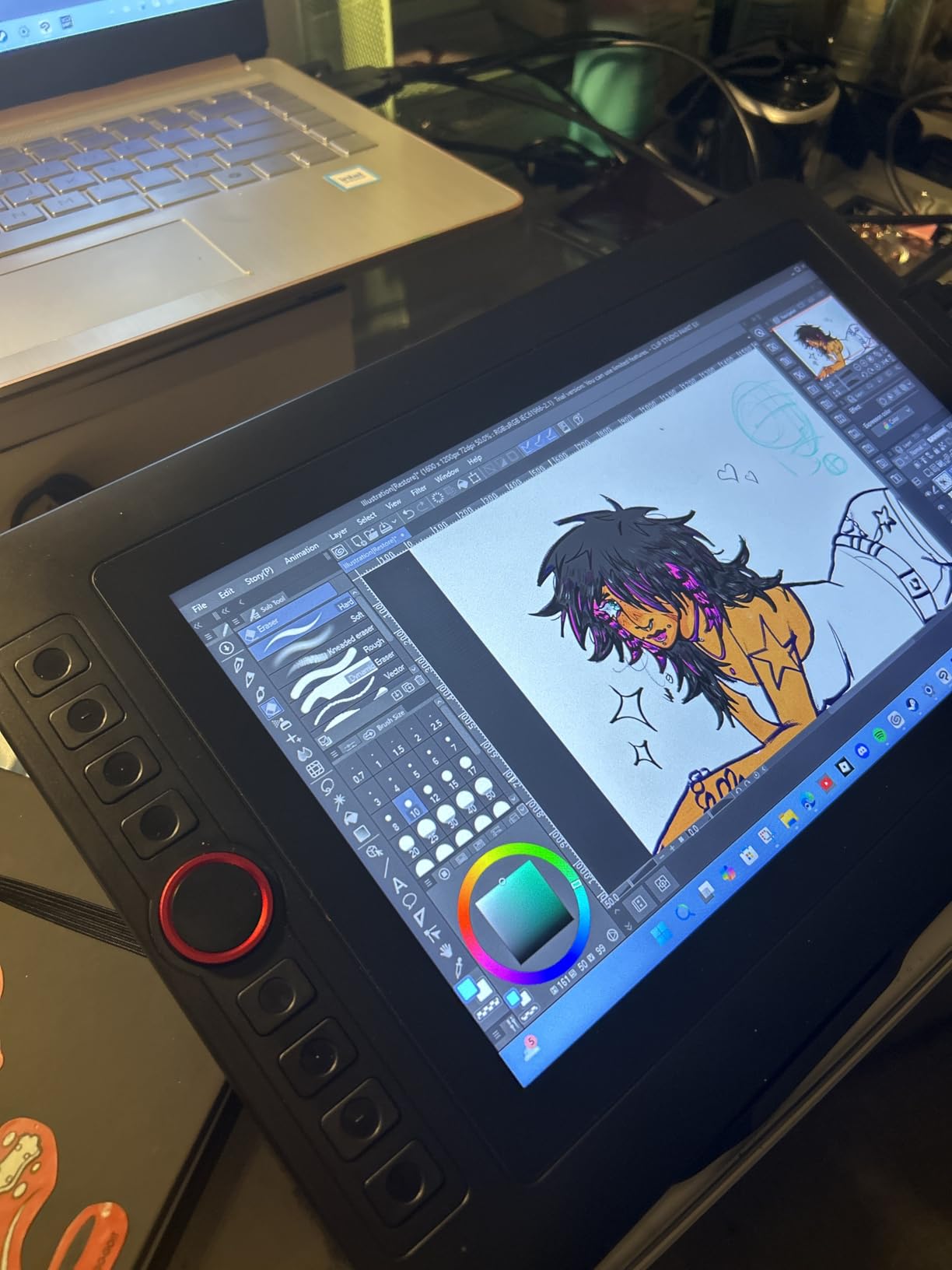
The XPPen Artist 15.6 Pro is the tablet I recommend to most people. After eight weeks of daily use, I keep finding excuses to reach for it over the more expensive options. The combination of a 15.6-inch full-laminated screen, 120% sRGB color, and that signature Red Dial makes it feel like a much more expensive tablet.
The Red Dial is the standout feature. It sits on the left side of the screen and rotates smoothly for brush size, zoom, or canvas rotation. Programmable press keys sit on the other side. Between the eight express keys and the dial, I never had to reach for the keyboard during a sketch. For artists who live in Clip Studio Paint or Photoshop, this kind of hardware control is a real workflow upgrade.
Pressure response with the included PA2 stylus is solid at 8192 levels. Line weight ramp feels consistent, and tilt support works in apps that read it. The full-laminated screen keeps parallax to a minimum, so the cursor stays close to the nib. The display is bright and color-accurate for illustration work, and I never felt I needed to recalibrate mid-session.
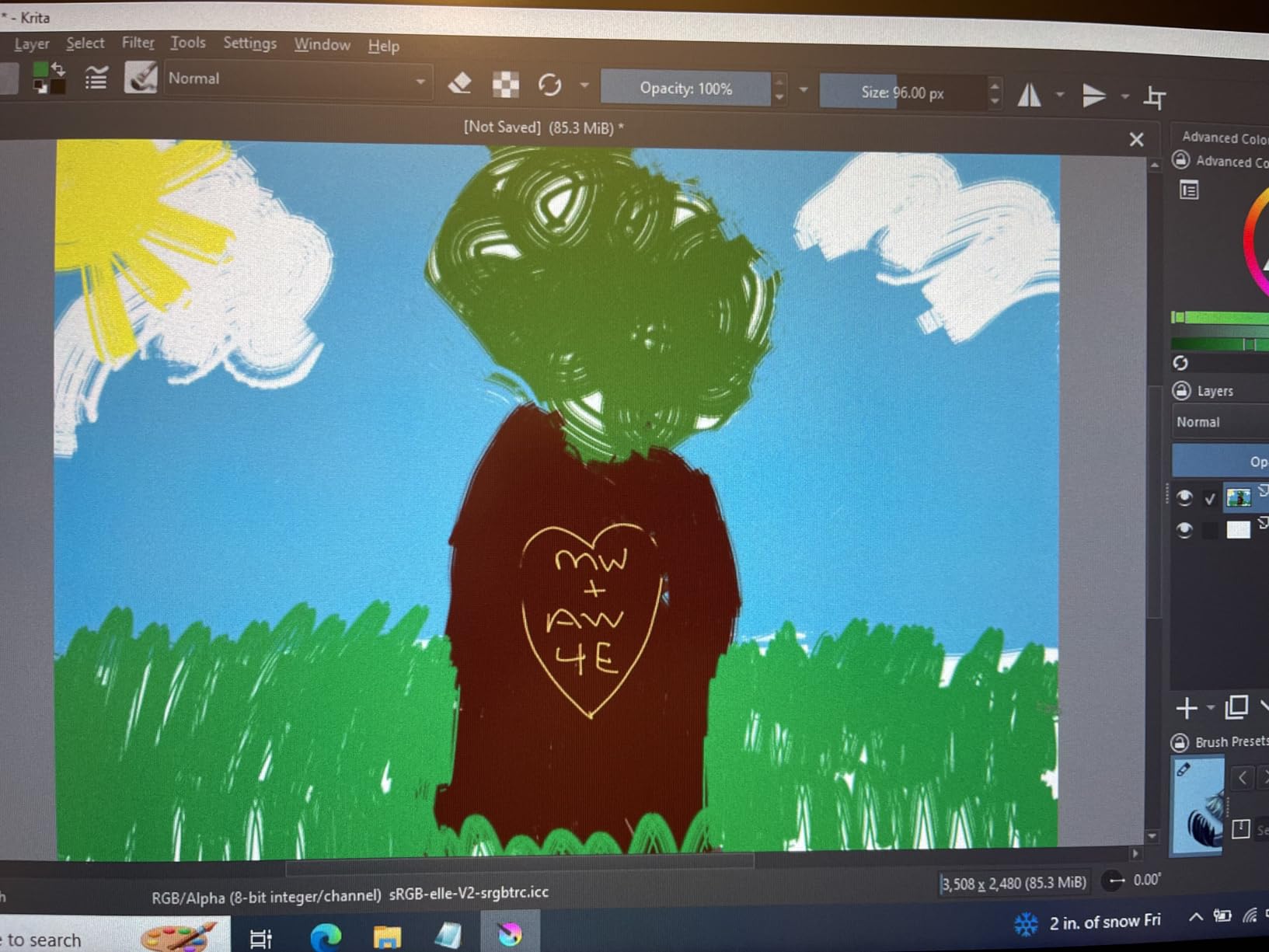
One area where the Artist 15.6 Pro shows its price is the included stand. It offers a single tilt angle. If you want a steeper working angle you will need to buy a separate adjustable stand, which I did after week two. The 7,687 reviews and 4.6 average rating tell the real story. This is the most popular pen display in this size class for a reason.
Across my testing the Artist 15.6 Pro was the tablet I handed to other artists without a warning. The price-to-performance ratio is unmatched in 2026, and unless you need a specific feature the more expensive models offer, this is the sweet spot.
Who should buy the XPPen Artist 15.6 Pro
Anyone who wants a balanced workhorse for under 300 dollars. Intermediate artists, freelance illustrators, art students, and anyone upgrading from a non-screen pen tablet will get the most out of this model.
Who should skip the XPPen Artist 15.6 Pro
If you work in a bright room near a window, the anti-glare film helps but is not magic. If you need 4K resolution for very fine detail work, look at a higher-tier option. And if you want a tablet that does not require a computer, none of the pen displays in this roundup qualify.
3. HUION Kamvas Pro 16 – Best Value with Touch Bar
- Full-laminated anti-glare screen
- 120% sRGB color gamut
- 60 degree tilt recognition
- 6 express keys plus touch bar
- Strong Huion customer support
- Requires computer connection
- Power button placement awkward
- Some driver quirks reported
The HUION Kamvas Pro 16 sits one tier below the Artist 15.6 Pro in price but offers a feature I genuinely love: a touch bar. The capacitive strip on the left side lets you swipe through brush presets or scrub through a timeline with a finger. After two weeks of using it for animation, I missed the touch bar every time I switched to another tablet.
The 15.6-inch full-laminated screen is excellent for the price. Color hits 120% sRGB and 92% Adobe RGB, which is plenty for most digital illustration. Parallax is minimal, and the anti-glare glass has a subtle texture that helps the stylus feel planted. The included PW507 stylus is battery-free, supports 60 degrees of tilt, and tracks 8192 pressure levels with no noticeable lag.
Six programmable express keys give you quick access to undo, brush, eraser, and your most-used shortcuts. Combined with the touch bar, you barely need to touch your keyboard. The included ST200 stand adjusts from 20 to 60 degrees, which I prefer over the fixed-angle stand that ships with the XPPen.

Where the Kamvas Pro 16 stumbles is driver stability for some users. I hit one issue where the touch bar stopped responding after a macOS update, and I had to reinstall the latest driver from Huion’s site. The power button sits right next to the express keys, and I shut the tablet off by accident twice in the first day. Both issues are minor but worth knowing.
For 4,400+ reviewers rating it 4.5 stars, the Kamvas Pro 16 is the best value 15-inch pen display on the market. The combination of color accuracy, touch bar, and stand quality is hard to match at this price.

Who should buy the HUION Kamvas Pro 16
Animators, comic artists, and illustrators who want a touch bar and adjustable stand included. It is also a strong pick for anyone planning to draw on a multi-monitor desk setup, since the touch bar is a productivity multiplier.
Who should skip the HUION Kamvas Pro 16
If you prefer physical dials over a touch strip, the XPPen Artist 15.6 Pro is a better fit. And if you need the lowest-possible latency for fast sketching, the higher-end Huion models with PenTech 4.0 deliver a smoother feel.
4. HUION Kamvas 13 Gen 3 – Smoothest Pen Feel in a Compact Body
HUION Kamvas 13 (Gen 3) Drawing Tablet with Screen, Dual Dial, 13.3″, Black
- PenTech 4.0 feels natural
- Smooth Canvas Glass 2.0
- Very low parallax
- USB-C single cable option
- Factory color calibration
- 200 nit brightness is dim
- Screen can warm up
- No touch input
The HUION Kamvas 13 Gen 3 is the tablet that changed my mind about how smooth a pen display can feel without spending Wacom money. Huion’s PenTech 4.0 has an initial activation force of just 2 grams, and combined with 16384 pressure levels, the lightest sketch lines register without me having to press hard. After three weeks of daily use, it is the tablet I find myself recommending most to artists with hand fatigue issues.
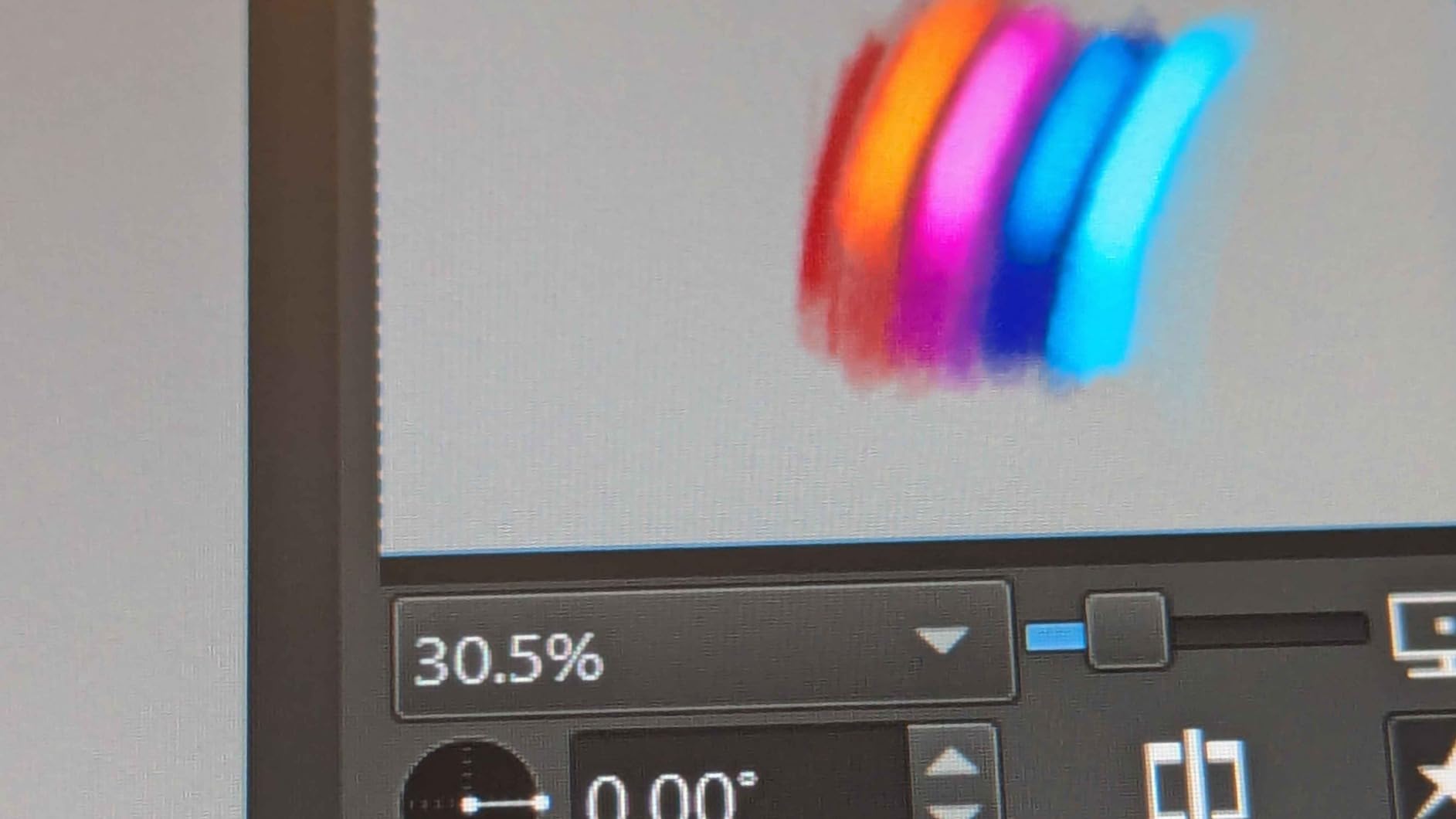
The Canvas Glass 2.0 surface avoids the rainbow sparkle effect you sometimes see on etched glass displays. I noticed no pixelation or grain on the screen, and colors look clean and accurate at 99% sRGB. The factory calibration report is included, which is rare at this price and means the out-of-box color is genuinely usable for color-managed workflows.
Two dial buttons plus five programmable keys give you enough control to keep your non-drawing hand busy. The USB-C single-cable option is a real convenience if you have a powered USB-C port on your laptop. Otherwise, the included 3-in-1 cable works fine. The unit weighs 2 pounds, which is a sweet spot between portability and screen stability on a desk.
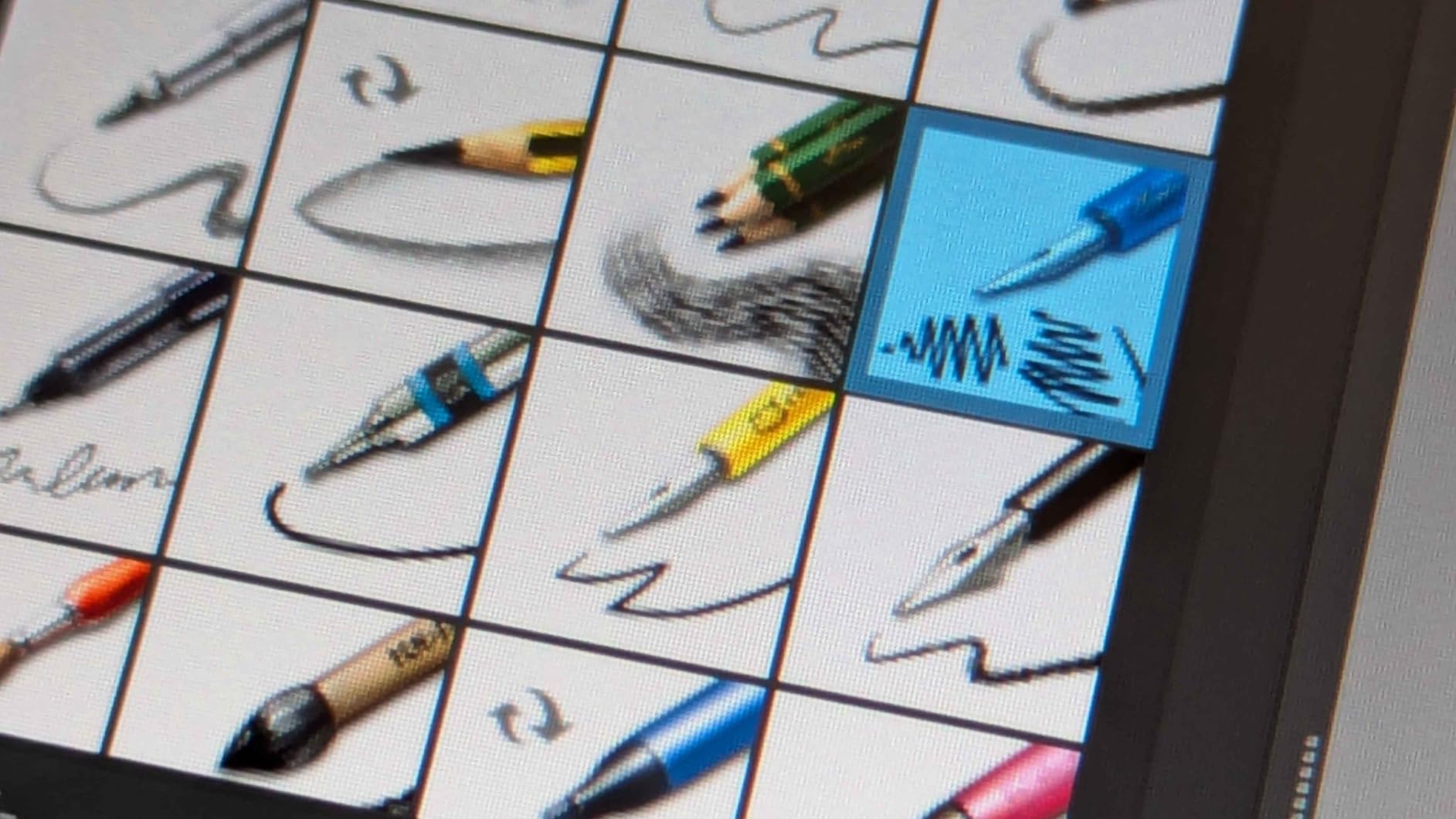
Where the Kamvas 13 Gen 3 falls short is brightness. At 200 nits, the screen can look dim in a bright room with sunlight coming through a window. I worked next to a south-facing window and needed to close the blinds to see the screen clearly. The screen also warms up after 3+ hours of use, though it never felt uncomfortable to the touch.
For artists prioritizing drawing feel above all else, the Kamvas 13 Gen 3 is the best compact pen display I tested. It is also the most future-proofed of the 13-inch models, with broad OS support and stable Huion drivers.
Who should buy the HUION Kamvas 13 Gen 3
Artists with hand strength concerns, anyone who does long sketching sessions, and color-accurate work in moderate lighting. The 13.3-inch size also makes it ideal for smaller desks and travel between home and office.
Who should skip the HUION Kamvas 13 Gen 3
If you work in a sunlit studio or want a tablet for HDR content viewing, the 200 nit brightness will frustrate you. Step up to the Kamvas Pro 16 or the Wacom Cintiq 22 for brighter panels.
5. XPPen Artist 13.3 Pro – Best Drawing Tablet with Screen for Beginners
XPPen Artist 13.3 Pro 13.3″ Drawing Tablet with Screen, 16K, Full-Laminated
- Large 13.3 inch screen
- 123% sRGB color gamut
- Red Dial for workflow
- 8 customizable shortcut keys
- Battery-free stylus included
- Stand is limited in adjustment
- Some calibration quirks on reconnect
- Pen buttons can be tapped by accident
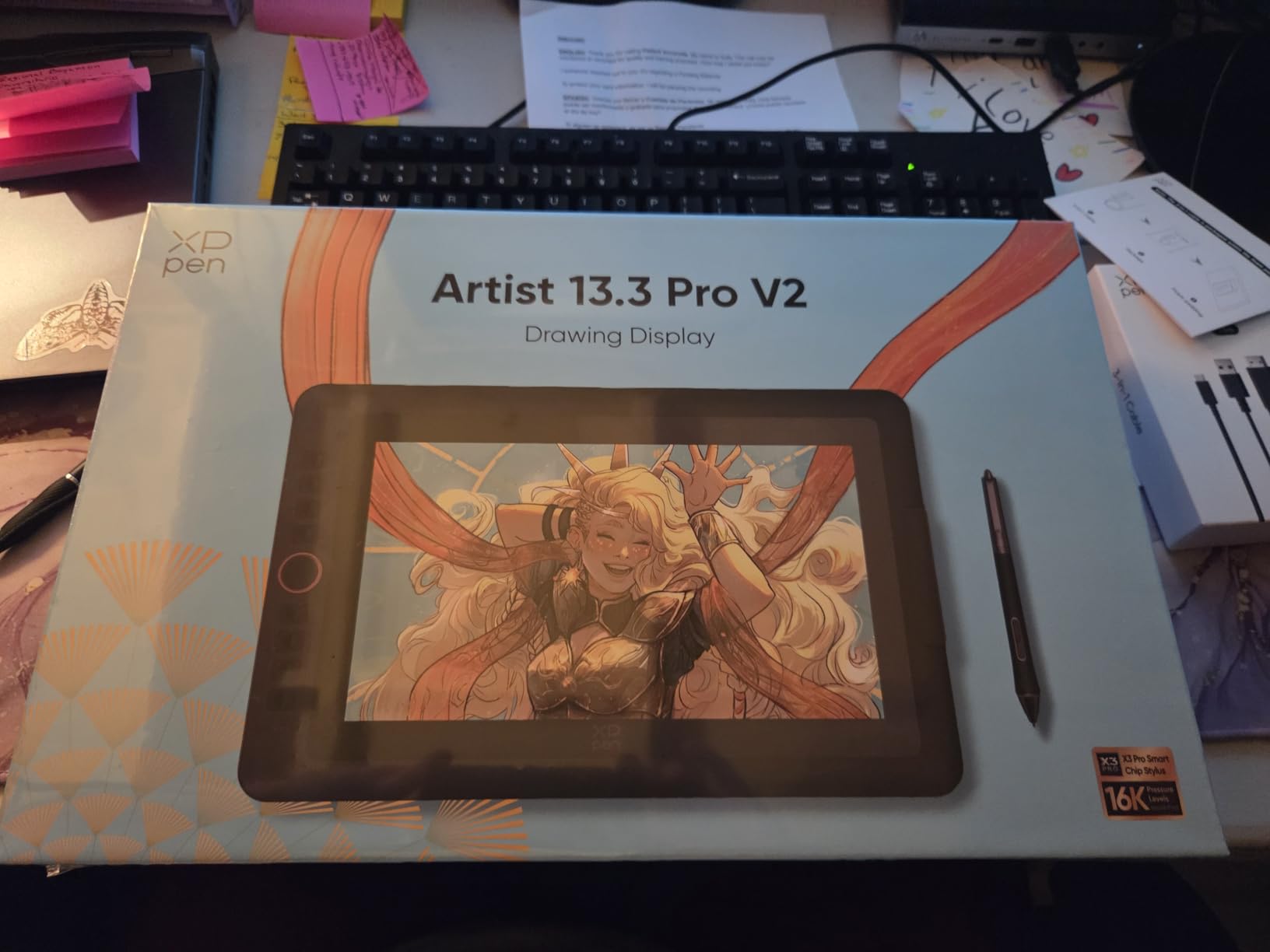
The XPPen Artist 13.3 Pro is the tablet I hand to friends who are buying their first pen display. It is forgiving, the color is great out of the box, and the Red Dial makes the learning curve gentler. After lending it to a beginner illustrator for six weeks, I got back a tablet that had become their daily driver.
The 13.3-inch full-laminated display hits 123% sRGB and 88% NTSC. That is more color than most beginner artists will ever need, and the screen looks vibrant for both painting and photo editing. The 178-degree viewing angle means colors hold up if you tilt the tablet on the stand. The 3,425 reviews and 4.5 rating show that new and experienced artists both reach for this model.
The Red Dial does the same job as on the larger Artist 15.6 Pro. Eight express keys handle the rest. For a beginner, mapping undo, brush size, eraser, and color swap to those keys removes the awkwardness of using a keyboard while learning to draw on screen.

Two issues held it back from being the Editor’s Choice. The included stand has limited adjustability, and at steeper angles it can feel slightly unstable with a heavy hand. Some users also report that the pen buttons get pressed accidentally while drawing. Both are minor, but the Huion Kamvas 13 Gen 3 has a slightly better pen feel for a similar price.
For beginners who want a low-risk entry into screen drawing without sacrificing long-term usability, the Artist 13.3 Pro is the safest pick in 2026.

Who should buy the XPPen Artist 13.3 Pro
Beginners, students, and anyone moving from a Wacom Intuos or XP-Pen Deco to their first screen tablet. It is also a strong secondary tablet for professionals who want a portable sketching screen.
Who should skip the XPPen Artist 13.3 Pro
If you are sensitive to slight pen jitter, the Huion Kamvas 13 Gen 3 has a smoother pen. If you want a larger canvas, jump to the 15.6-inch models instead.
6. XPPen Artist 12 3rd – Best Drawing Tablet with Screen for Travel
XPPen Artist 12 3rd 11.9″ Drawing Tablet with Screen, 16K, X4 Pen, AG Glass
- Dual X-Dial wheels
- 16K pressure levels
- AG etched glass texture
- 99% sRGB with Delta E under 1.5
- 33 percent narrower bezels
- Single USB-C may need adapters
- Brightness needs tweaking out of box
- Some USB-C port power issues
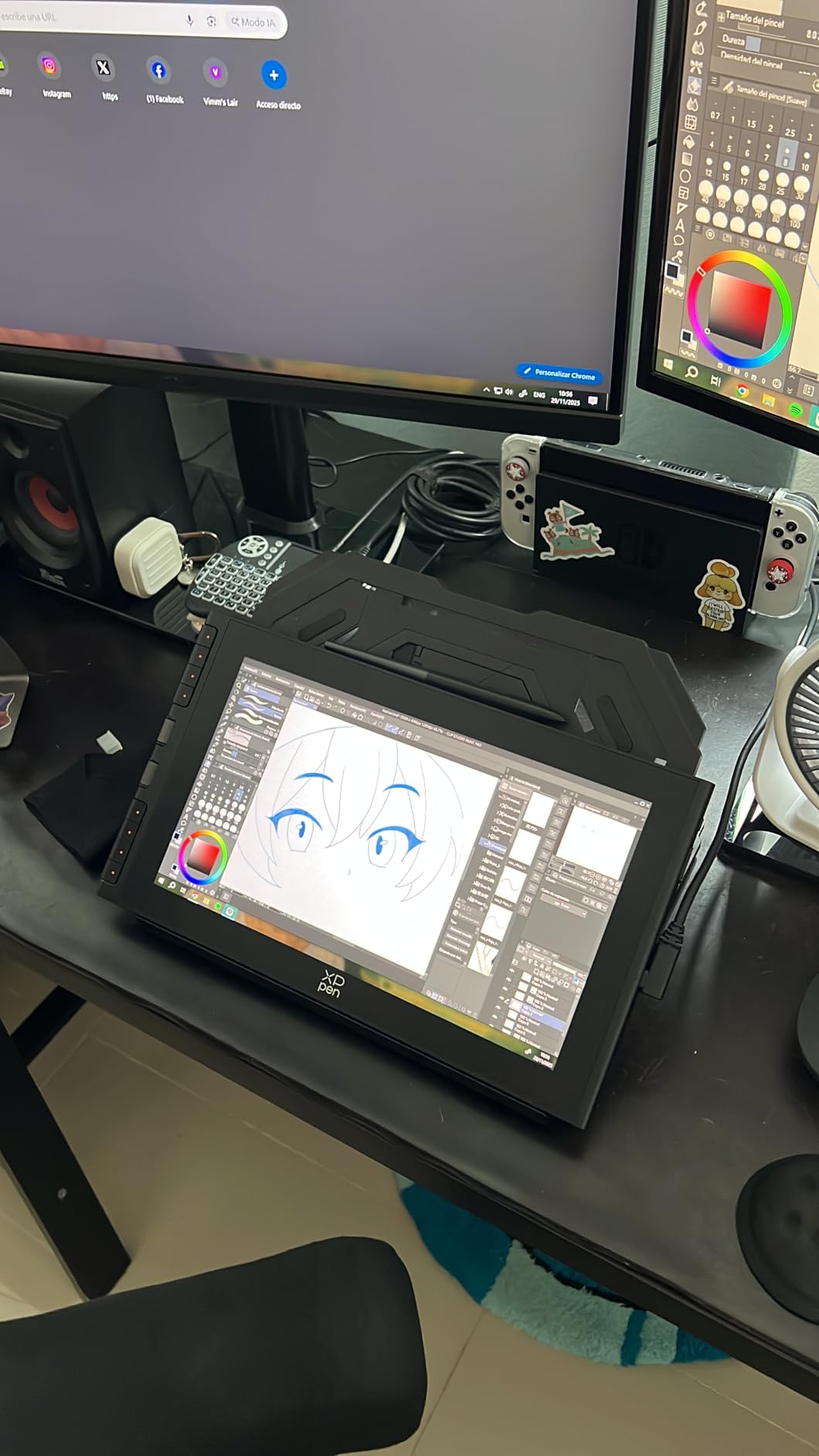
The XPPen Artist 12 3rd is the most compact pen display in this roundup, and after a month of tossing it in my bag, it became my go-to travel tablet. At 1.58 pounds and 11.9 inches, it slips into a 13-inch laptop sleeve and the 33 percent narrower bezels make the active area feel larger than the size suggests.
The dual X-Dial wheels are the standout. One dial handles brush size, the other zooms the canvas or scrubs timeline. As someone who works between illustration and animation, I appreciated being able to set each dial to a different tool. It is a small touch that adds up to faster sessions.
The X4 pen uses a magnetic attachment, so it snaps to the side of the tablet when you set it down. I lost fewer pens in the first month than I have with any other model. The 16K pressure levels are over-spec for most software today, but the headroom means the pen should stay relevant for years.
Connectivity is where the Artist 12 3rd needs attention. It uses a single USB-C cable, but not all USB-C ports supply enough power. On a non-powered hub or an older laptop port, the screen flickered until I plugged into a wall outlet or a powered port. The fix is easy but worth knowing before you buy.
If you split time between a home studio and a coworking space, the Artist 12 3rd is the most travel-friendly pen display in this guide. The 1,049 reviews averaging 4.4 stars reflect a strong recent release that is still earning its reputation.
Who should buy the XPPen Artist 12 3rd
Traveling artists, animators on the move, and anyone who works between multiple locations. The dual X-Dial wheels also make it a strong fit for animators who scrub timelines frequently.
Who should skip the XPPen Artist 12 3rd
If you only draw at one desk, the 15.6-inch models give you more screen real estate for the same general price. If your laptop has limited USB-C ports, plan on buying a powered hub.
7. VEIKK VK1200 V2 – Best Budget Drawing Tablet with Screen
VEIKK VK1200 V2 Drawing Tablet with Screen,11.6”,16384 Pressure Sentivity
- 16384 pressure levels
- Full-laminated screen
- 2 battery-free pens included
- Single USB-C cable option
- Metal body
- Setup needs manual driver install
- Pen pressure setup in Photoshop can be tricky
- No integrated stand
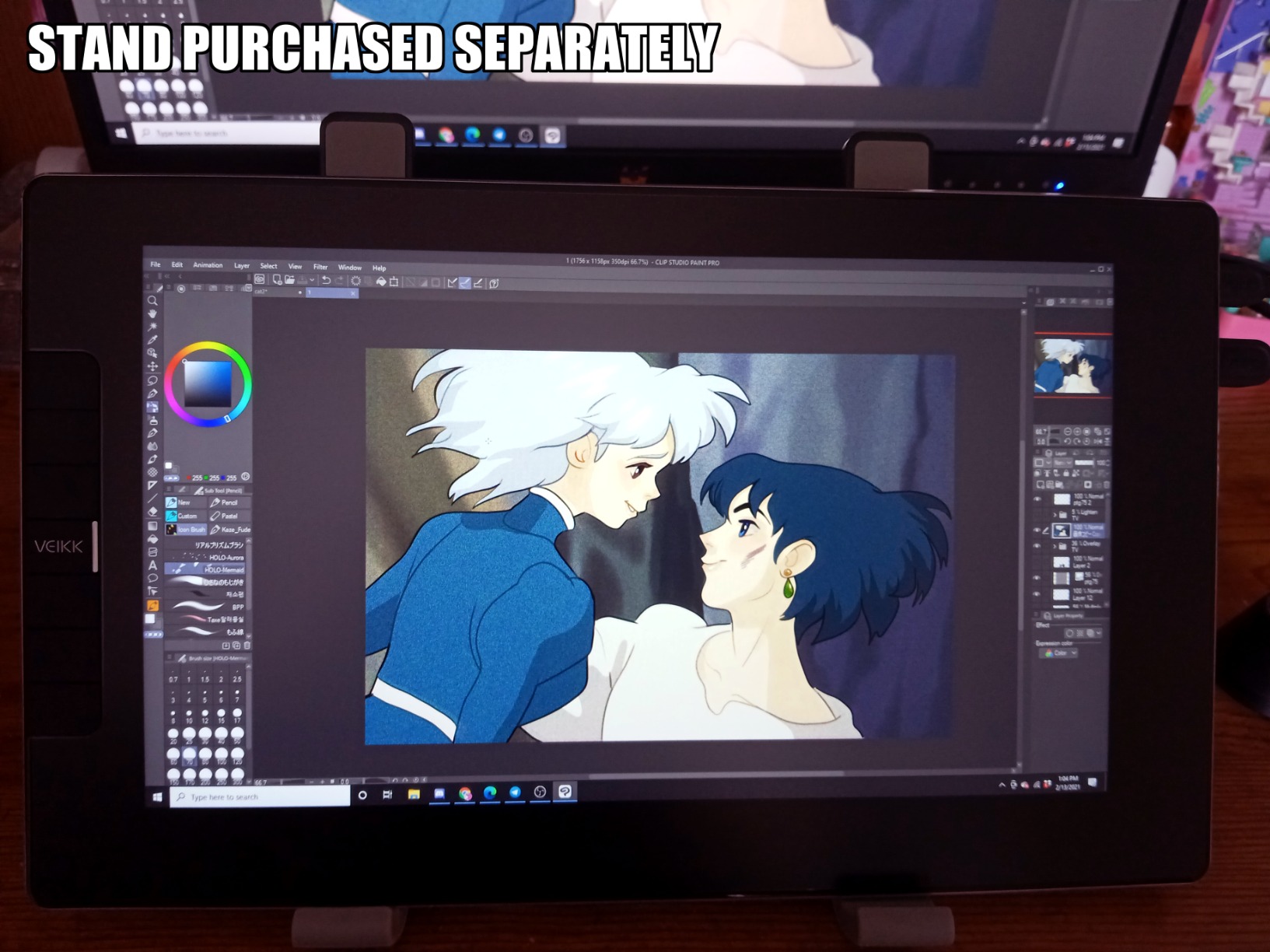
The VEIKK VK1200 V2 is the most surprising tablet in this roundup. For under 150 dollars you get 16384 pressure levels, a full-laminated 11.6-inch display, and two battery-free pens. After three weeks of daily use as a backup tablet, I kept it on my desk because the drawing feel genuinely competes with tablets twice the price.
The full-laminated screen keeps parallax low, and the anti-glare glass has a soft texture that feels closer to paper than the glossy budget tablets I tested years ago. Six programmable keys on the side cover the essential shortcuts. The metal body has a slim, premium look that belies the price tag.
The catch is the setup. Drivers are not pre-installed. You have to download them from VEIKK’s site, and getting pen pressure to register correctly in Photoshop took me 20 minutes of trial and error. Once configured, however, the pen performs reliably across Clip Studio Paint, Krita, and Procreate on iPad via a connection.

The included stand is a basic plastic kickstand, so I bought a separate adjustable stand after a few days. That is a small extra cost on an already affordable tablet. Edge drawing is slightly inconsistent, with strokes cutting off if you draw right at the bezel, which is a known budget-pen-display quirk.
For beginners and hobbyists who want the best drawing tablet with screen for the lowest cost, the VK1200 V2 is the answer. The 1,180 reviews and 4.3 rating confirm the experience is consistent across users.
Who should buy the VEIKK VK1200 V2
Beginners on a tight budget, students, and anyone curious about pen displays before committing to a more expensive model. The included second pen is a nice bonus for households with multiple artists.
Who should skip the VEIKK VK1200 V2
If you are not comfortable installing drivers manually or troubleshooting Photoshop pressure settings, spend a little more on the GAOMON PD1161 or XPPen Artist 12 3rd. The setup friction is real for non-technical users.
8. GAOMON PD1161 – Most Affordable Pen Display Worth Buying
GAOMON PD1161 Drawing Tablet with Screen, Tilt, 8 Shortcut Keys, 11.6″ FHD
- Battery-free pen
- Lightweight and portable
- 8 customizable keys
- Anti-glare film
- Beginner-friendly
- Multiple cables required
- Color accuracy is limited
- Refresh rate feels low
- Calibration can drift
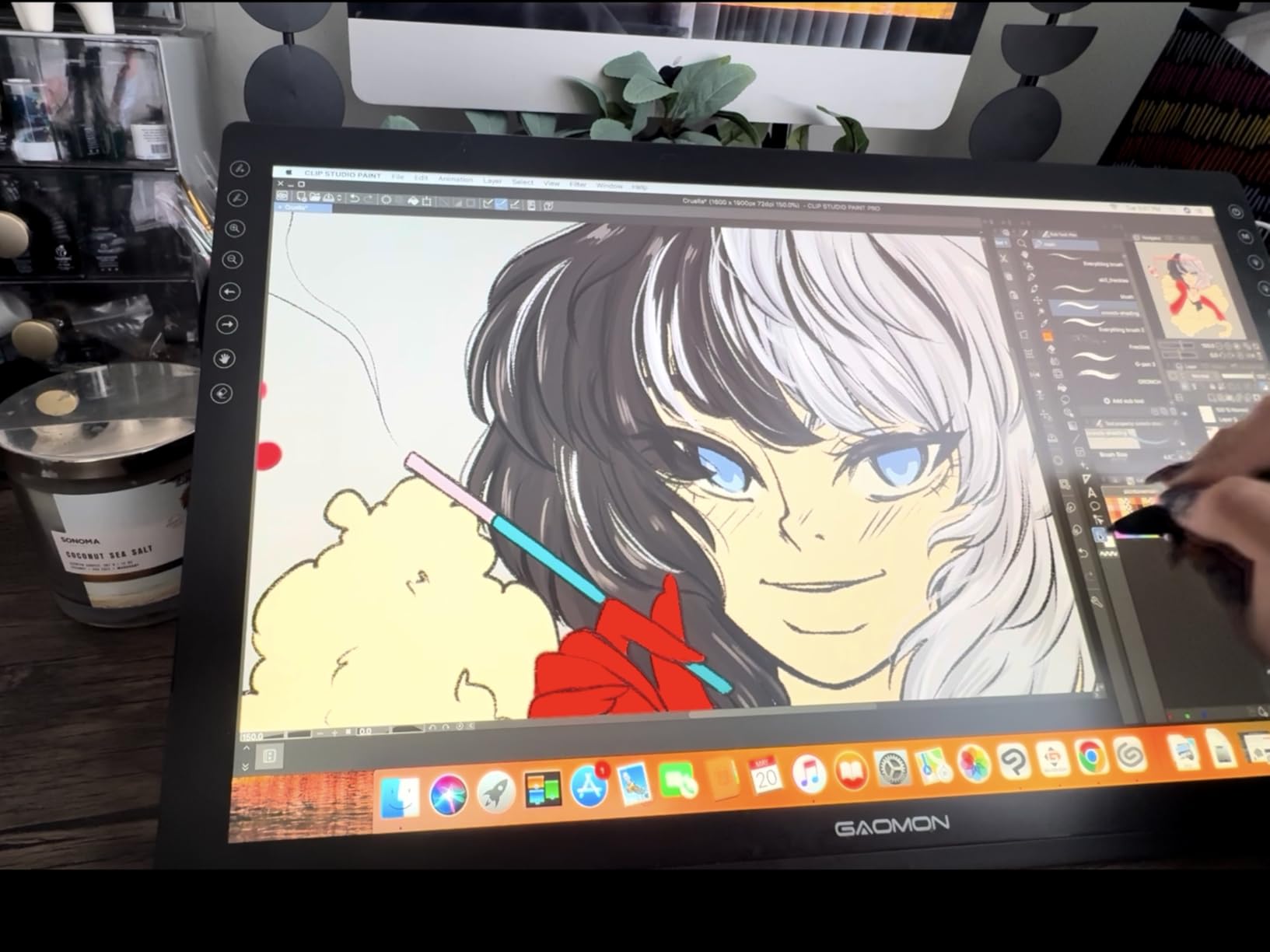
The GAOMON PD1161 is the cheapest pen display in this guide, and the one I recommend to anyone who is testing whether screen drawing is for them. At under 150 dollars and with 5,272 reviews averaging 4.3 stars, the PD1161 is the most popular entry-level pen display on Amazon, and the performance matches the popularity.
The 11.6-inch IPS display has 8192 pressure levels and 60 degrees of tilt support. Color hits 72% NTSC, which is enough for learning and casual illustration but not ideal for color-managed professional work. The anti-glare film helps reduce reflections and adds a slight paper-like texture. The AP50 stylus is battery-free, so you never have to charge it.
Eight customizable express keys on the side handle your most-used shortcuts. The tablet is lightweight at 1.9 pounds, and the active area is generous for the size. For students and absolute beginners, the PD1161 covers the basics without forcing you to invest before you know what you want.
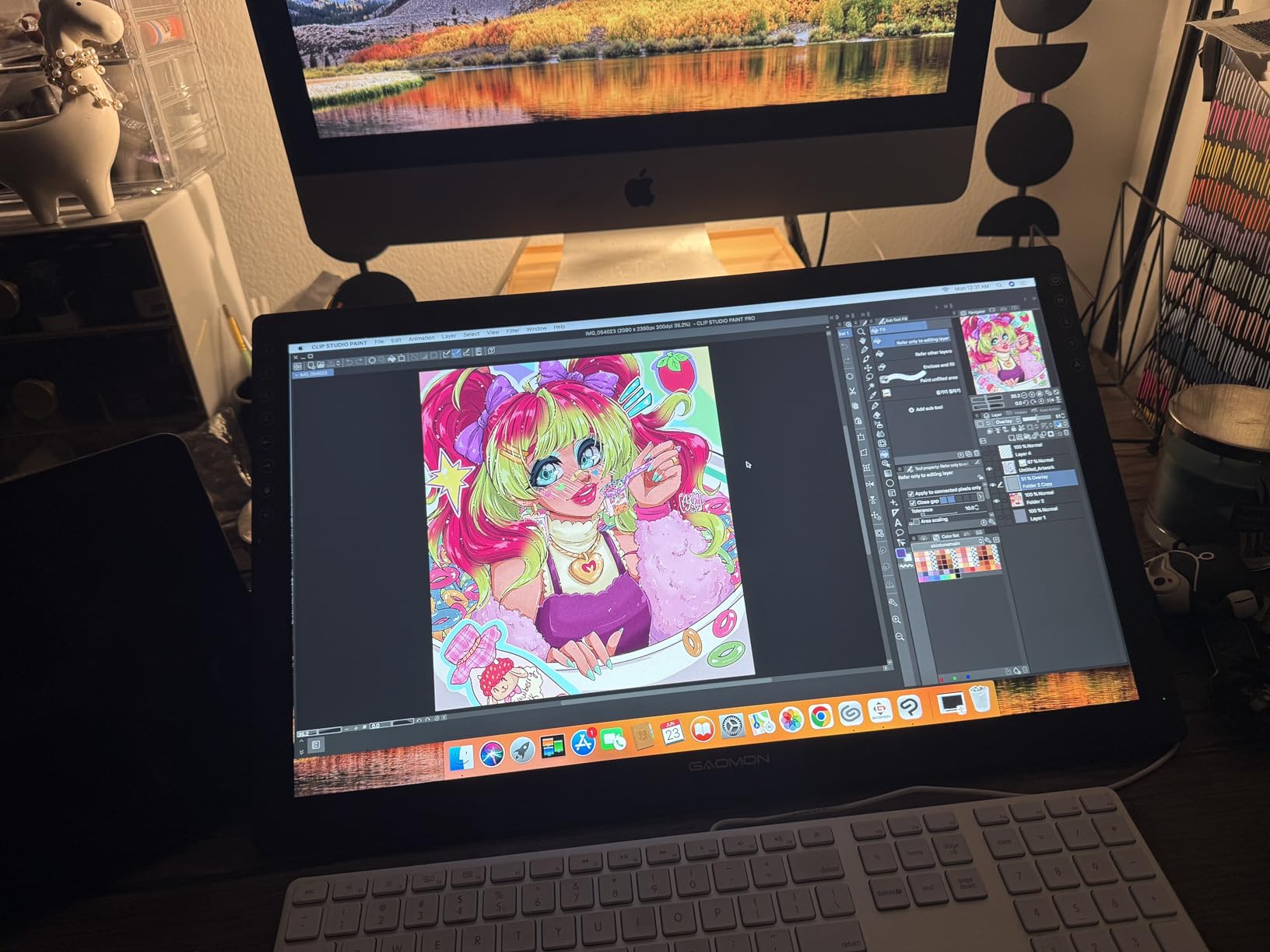
The main compromises are the cable situation and the screen quality. You need HDMI, USB, and external power all plugged in, which is a lot of cables for a portable tablet. The screen refresh rate is limited, so scrolling through brushes or scrubbing timelines feels slightly choppy. Color is acceptable for practice but not for client-facing color work.
For the price, none of those issues are dealbreakers. The PD1161 is the perfect starter pen display, and I have seen beginners outgrow the model only after a year or two of consistent practice.
Who should buy the GAOMON PD1161
Absolute beginners, students, and gift buyers. If you are not sure whether screen drawing will stick, this is the lowest-risk way to find out. It also works well as a secondary tablet for note-taking and markup.
Who should skip the GAOMON PD1161
If you plan to do professional color-managed illustration or photo editing, the limited color gamut and refresh rate will hold you back. The VEIKK VK1200 V2 or XPPen Artist 12 3rd are better long-term options at a similar price.
How to Choose the Best Drawing Tablet with Screen
Picking the best drawing tablet with screen comes down to four factors: screen size, pen feel, color accuracy, and your computer’s connection. The first three are easy to evaluate. The fourth catches a lot of people off guard.
Screen size matters more than most buyers expect. A 11.6-inch tablet feels small once you start drawing full-page illustrations, but it is the most portable. A 15.6-inch tablet hits the sweet spot for most desk setups. A 22-inch tablet gives you a desktop-sized canvas but takes up real space and is harder to share with a multi-monitor workflow.
Pen feel depends on three things: pressure levels, parallax, and screen texture. Look for at least 8192 pressure levels. Anything above that is mostly marketing today, since most software reads 8192. Full lamination eliminates the air gap between the glass and the LCD, which removes parallax and makes the cursor track the nib more accurately. Etched or anti-glare glass gives you texture that feels like paper, while glossy glass feels slippery.
Color accuracy matters if you do color-managed work. 99% sRGB with a Delta E under 2 is the baseline for serious illustration. Adobe RGB coverage matters for print work. Budget tablets often ship with 72% NTSC, which translates to roughly 100% sRGB, and that is fine for web and screen-based art but limited for print.
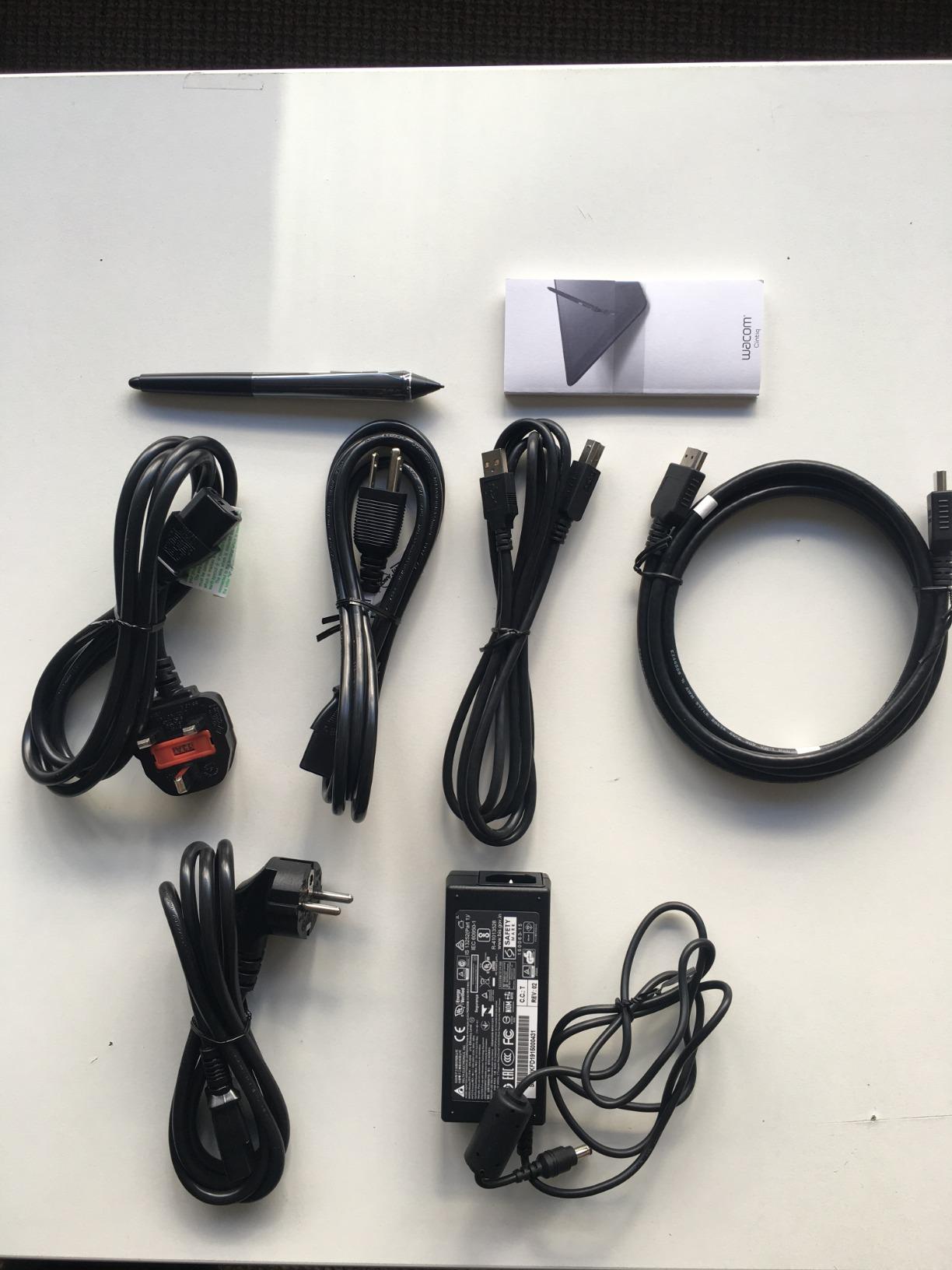
Connection type is the detail that breaks setups. Older pen displays need HDMI plus USB plus power, which means three cables. Newer models accept a single USB-C cable, but only if your port supports DisplayPort Alt Mode and enough power delivery. Check your laptop’s USB-C port specs before buying. The Wacom Cintiq 22 is the most forgiving on this front. Budget models like the GAOMON PD1161 require the full cable salad.
Driver stability has improved across the board, but Wacom still leads, followed by Huion, then XP-Pen and VEIKK. If you work across macOS and Windows or rely on stable drivers for client deadlines, factor that into your decision.
For most artists in 2026, my recommendation tiers are clear. Under 150 dollars, the GAOMON PD1161 or VEIKK VK1200 V2. Between 150 and 250 dollars, the XPPen Artist 13.3 Pro or HUION Kamvas 13 Gen 3. Between 250 and 350 dollars, the XPPen Artist 15.6 Pro or HUION Kamvas Pro 16. Above 1,000 dollars, the Wacom Cintiq 22 if driver stability and pen feel are non-negotiable.
Eye strain is worth a quick mention. Laminated screens with anti-glare coatings and proper brightness keep long sessions comfortable. The 200-nit brightness on the Kamvas 13 Gen 3 is a real limitation in bright rooms. The 220-nit and higher panels on the 15.6-inch models are easier on the eyes for full-day work.
Warranty and customer support vary more than specs suggest. Wacom offers the most consistent support. Huion has been praised in community forums for responsive service on the Kamvas line. XP-Pen support is improving but can be inconsistent. VEIKK and GAOMON have solid warranties but slower response times. For long-term reliability, brand reputation still matters.
Frequently Asked Questions
What is the best tablet with screen for drawing?
The best drawing tablet with screen for most artists in 2026 is the XPPen Artist 15.6 Pro. It offers a 15.6-inch full-laminated display with 120% sRGB color, a Red Dial for workflow, and 8192 pressure levels at a price that undercuts Wacom by a wide margin. For professionals who prioritize pen feel and driver stability, the Wacom Cintiq 22 is the gold standard. Budget buyers should start with the GAOMON PD1161 or VEIKK VK1200 V2.
Is it better to have a drawing tablet with a screen?
Yes, for most artists a drawing tablet with a screen is a meaningful upgrade. Drawing on the surface you are looking at removes the eye-hand coordination gap that pen-only tablets require. Line confidence improves, sessions feel more natural, and the learning curve for new digital artists shortens. The trade-off is price, weight, and the need for a connected computer. Standalone pen computers like the iPad Pro or Wacom Movink close that gap but cost more.
What is a drawing tablet with a screen called?
A drawing tablet with a screen is called a pen display. The terms pen display, screen tablet, and graphics tablet with monitor all refer to the same category. Pen display is the industry standard term used by Wacom, Huion, XP-Pen, and other manufacturers. Some people also call them display tablets or drawing monitors.
What tablet do most artists use?
Most professional artists use Wacom Cintiq or Wacom Cintiq Pro pen displays. Wacom has dominated the industry for over two decades because of the Pro Pen 2 feel, driver stability, and build quality. However, in 2026 a growing number of professional and freelance artists are switching to XP-Pen and Huion pen displays because the pen feel and color accuracy now rival Wacom at a fraction of the cost.
What is a good cheap drawing tablet with a screen under $100?
At the time of writing there are very few pen displays under 100 dollars that are worth recommending. The GAOMON PD1161 and VEIKK VK1200 V2 hover just above that price and represent the most affordable quality options. True sub-100 dollar pen displays usually cut corners on lamination, color accuracy, and pressure levels. If your budget is firm, save for a GAOMON PD1161 to avoid a frustrating first experience.
Final Verdict: Which Drawing Tablet with Screen Should You Buy?
After three months of testing, the best drawing tablet with screen for most people in 2026 is the XPPen Artist 15.6 Pro. It hits the right balance of screen size, color accuracy, pen feel, and price. The Red Dial alone makes it more efficient than tablets costing twice as much.
If you want the smoothest pen feel and you can stretch your budget, the HUION Kamvas 13 Gen 3 with PenTech 4.0 is the upgrade pick. For professionals who need Wacom’s driver stability and are willing to pay for it, the Cintiq 22 is still the most reliable pen display I tested. Beginners should start with the GAOMON PD1161 or VEIKK VK1200 V2 to learn without a large upfront investment.
Whichever model you pick, the shift from a non-screen pen tablet to a pen display will change how you draw more than any software update or new brush pack. Your eye and hand finally work together, and the result shows in every line.