
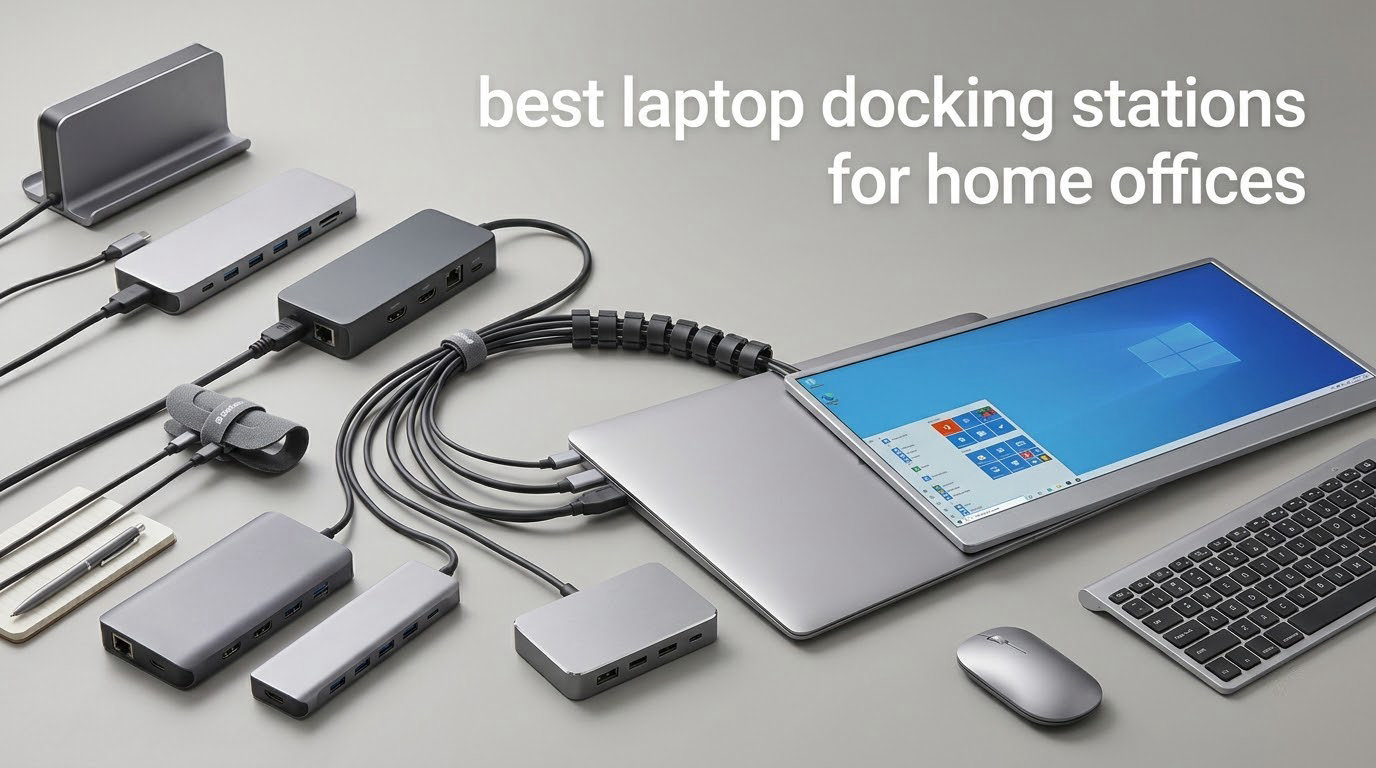
Unplugging four cables at the end of a workday and plugging four back in the next morning costs somewhere around 60 to 90 seconds of your life, twice a day, for years. A laptop docking station collapses that to a single cable and about two seconds. That is the whole argument, and it is why the best laptop docking stations for home offices have become the single highest-impact upgrade most remote workers can make to a desk.
We looked at 12 docks for this guide, covering every connection tier you are likely to meet: Thunderbolt 5, Thunderbolt 4, plain USB-C with DisplayPort Alternate Mode, and universal USB 3.0 docks that work with older laptops. We scored them on connection bandwidth, display capability, power delivery, port mix and per-port speed, build and thermals, and long-term support coverage, then matched each one to the desk it actually suits. We earn a commission from qualifying purchases made through the links on this page, and that does not change the order of the rankings.
This guide is written for people who sit at one fixed desk with two or more peripherals, and for MacBook Air and base-chip MacBook Pro owners who want a second external screen. If you move constantly with a single monitor, skip to the budget section, because a small hub will serve you better than anything on this list.
Updated for October 2026. Product specifications and ratings reflect the data available when this guide was written.
Table of Contents
Top 3 Picks for a Home Office Dock (October 2026)
Three docks cover the widest range of home office setups. The Plugable UD-3900 is the one to buy if you want something that simply works across platforms. The UGREEN 10-in-1 is the cheapest route to dual 4K. The CalDigit TS4 is the one you keep for a decade.

Plugable UD-3900 Universal Dock
- 2x HDMI
- gigabit Ethernet
- 6 USB ports
- 12-in-1
- works with USB-A laptops

UGREEN 10-in-1 USB-C Dock
- Dual 4K at 60Hz
- 85W charging
- gigabit Ethernet
- SD and microSD readers

CalDigit TS4 Thunderbolt 4 Dock
- 18 ports
- 98W charging
- 2.5GbE
- 8K on Windows
- dual 6K on Pro chips
All 12 Laptop Docking Stations Compared in 2026
Every dock below shares one bandwidth budget across displays, data and charging, which is why connection standard matters more than any other spec. Read the display output column first, then the charging column, then everything else.
| Product | Specifications | Action |
|---|---|---|
| Plugable UD-3900 Universal Dock |
|
Check Latest Price |
| UGREEN 10-in-1 USB-C Dock |
|
Check Latest Price |
| CalDigit TS4 Thunderbolt 4 Dock |
|
Check Latest Price |
 WAVLINK 13-Port Triple 4K DisplayLink Dock WAVLINK 13-Port Triple 4K DisplayLink Dock |
|
Check Latest Price |
 Plugable UD-ULTCDL 13-in-1 Triple Monitor Dock Plugable UD-ULTCDL 13-in-1 Triple Monitor Dock |
|
Check Latest Price |
 Dell Pro Dock WD25 Dell Pro Dock WD25 |
|
Check Latest Price |
 Anker Prime 14-in-1 Dock Anker Prime 14-in-1 Dock |
|
Check Latest Price |
 Anker Nano 13-in-1 Dock with Detachable Hub Anker Nano 13-in-1 Dock with Detachable Hub |
|
Check Latest Price |
 Plugable 16-in-1 Thunderbolt 4 Dock Plugable 16-in-1 Thunderbolt 4 Dock |
|
Check Latest Price |
 UGREEN 8-in-1 Thunderbolt 4 Dock UGREEN 8-in-1 Thunderbolt 4 Dock |
|
Check Latest Price |
 Anker Prime TB5 Thunderbolt 5 Dock Anker Prime TB5 Thunderbolt 5 Dock |
|
Check Latest Price |
 WAVLINK DisplayLink Dual 4K Dock WAVLINK DisplayLink Dual 4K Dock |
|
Check Latest Price |
1. Plugable UD-3900 – The Dock That Works With Whatever Laptop You Own
- Works with Windows
- Mac and ChromeOS from a single cable
- Adds gigabit Ethernet
- audio and six USB ports to port-sparse laptops
- Plug-and-play on Windows 10 and 11 through Windows Update
- Two-year warranty with lifetime technical support
- Dual monitors cap at 1920x1200 at 60Hz with no 4K support
- Does not charge the host laptop
- macOS 14 and later needs the DisplayLink driver installed manually
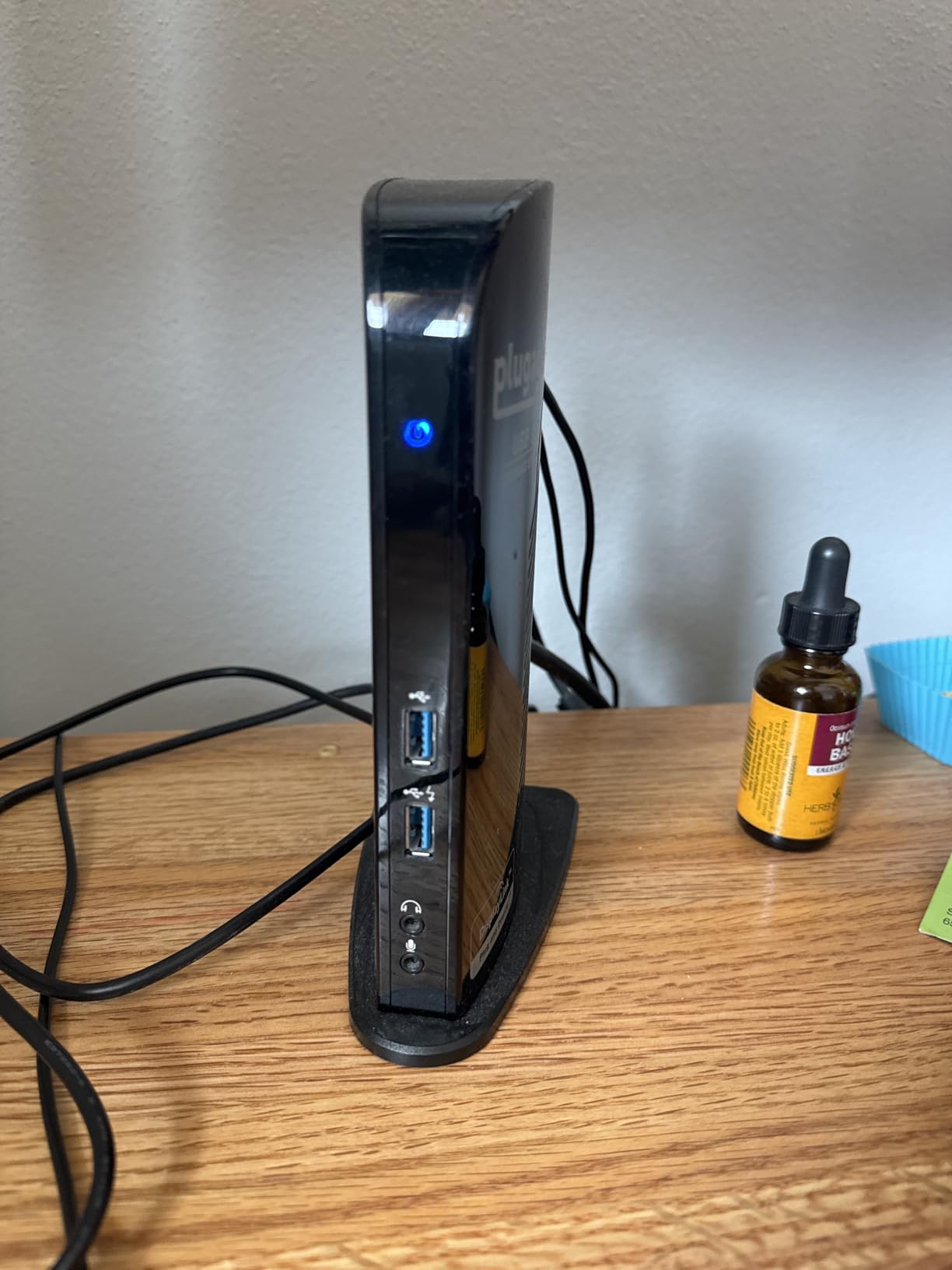
The UD-3900 has been shipping long enough that its compatibility list reads like a history of laptop ports. It runs on a USB 3.0 or USB-C host, so it works with a modern Thunderbolt laptop, a base-model MacBook, and the older USB-A business notebook that most companies still hand out. For a mixed desk where a work laptop and a personal machine take turns on the same dock, that flexibility is worth more than any headline spec.
At 13 ounces and just over 4.9 inches on its longest side, it also disappears into a drawer when you travel. The 2 year warranty is paired with lifetime technical support from a Seattle-based team, which is a genuinely useful thing to have when a driver behaves oddly on an operating system version that came out after you bought the dock.
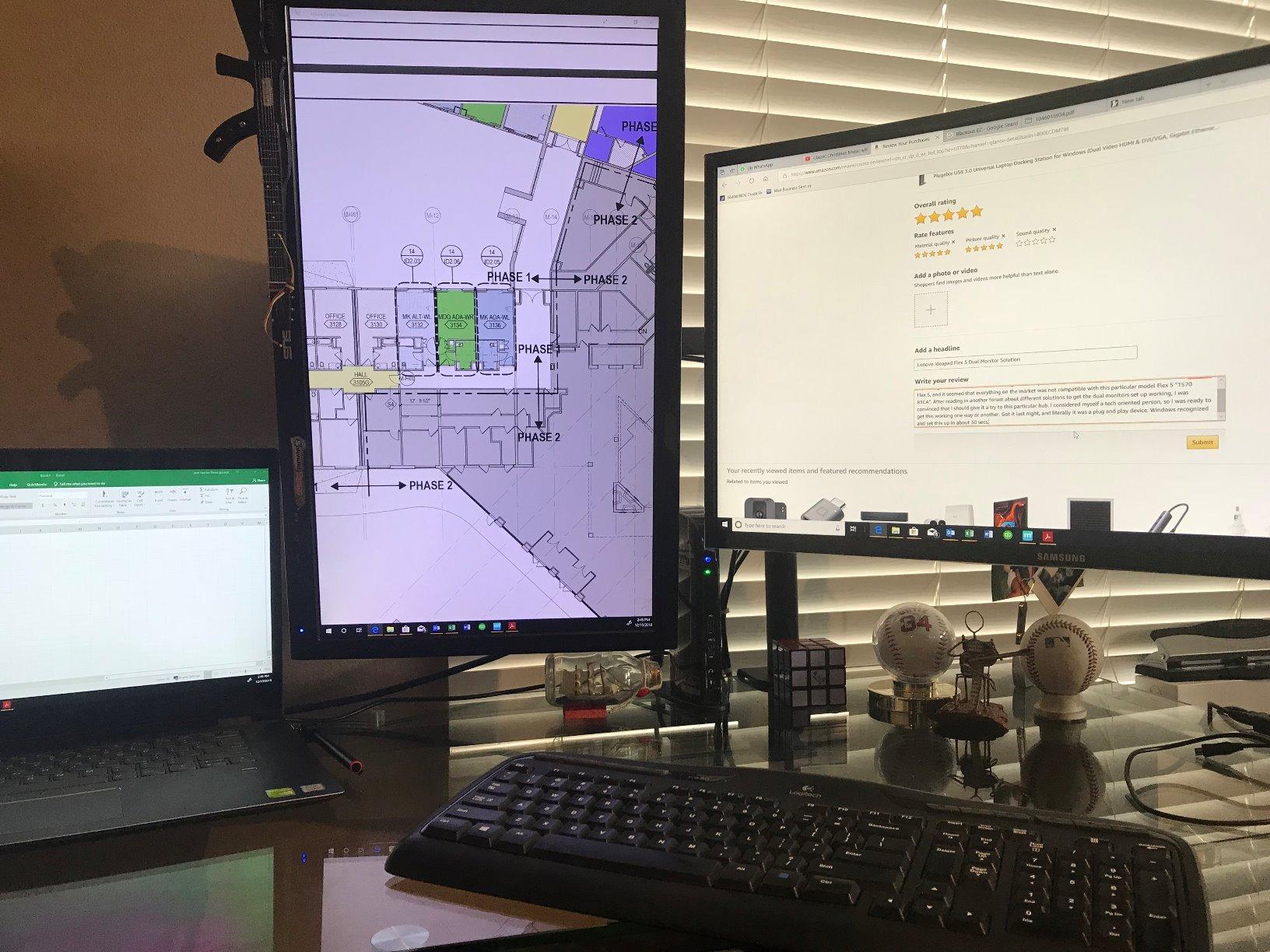
The compromise is display resolution, and it is a real one. Dual monitors run at 1920×1200 at 60Hz, and 4K is not supported at all. A single display can reach 2560×1440 at 50Hz. If your idea of a home office involves two sharp 4K panels, this dock will not deliver it, and you should read the DisplayLink and Thunderbolt sections before buying.
It also does not charge your laptop, so you keep your existing power adapter plugged in beside the dock. Some users treat that as a downside; others argue a dock that draws no power for the host is easier to run on a shared or hot-desk setup. Both readings are fair, which is why it still suits us as the most broadly useful pick here.
Check the resolution before you commit
If your monitors are 1440p or 1080p, this dock is close to ideal and the resolution ceiling never enters the picture. Two 1080p panels side by side is a very common home office arrangement, and 1920×1200 at 60Hz serves it without complaint.
If you have bought or are planning 4K panels, move on. A dock that cannot render 4K will not become capable later. Our Thunderbolt 4 and Thunderbolt 5 picks cover dual 4K at 60Hz without that caveat.
What to expect on macOS and ChromeOS?
On Windows 10 and 11 the dock connects through Windows Update with no installer at all. ChromeOS 100 and later works as-is, and the unit is TAA-compliant if you ever need it for government purchasing.
On macOS 14 and later, the second display needs a manual DisplayLink driver install. Community users on r/UsbCHardware consistently point to Plugable as the most transparently documented DisplayLink vendor in the consumer space, which makes that install painless. Linux and Unix are not supported, and there is no HDCP.
2. UGREEN 10-in-1 USB-C Dock – Dual 4K for the Least Money
UGREEN USB C Docking Station Dual Monitor, 10-in-1 Laptop Dock with 2 HDMI
- Dual 4K at 60Hz from a very compact footprint
- No driver or external power supply needed for basic use
- Gigabit Ethernet plus SD and microSD card readers
- Aluminium build and single-cable setup
- Actual host charging is 85W despite the 100W label
- Both MacBook displays mirror rather than extend
- Fixed short host cable limits under-desk placement
- Some early reports of monitor power loss or slow ethernet
At 171.6 grams and a little under 4.5 inches long, this is the dock we would hand to someone who wants two 4K monitors and does not want to think about drivers. It runs straight from the laptop, needs no external power brick for basic use, and puts dual 4K at 60Hz on a single USB-C cable. Nothing else at this level of simplicity does that.
The port mix is sensible for a working desk: two HDMI, five USB, gigabit Ethernet, and both SD and microSD readers. Reviewers highlight good data speeds, with 5Gbps across the USB-C data port and the USB-A ports, and an aluminium chassis that survives being moved between a desk and a couch-side table.
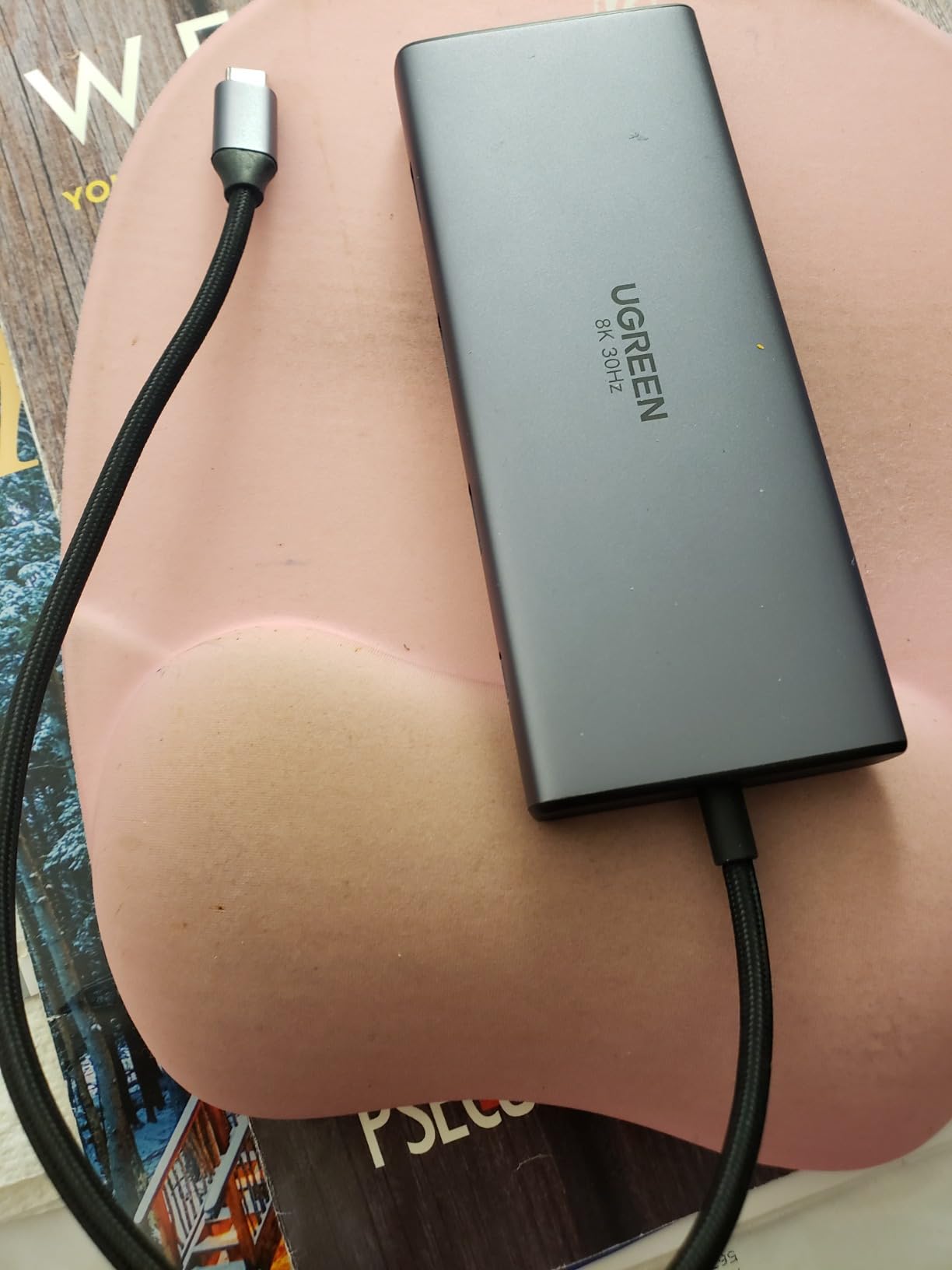
The charging story needs reading carefully. The dock is labelled 100W, but 15W is reserved for hub operation, which leaves 85W of actual pass-through to the host. That is plenty for a MacBook Air or a mid-range Windows ultrabook. It is short of what a 16-inch workstation-class laptop wants when it is also driving two external displays at full brightness.
On a MacBook, both external displays show identical content rather than extending the desktop. This is the single most common surprise with cheap USB-C hubs, because the limitation is in the laptop rather than the dock. Windows users get the extending behaviour the marketing implies.
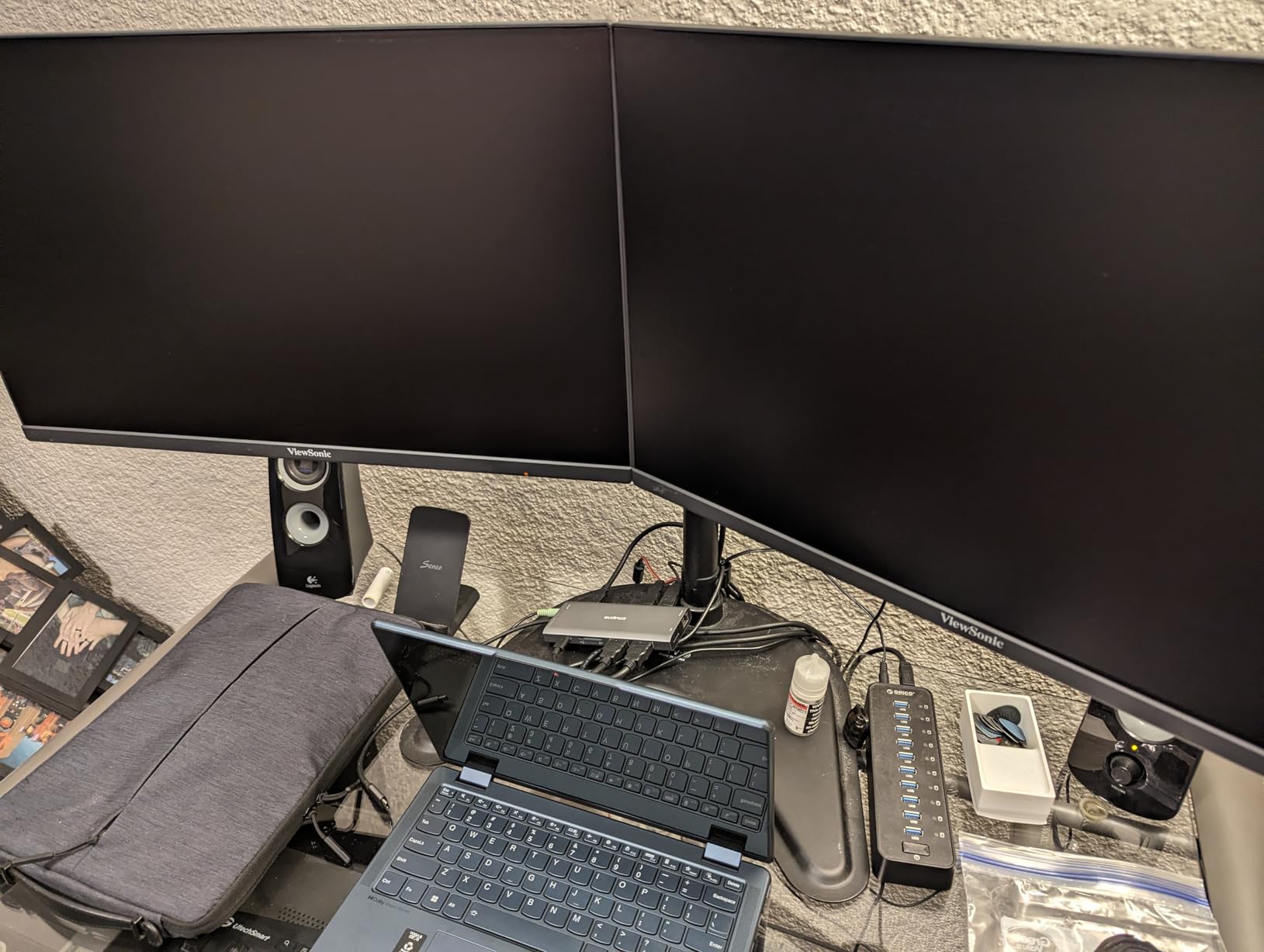
Who gets the most from this dock?
A Windows user with two 4K monitors, a wired connection, and card readers to offload photos is the ideal buyer. Someone working on a Windows laptop that only has two USB-C ports and no ethernet jack gets a genuinely better machine for the price of a cable adapter.
Where the compromises bite?
The fixed host cable is short and cannot be replaced, which pushes you toward keeping the dock on the desk surface rather than hiding it in a tray. A few buyers have also reported early units failing with monitor power loss or a slowdown in the ethernet port, so keeping a second cable around is sensible insurance. If you need to extend rather than mirror on a Mac, or if your laptop is a power-hungry workstation class, move up the list.
3. CalDigit TS4 – The Dock You Buy Once and Keep for a Decade
- Extremely broad port selection retires most other hubs and adapters
- 230W power supply charges the host at full speed with many peripherals attached
- 10Gbps USB and Thunderbolt 4 speeds suit large external drive workflows
- Solid aluminium chassis with 2.5GbE networking
- Requires a Thunderbolt 4 or fully optioned USB4 host port
- Some users need a firmware update or power-cycle to stabilise connections
- Heavier and bulkier on the desk than 10-in-1 style docks
Eighteen ports sounds like marketing until you count what the TS4 actually offers: DisplayPort 1.4, eight 10Gb/s USB ports, SD and microSD UHS-II readers, three Thunderbolt 4 ports, three audio jacks, 2.5GbE, and a security slot. That is enough to retire a shelf of dongles, which is the quiet financial argument for a dock at this level.
Power delivery is the part that sets it apart. A 230W power supply feeds 98W to the laptop, and buyers running demanding multi-display setups report that the charging rate holds steady with external drives attached. The included 0.8m certified Thunderbolt cable is the right length for under-desk placement, which smaller docks often get wrong.
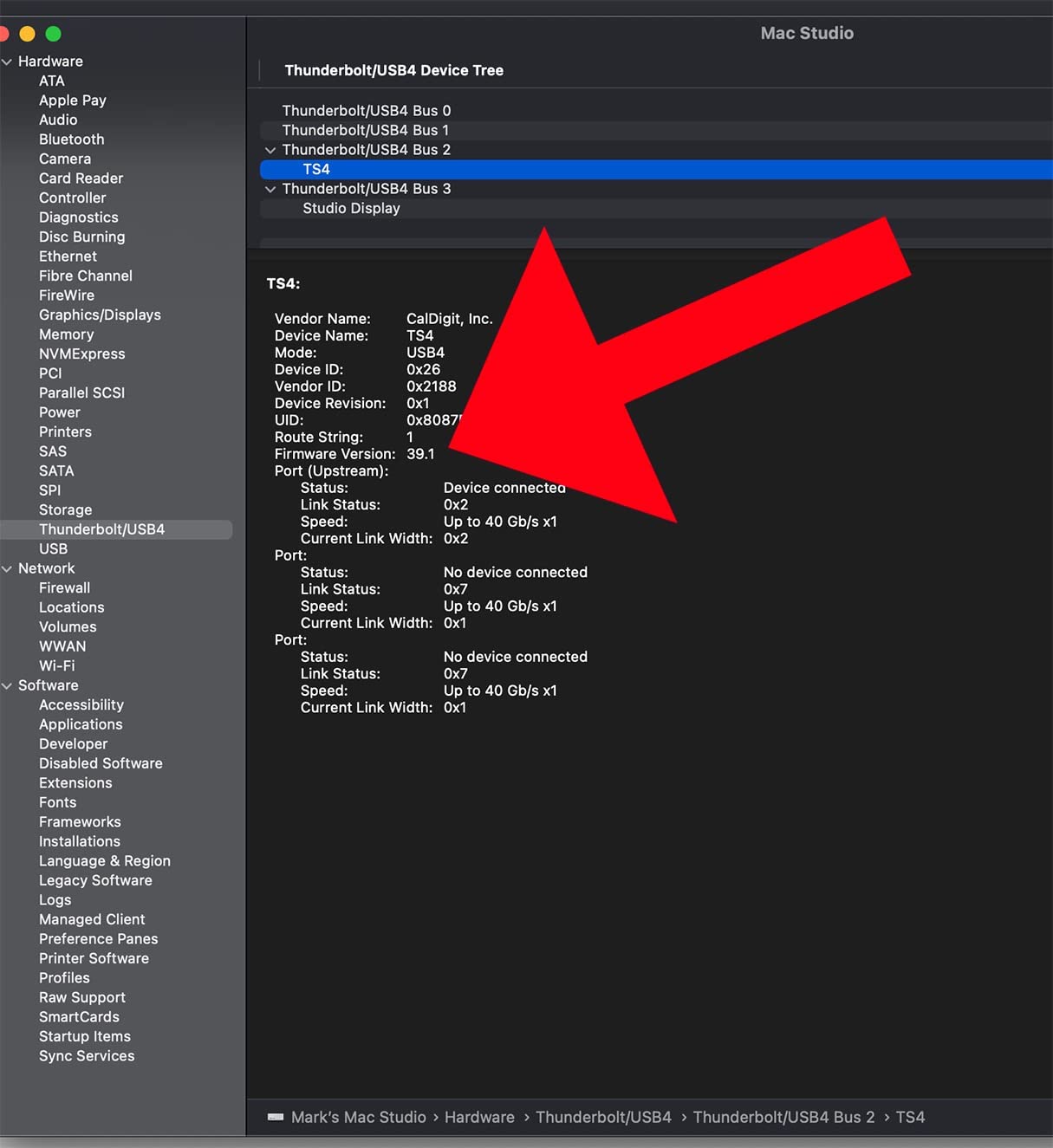
Display capability depends entirely on the host. Windows machines can drive a single 8K display or dual 4K at 60Hz. On macOS you get a single 6K at 60Hz, and dual 6K at 60Hz if you are on an M1 through M4 Pro, Max or Ultra chip. Base M1 through M3 Macs are limited to one display because of a host hardware limitation no dock can work around.
Verified owners describe it as a long-term purchase, with one reviewer noting no reason it would not still be in service in five to ten years, specifically citing that it never overheats and connects without fail. That reliability over a long horizon is the strongest thing we can say about it.
What the 40Gbps budget actually buys?
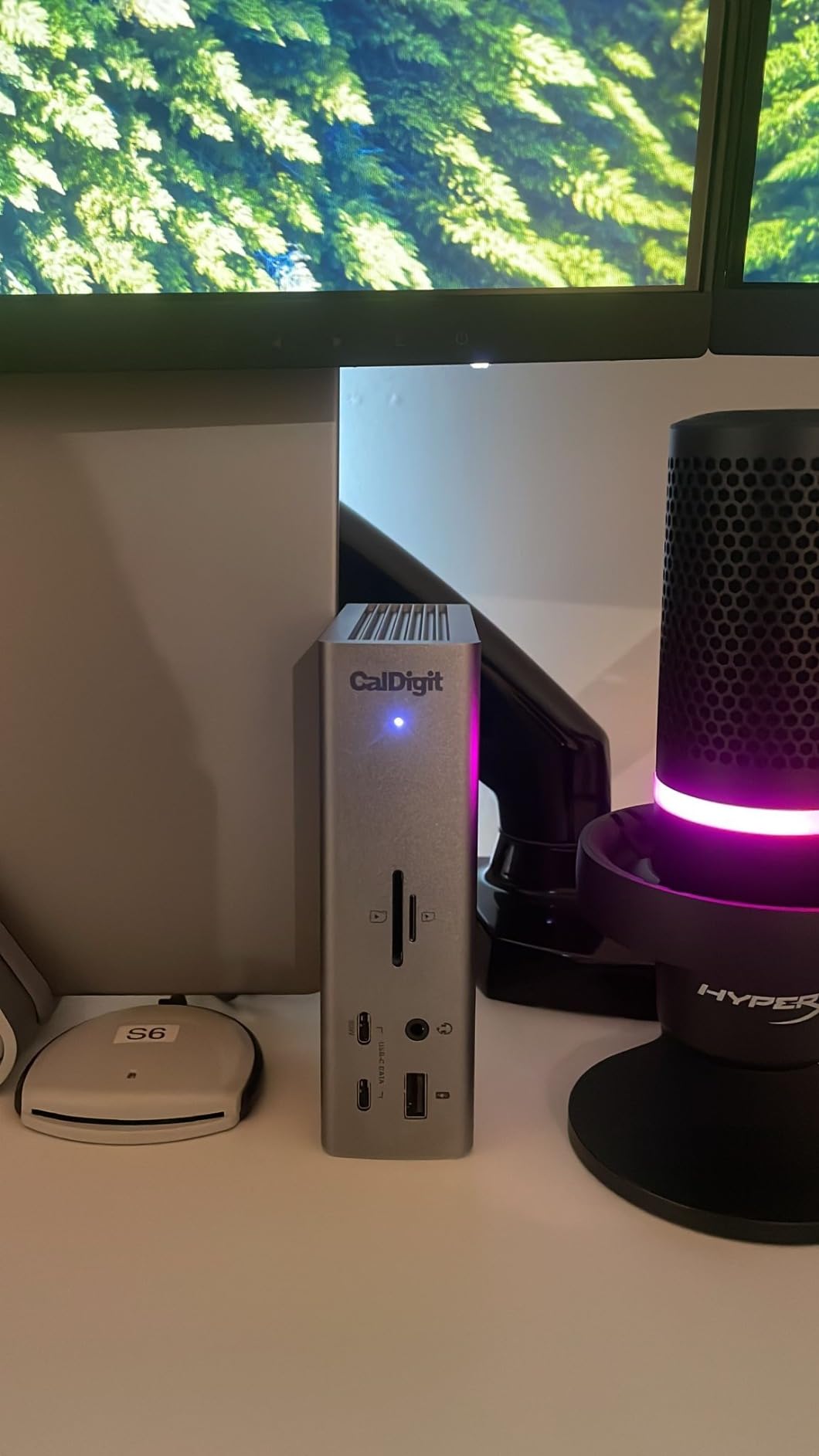
Thunderbolt 4 provides 40Gbps bidirectional bandwidth. A single 4K at 60Hz DisplayPort 1.4 stream takes roughly 17.28Gbps, so two of them consume about 34.56Gbps of that budget. That leaves headroom for data and charging, which is why a Thunderbolt dock handles dual 4K at 60Hz while a plain USB-C hub of the same port count often cannot.
When this is more dock than you need?
If you run one laptop, two 1080p monitors, and a keyboard, the TS4 is solving a problem you do not have. Its bulk matters too, at 1.4 pounds and 5.55 inches on its tallest dimension it occupies real desk space that a 10-in-1 hub does not.
It is also unforgiving about hosts. Plugging into an older Thunderbolt port or a plain USB-C port that lacks full feature capability will work but at reduced speed, which can look like a fault. Confirm your laptop has a genuine Thunderbolt 4 or fully optioned USB4 port before committing.
4. WAVLINK 13-Port DisplayLink Dock – Three 4K Monitors at 60Hz
WAVLINK USB C Docking Station 4K@60Hz 3 Monitor for Mac(M1-M5,Neo),Windows
- Three extended 4K at 60Hz displays from a single USB-C cable
- 100W host charging through the included 160W adapter
- Six 10Gbps USB ports plus gigabit ethernet
- Compact design with front-access USB and headphone ports
- Needs manual DisplayLink driver installation and occasional relaunch after macOS restarts
- Some users report intermittent blanking or lag on the second DisplayLink monitor
- Runs noticeably warm during long sessions
- Host charging level can fluctuate rather than hold steady
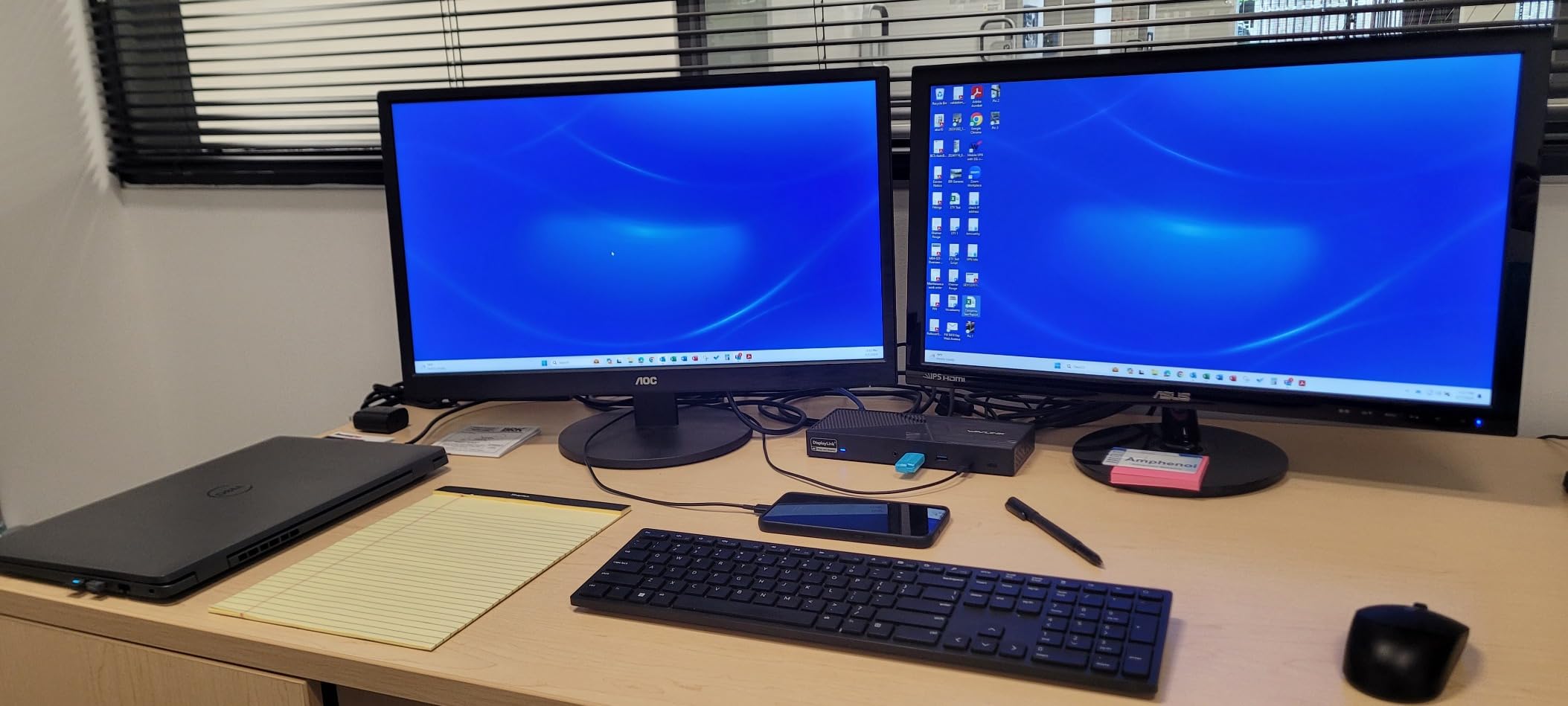
Triple-monitor support is where the DisplayLink approach earns its keep. This dock runs three extended 4K at 60Hz displays from one USB-C cable, which no native Thunderbolt dock in this roundup can do on a laptop with two external display limits. For an analyst, a trader, or a developer who wants code, a terminal, and a chat window on separate panels, that is the whole feature.
The rest of the specification is generous. Six USB 3.2 Gen 2 ports at 10Gbps mean external SSDs run at full speed rather than being bottlenecked by a marketing port count. There is a gigabit ethernet jack, a 3.5mm audio port, and a 160W adapter that delivers up to 100W to the host.
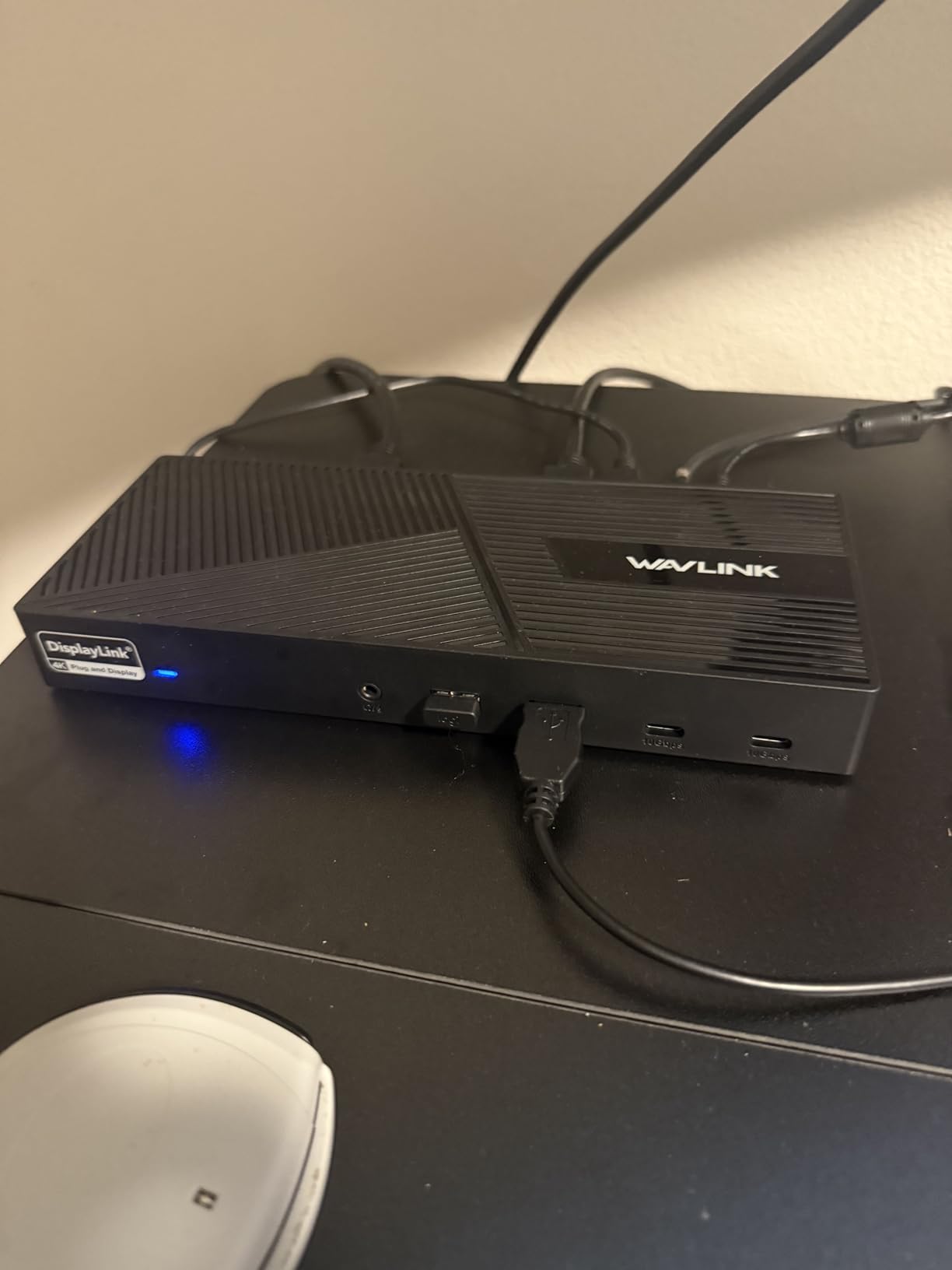
Compatibility is broad, covering Windows 11 down to 7, macOS from 10.14 through 13.x and later, Chrome OS, Ubuntu 20.04 and 22.04, Android and Harmony OS. The listed exclusion is Unix, Linux, and iPadOS. For a MacBook owner the dock is tuned for newer Apple silicon machines, including support for extended dual 4K monitors on the MacBook Neo.
What you accept is DisplayLink overhead. Video is compressed and sent over USB rather than driven natively, so there is a small amount of added latency, protected streaming content will not play, and the arrangement is not suitable for gaming or hardware-accelerated work. Reviewers note occasional blanking or lag on the second DisplayLink monitor as a recurring theme.
Who should buy three monitors and who should not?
Buy this if you are reading stock tickers, editing timelines, or running a development environment where a third panel removes a constant context switch. The productivity gain from three dedicated panels is immediate and obvious, and DisplayLink is the only practical route to it on a laptop.
Skip it if you game, edit high-frame-rate video, or stream protected content from a browser. In those cases the compression overhead and the absence of HDCP are deal breakers, not annoyances.
Living with the driver
The DisplayLink manager needs installing manually, and on macOS it occasionally needs relaunching after a system restart. The screen-recording permission prompt that appears on first launch surprises people, but it is expected and legitimate: macOS requires that permission for any application that captures the screen, which is exactly what the DisplayLink driver does.
5. Plugable UD-ULTCDL – Triple Displays Built for Business Fleets
Plugable USB-C Triple Monitor Docking Station, 13-in-1, 100W Charging
- True triple-monitor support that lifts a single-display MacBook into a full workstation
- 100W pass-through charging handles power
- video and peripherals on one cable
- TAA
- NDAA and Section 889 compliant for enterprise deployment
- Plugable support and lifetime support program frequently praised
- DisplayLink driver install required on macOS for the second and third displays
- DisplayLink adds slight latency compared with native direct-attach video
- Some long-term owners report intermittent USB or display dropouts
- No rear audio-out jack
The UD-ULTCDL is the corporate cousin of the triple-monitor approach, and its distinguishing feature is paperwork. It is TAA, NDAA, and Section 889 compliant, which means it can be bought and deployed by organisations whose procurement rules exclude a lot of consumer hardware. If your laptop is employer-issued, that compliance is often the deciding factor.
Day to day it delivers three extended displays through DisplayLink, with HDMI 1 reaching 4K at 30Hz and HDMI 2 and 3 reaching 1920×1200 at 60Hz. The 100W rear USB-C port charges the laptop, and a separate 20W front USB-C port handles a phone or headphones.
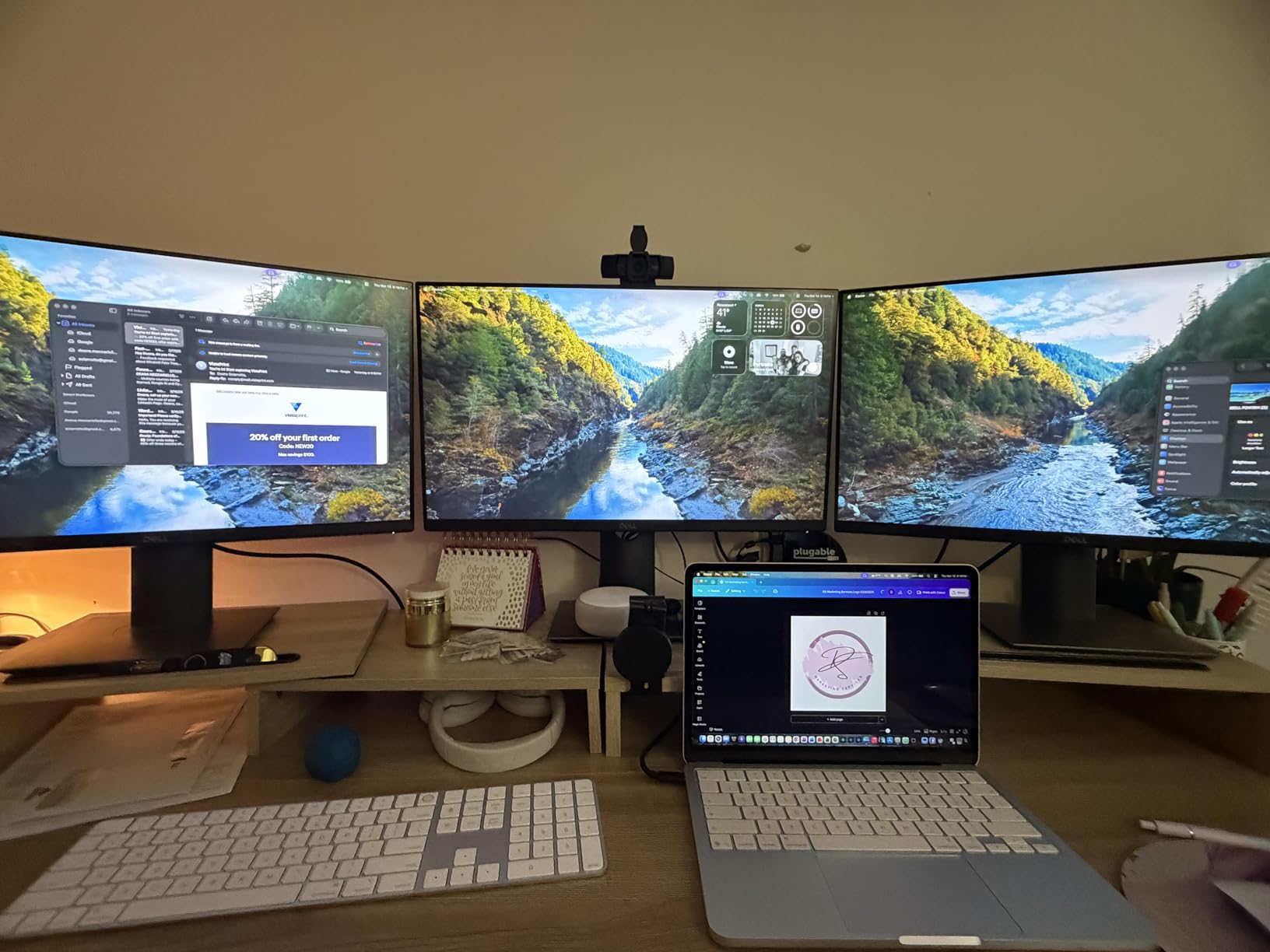
Peripheral coverage is complete for an office: four USB-A ports at 5Gbps, an SD card reader, gigabit ethernet, and audio in and out. The included 1m host cable is long enough to sit the dock wherever the desk layout requires.
If you are rolling this out to a team, the reasons to pick it are administrative before they are technical. Compliance documentation, a two-year limited parts and labour warranty, and a support team known for responsiveness all reduce the number of tickets your IT inbox receives. For a single home desk, those advantages matter less, and the 4K at 30Hz ceiling on the primary HDMI port is a downgrade from what the WAVLINK triple-monitor dock offers.
What the DisplayLink requirement means day to day?
On macOS, the second and third displays need DisplayLink Manager installed, and the first display runs natively. On Windows 10 and later, or Chrome OS with a USB-C, USB4 or Thunderbolt port, the same expansion works once the driver is in place. Some long-term owners report intermittent USB or display dropouts that a power cycle resolves.

6. Dell Pro Dock WD25 – The One IT Departments Approve
Dell Pro Laptop Docking Station WD25, USB-C, 100W, DisplayPort, HDMI
- Highest average rating among these picks at 4.5 with 79 percent five-star
- Compact 1.2 pound footprint suits a small home-office desk
- 100W delivery works with Dell AI PCs and non-Dell USB-C laptops
- Three-year limited hardware warranty with advanced exchange
- Only one HDMI port alongside DisplayPort
- Four-display support depends on host and operating system capability
- Listed compatibility is Windows-centric and macOS behaviour is unspecified
The WD25 is built for fleets, and it reads like it. It supports up to four high-resolution displays natively, delivers up to 100W to mainstream Dell AI PCs and to non-Dell USB-C laptops alike, and carries a three-year limited hardware warranty with advanced exchange, the longest coverage in this roundup. In practice advanced exchange means a replacement unit arrives before the failed one goes back.
One detail we like: the host cable is ambidextrous, so it can route out of either side of the dock. On a cramped home desk that removes a genuine annoyance, because you can keep the cable against the wall instead of looping it across the workspace.
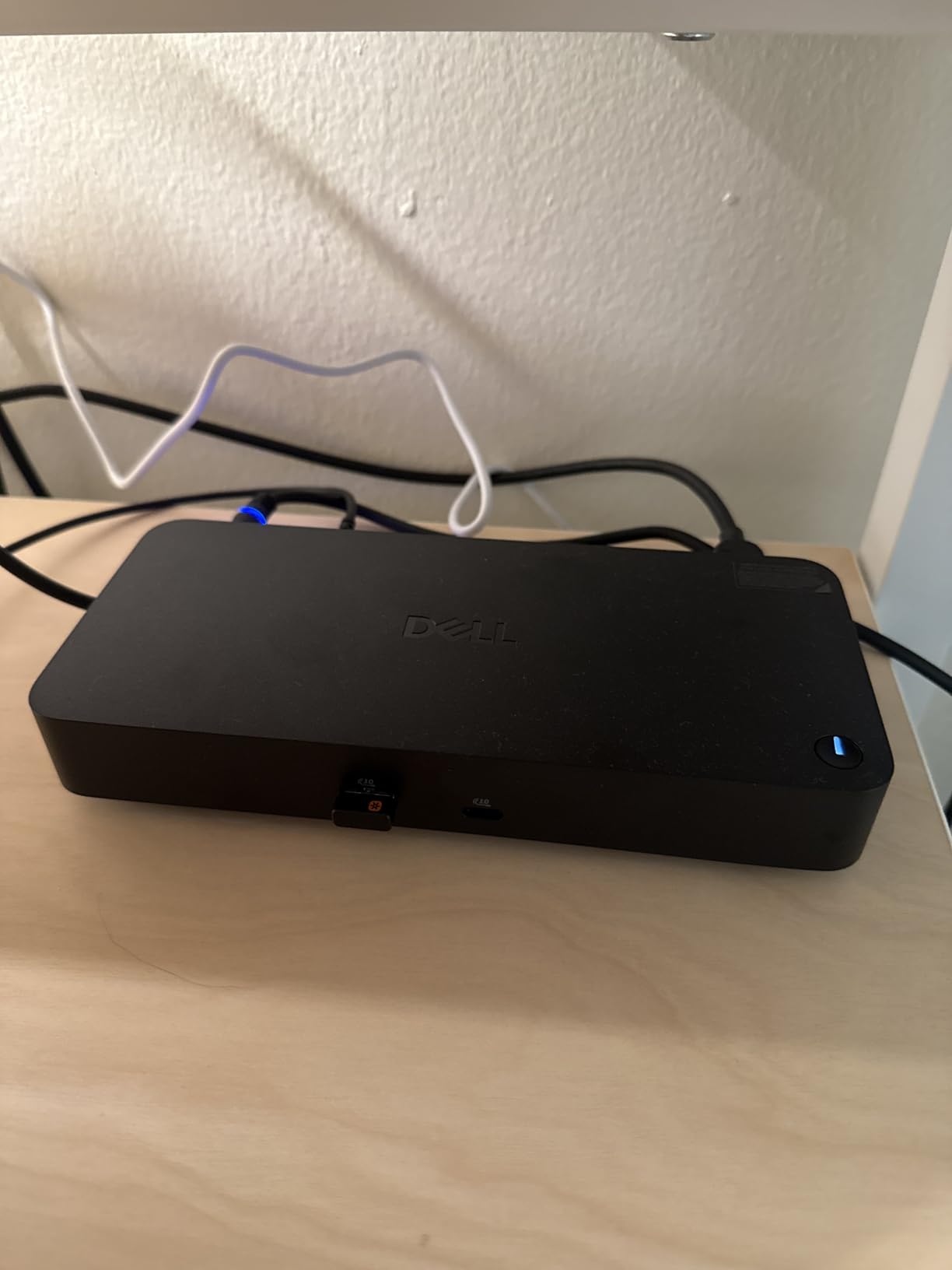
It is also a considered environmental design, using at least 65 percent post-consumer recycled materials and 100 percent recycled or renewable packaging, and claiming up to 72 percent lower standby power consumption. For a device that sits plugged in all day, that standby figure is more meaningful than it sounds.
Owners describe a dependable, office-ready dock that delivers a clean single-cable desk without premium pricing. The reservations are practical rather than emotional: only one HDMI port alongside DisplayPort, so a dual-monitor setup leans on DisplayPort, and the four-display claim is ultimately gated by what the host laptop can output.
When a company laptop changes the rules?
Employer-issued machines are the quiet constraint behind many dock questions on r/workfromhome. If your IT department blocks driver installation, every DisplayLink option on this page is off the table, because those docks cannot produce a second display without their software. A native Thunderbolt or USB-C dock is the only workable category.
Community users repeatedly recommend employer-issued HP, Dell, and Lenovo docks specifically for this reason, and note that the second-hand market for business-brand docks is a legitimate and trusted source. Checking what your employer already supports is often faster than buying anything new.
How it behaves outside Windows?
The listed compatibility covers Windows 10, Windows 11, Ubuntu 24.04, Red Hat Enterprise Linux 9.6 and later, and ChromeOS 137. macOS behaviour is not specified, and we would treat that as a question to answer with your own hardware before committing rather than an assumption.
7. Anker Prime 14-in-1 – When Charging Matters More Than Resolution
Anker Prime Docking Station, 14-in-1 Laptop Docking Station Dual Monitor
- Combines dual-display support with unusually high 160W charging output
- Three USB-C ports deliver up to 100W each
- 10Gbps data transfer suits fast external storage
- Angled interface designed for daily desk access
- Dual monitors limited to 2K at 60Hz rather than 4K at 60Hz
- No support for 5120x1440 ultrawide monitors
- On macOS both external displays show identical content
- Plastic enclosure is bulkier than aluminium rivals
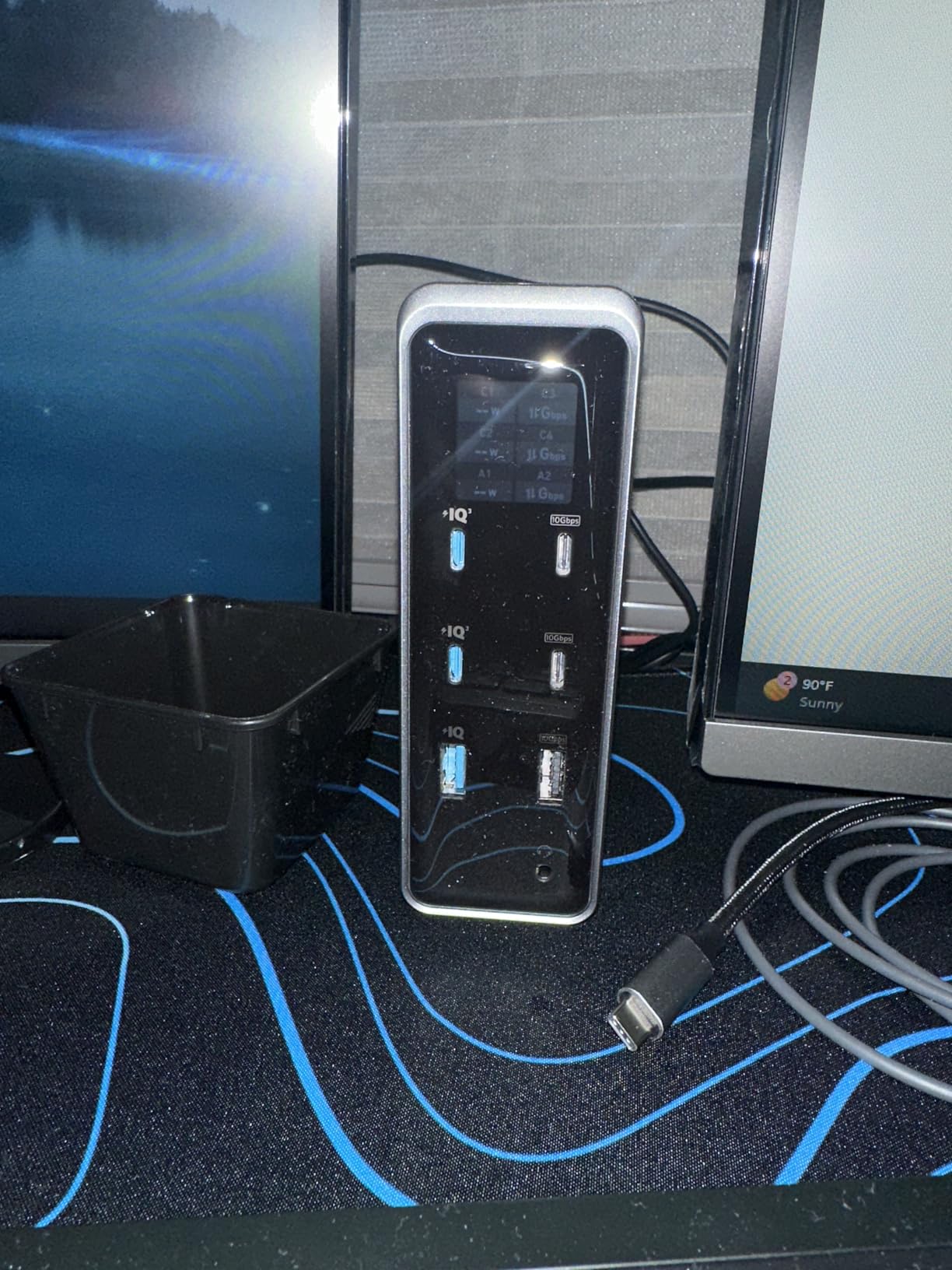
Most docks are built around one laptop and a handful of accessories. The Anker Prime is built around a charging problem. Its 160W total output spreads across three USB-C ports delivering up to 100W each, plus one USB-A port at up to 12W. If your desk holds a laptop, a phone, a tablet, headphones and a watch, this is the rare dock that can charge all of them at once.
Data throughput is 10Gbps across ten USB ports, which keeps external SSDs at full speed. The angled interface face is a genuinely useful design touch, because the ports you plug into daily sit at an angle where you can see and reach them without crouching.
The included 3.3 foot 100W 10Gbps USB-C upstream cable is a proper host cable rather than a charge-only lead, and the dock accepts USB-C, USB4 and Thunderbolt hosts on Windows 10, Windows 11 and ChromeOS. Linux is not supported.
Where the 2K ceiling matters?
Dual displays run at 2K at 60Hz with a DisplayPort 1.4 laptop, or 1080p at 60Hz with a DisplayPort 1.2 host. 5120×1440 ultrawide monitors are not supported, which rules this dock out for anyone who has already committed to a super ultrawide panel.
That ceiling is the trade for the charging capacity. If you work with large spreadsheets side by side or edit photos at full pixel density, you will want a 4K dock instead.
On macOS, plan for mirroring
On a Mac, both external monitors show identical content rather than extending the desktop. This is a host limitation shared by most non-DisplayLink docks, and it is the single most common reason Mac owners end up returning an otherwise capable dock.
The unit also weighs 1.28 kilograms in a plastic enclosure, which is bulkier on the desk than the aluminium 10-in-1 options here. If your monitors are 4K, start with the Thunderbolt 4 picks; if charging a fleet of devices is the bottleneck, this is the one.
8. Anker Nano 13-in-1 – One Purchase, Two Products
Anker Nano Laptop Docking Station, 13in1 Dock with Detachable 6in1 USBC Hub
- Detachable 6-in-1 hub lets one purchase serve a fixed desk and mobile work
- Triple-display support with 2x HDMI plus DisplayPort at this tier is unusual
- 10Gbps USB-C data port moves a 1GB video in under two minutes
- No drivers required and setup completes quickly
- macOS supports mirrored mode only across multiple external displays
- Triple-output resolutions are modest at dual 2K or triple 1080p
- The dock will not function at all without a connected host
- Only 18 months of warranty coverage
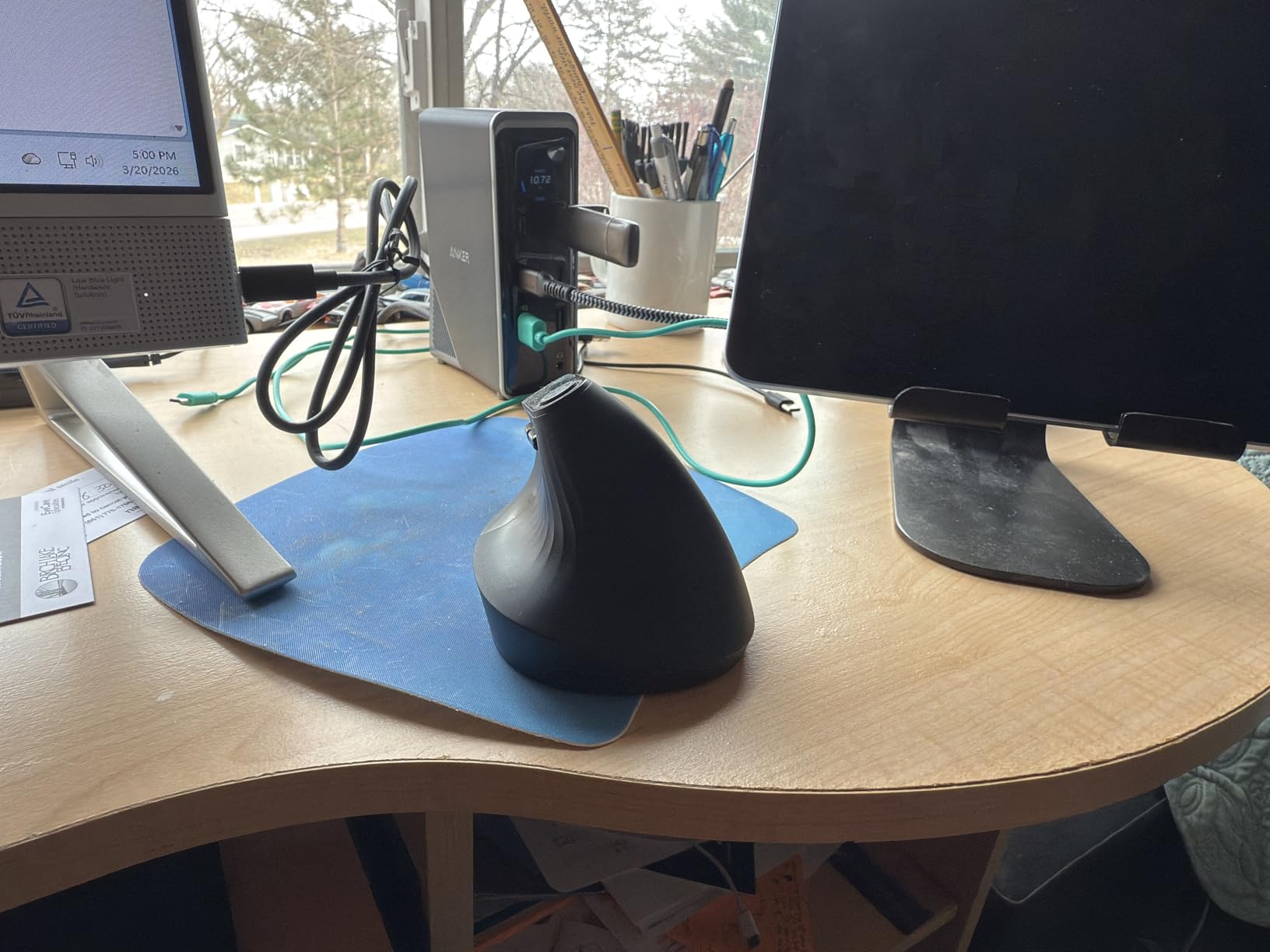
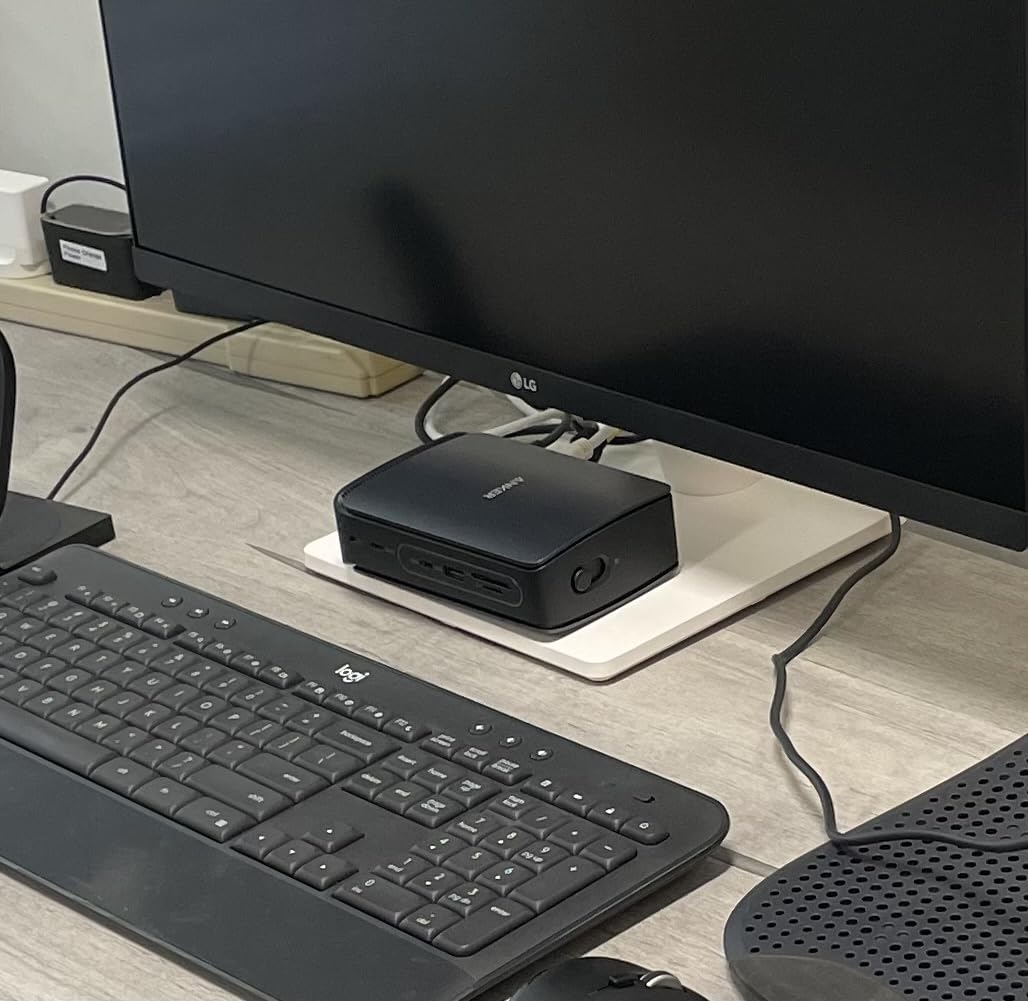
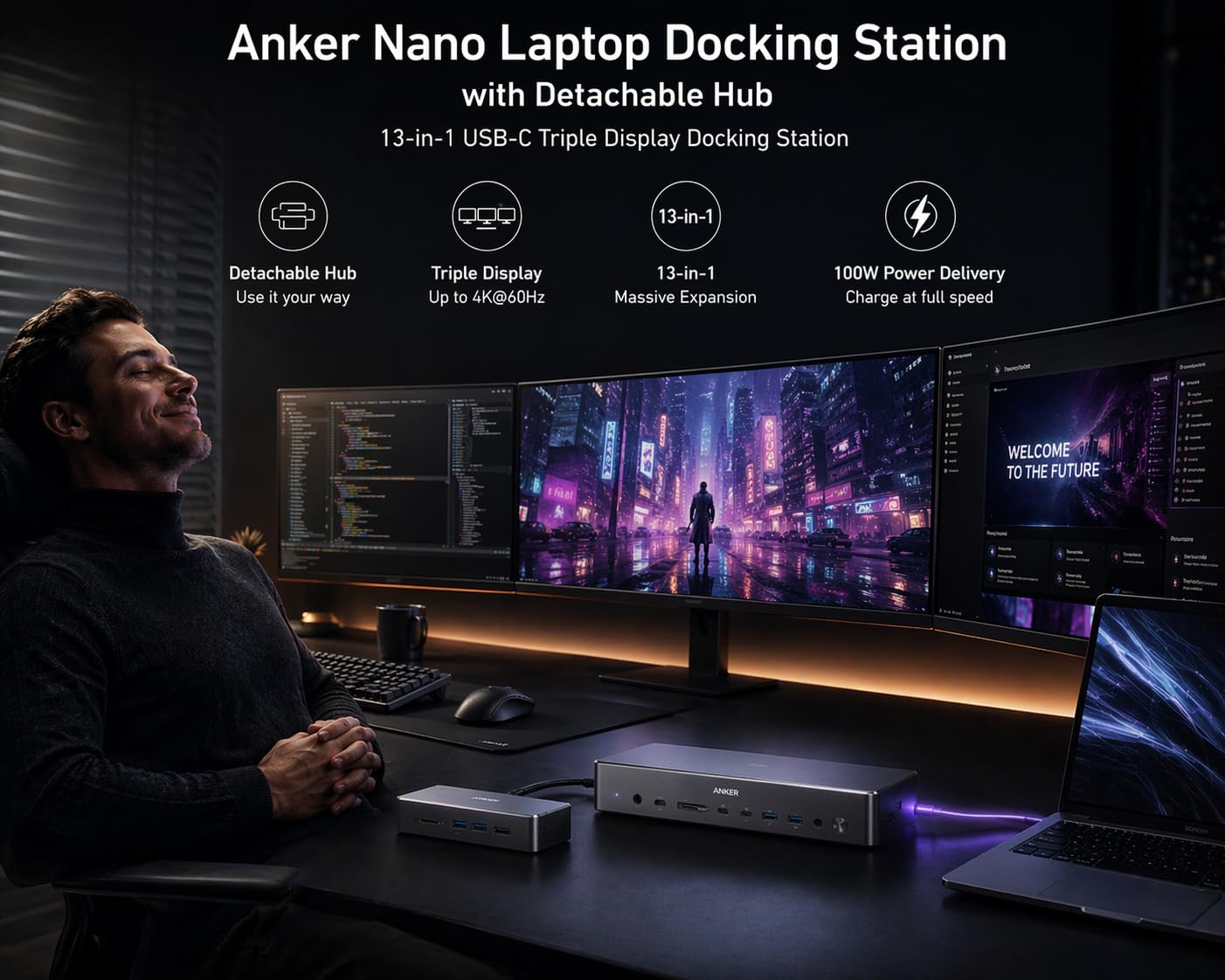
The gimmick here is the detachable hub, and it is not a gimmick. The 6-in-1 module snaps off the front of the 13-in-1 dock and becomes a portable hub with two HDMI, one DisplayPort, three USB-A, and SD and TF card slots. One purchase covers the desk and the travel bag, which is a different value proposition from buying a small travel hub separately.
The desktop side offers 100W Power Delivery from an included 140W adapter, a 10Gbps USB-C data port, gigabit ethernet, a 3.5mm audio jack, and card readers. Setup is plug-and-play with no drivers, and a blue light strip confirms when the host connection is live.
Display options cover three screens through two HDMI and one DisplayPort, running as a single 4K at 60Hz, dual 2K at 60Hz, or triple 1080p at 60Hz. That is a sensible ladder for a mixed desk, and it is also the reason this dock suits side displays rather than a matched pair of 4K primaries.
What the detachable hub is actually good for?
Reviewers value the design as genuinely two products in one, and the travel half is more capable than most dedicated portable hubs. It will drive a single display at 4K at 60Hz, move data at 10Gbps, and carry card readers, which covers most hotel-desk and co-working scenarios. Note that the dock will not function at all without a connected host laptop.
Where the limits show?
On macOS, multiple external displays run in mirrored mode only. Triple-output resolutions are also modest by the standards of the Thunderbolt docks on this list, so a display-heavy Mac setup should go elsewhere.
Warranty coverage is 18 months, the shortest here, and buyers report a comparatively high 12 percent one-star share. For a dock that should live on a desk for years, that combination is the main reason we rank it below the longer-warrantied options despite the clever design.
9. Plugable 16-in-1 Thunderbolt 4 – Dual 4K With No Driver at All
Plugable 16-in-1 Thunderbolt 4 Dock – Dual 4K Monitors, 100W Charging
- Driverless dual 4K at 60Hz on both HDMI and DisplayPort
- Broad host compatibility across Thunderbolt 5 and 4
- USB4 and USB-C
- Seven USB ports plus SD and microSD readers
- 2.5Gbps Ethernet and 100W charging third-party lab tested to UL standards
- Dual-display support on base M3 MacBooks requires clamshell mode
- 100W upstream charging is below what some Thunderbolt 5 docks offer
- Lowest average rating in this roundup at 4.0 with a 16 percent one-star share
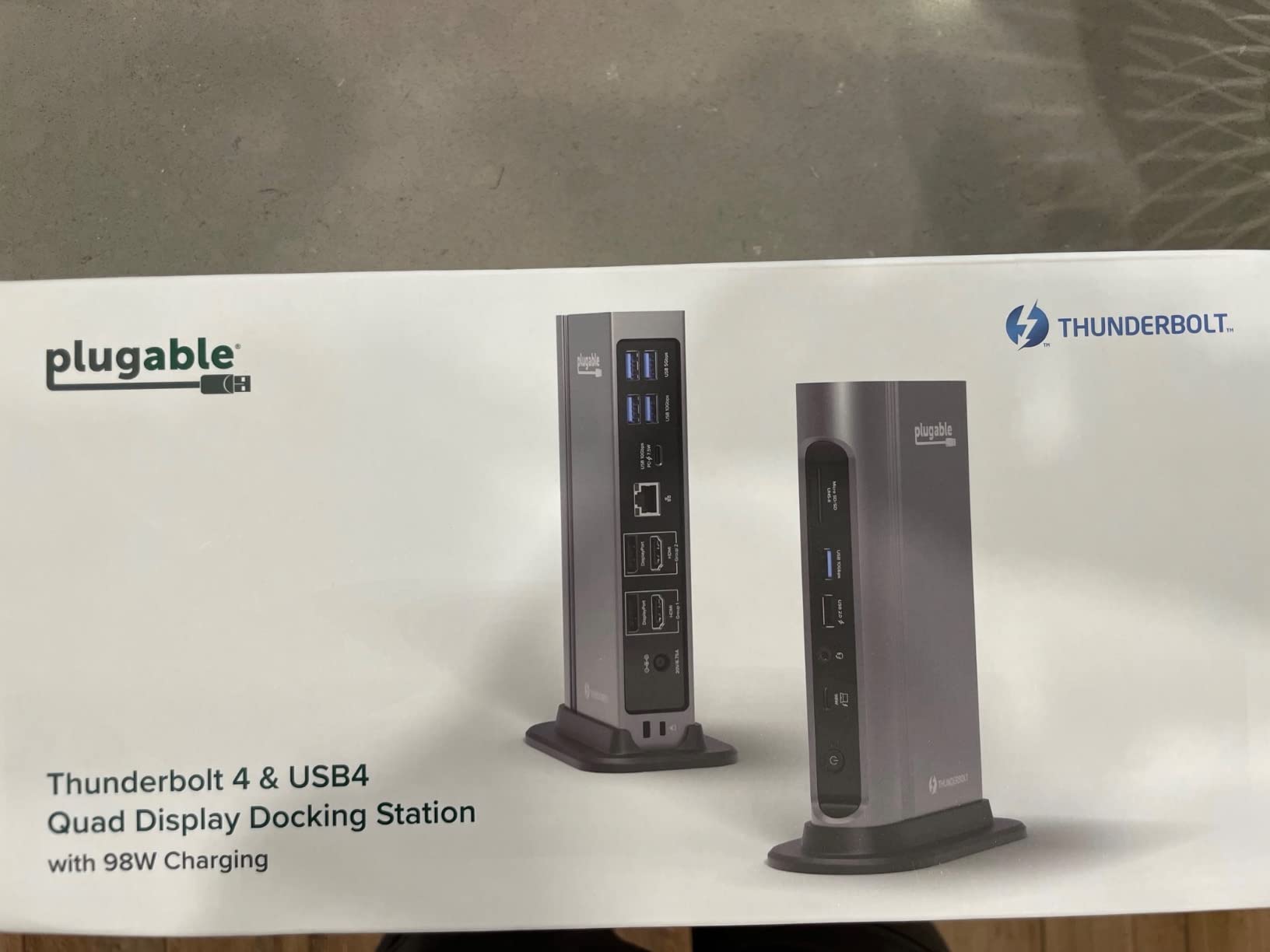
Driverless is the headline, and for a home office it matters more than the specification sheet suggests. A Thunderbolt 4 dock that runs dual 4K at 60Hz on both HDMI and DisplayPort without a single driver install removes the most common failure point on this entire list. Nothing to update, nothing to break after an operating system upgrade, nothing for your IT department to approve.
The port mix supports that: two HDMI, two DisplayPort, seven USB ports across USB-A and USB-C, SD and microSD readers, 2.5Gbps ethernet, and 3.5mm audio. The 2.5Gbps network is a step above the 1Gbps ports on most cheaper docks, which matters if you work against a NAS rather than a cloud service.
Host compatibility is unusually well documented, covering Thunderbolt 5, Thunderbolt 4, USB4 and USB-C machines on macOS 11 and later and Windows 10 and later, with named support for current MacBook Air and Pro models, Dell, Lenovo, HP, Framework, Microsoft Surface, Acer and ASUS lines. A 40Gbps one-metre Thunderbolt 4 cable is included.
Reading the 4.0 rating honestly
This dock has the lowest average rating in the roundup at 4.0, with a 16 percent one-star share against 79 percent five-star for the Dell. We are including it because the reasons for the complaints are narrow and knowable rather than general.
The main one is Mac display behaviour. Dual-display support on base M3 MacBooks requires clamshell mode, meaning you run the laptop closed with an external keyboard and mouse. If your desk is set up to use the laptop screen, the dock will not deliver two external displays alongside it.
When 100W is enough and when it is not?
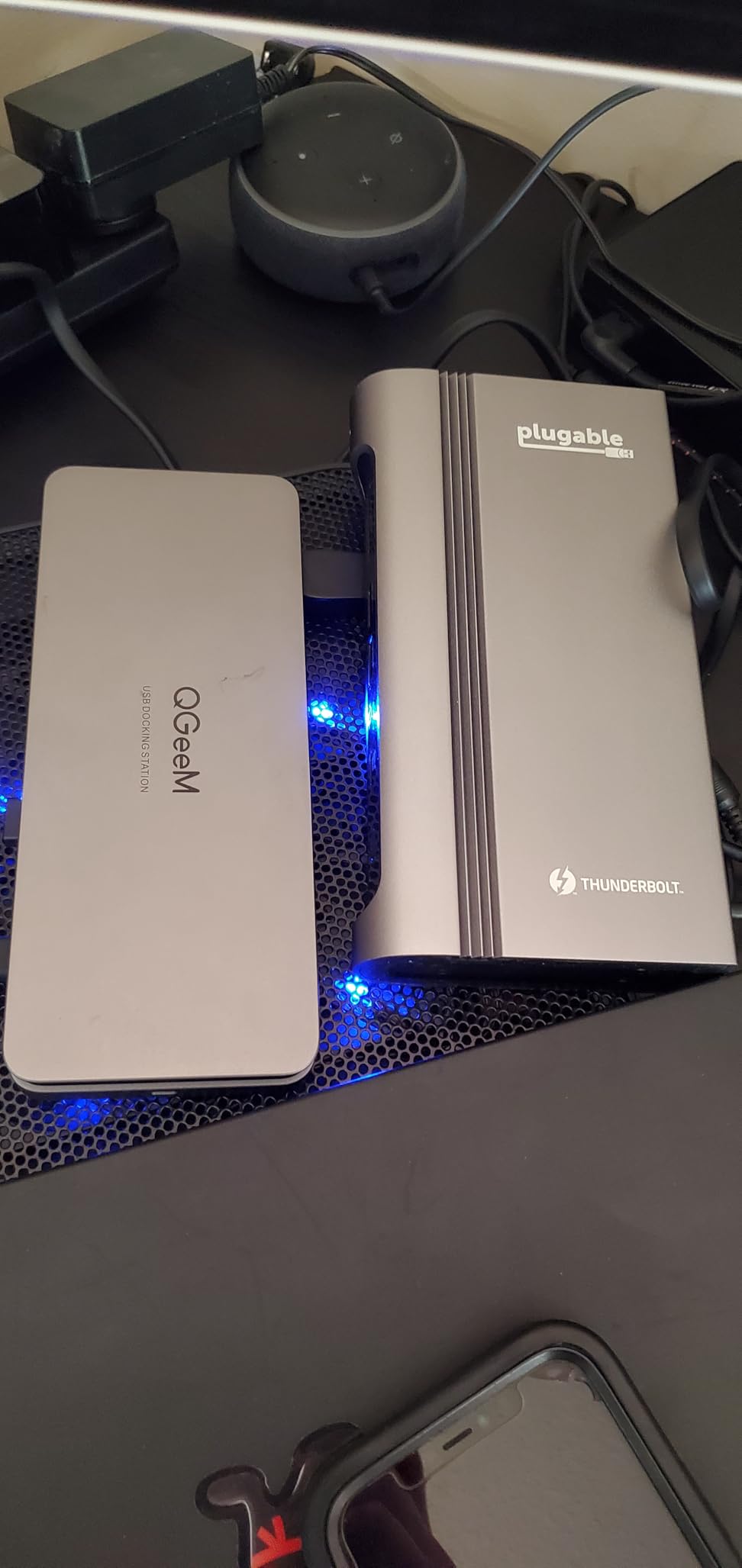
100W is third-party lab tested to UL standards, which is a stronger claim than an unmarked rating, and it is ample for most thin and light laptops and most MacBook Pro configurations. It also steps down automatically when a demanding device draws heavy power.
If you run a large workstation-class laptop at full CPU load with two external displays at maximum brightness, 100W will not be enough, and the machine will draw the balance from its own adapter. The Thunderbolt 5 pick on this list offers 140W for exactly that reason.
10. UGREEN 8-in-1 Thunderbolt 4 – Compact TB4 With Three Downstream Ports
UGREEN 8-in-1 Thunderbolt 4 Docking Station, Dual 4K@60Hz, 3xTBT4, 40Gbps
- Three downstream Thunderbolt 4 ports free the host's own TB4 port for other devices
- Measured throughput reported near 300 MB per second
- Works with MacBooks and Windows or Linux laptops
- All three front USB-A ports deliver full 10Gbps
- One verified buyer reports a single external display on an M3 Max despite dual-display claims
- 3.5mm audio output produced static alongside the AC adapter
- Some front USB ports intermittently failed to mount drives on one macOS setup
- Dock does not operate unless the charger is connected
Most Thunderbolt 4 docks use the host’s Thunderbolt port and give you nothing back. This one provides one upstream and three downstream Thunderbolt 4 ports, so the dock’s own bus becomes a hub for an external drive, a display, or a PCIe enclosure. One verified owner confirmed plug-and-play operation on Linux Mint 24.10, which is unusual for a Thunderbolt dock.
Measured throughput is reported near 300 MB per second, which exceeds the specification of many connected NVMe drives. That is the practical result of the 40Gbps link and three 10Gbps USB-A ports, and it is the reason to buy this for a media or backup workflow rather than for displays alone.
Charging is 85W from an included 140W GaN adapter. Display output covers dual 4K at 60Hz or a single 8K at 30Hz on Windows, and single 4K at 60Hz on base M-series MacBooks.
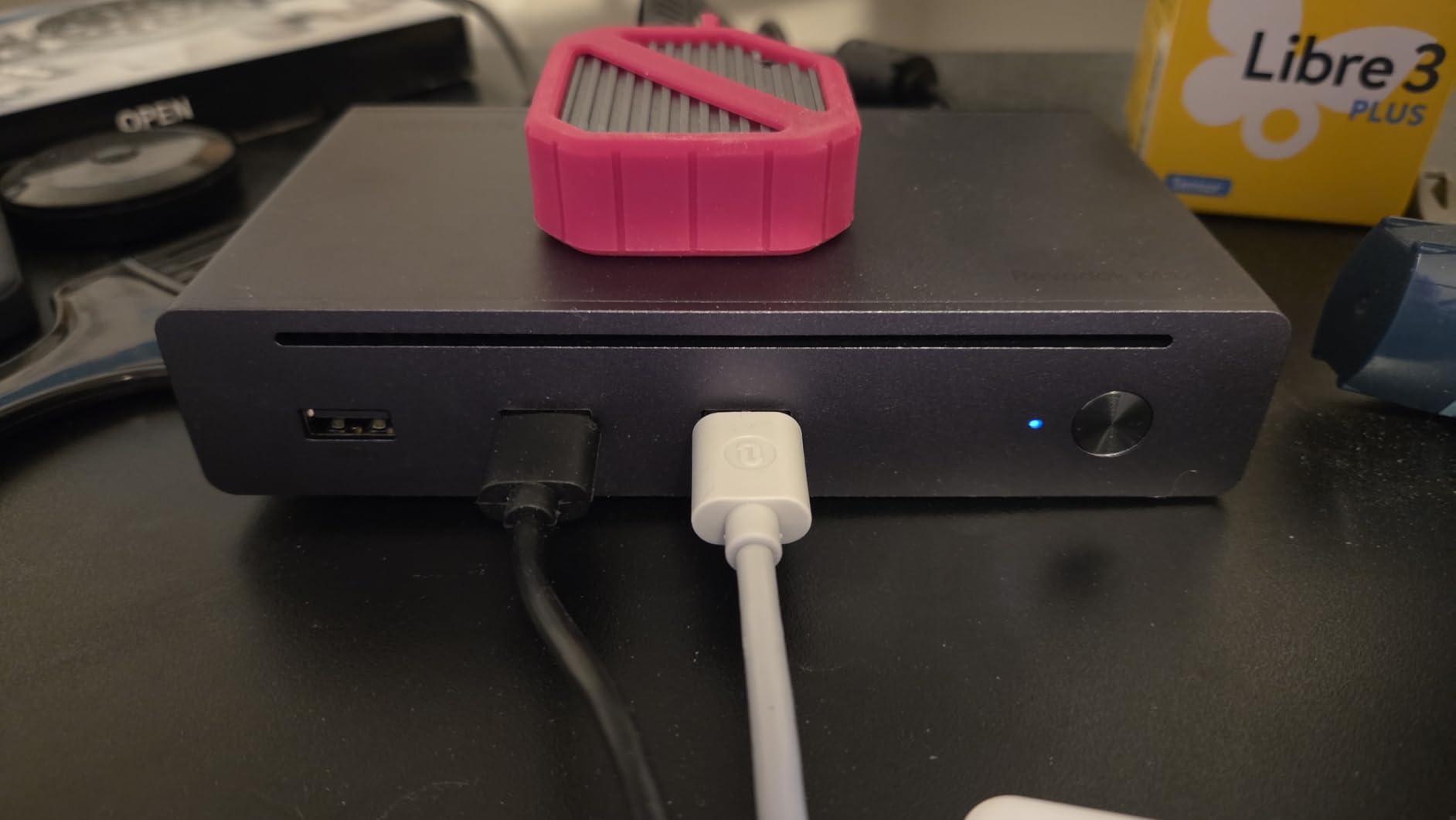
The Mac limitation is worth stating plainly rather than discovering later. On base M-series MacBooks this dock gives you one 4K display at 60Hz, not two. If you own a base-chip MacBook Air and your goal is two extended screens, this is the wrong tool regardless of its other qualities.
One verified buyer also reports that a single external display was the only output on an M3 Max MacBook Pro, which contradicts the dual-display specification. Treat Mac multi-display behaviour on this model as something to test on your own hardware early, and keep the return window in mind.
The AC adapter is not optional
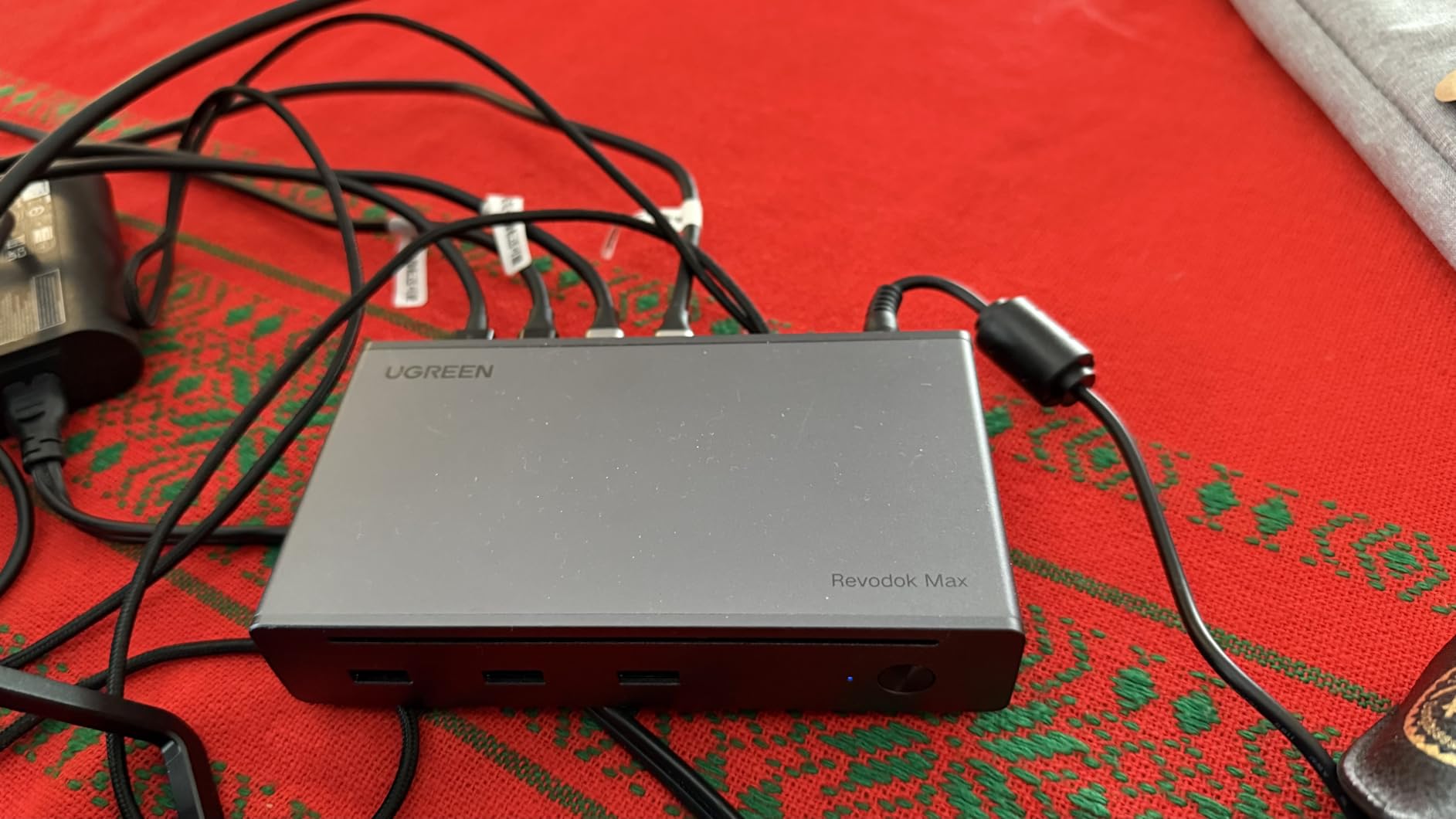
The dock does not operate unless the charger is connected, and the 140W GaN brick is large. Plan the desk layout around that brick rather than discovering it needs a second outlet behind the monitor arm. This is a common design choice for Thunderbolt docks, since the 40Gbps link genuinely needs a substantial power supply.
Buyers also report static and popping from the 3.5mm audio output when it is used alongside the AC adapter, plus occasional front USB mount failures on a macOS setup. Neither is universal, but both are worth knowing if audio and storage are central to your workflow. Some Windows hosts also need driver updates and Link State Power Management changes before all devices enumerate.
Best and worst fit for this dock
The best fit is a Windows or Linux workstation with existing Thunderbolt hardware that needs more Thunderbolt ports than the laptop provides. Measured throughput, cross-platform support, and full 10Gbps on every front USB port make it strong for file work and backup.
The worst fit is a base-chip MacBook owner. Single 4K at 60Hz is below what the same money buys elsewhere on this list, and the audio interference report makes it a frustrating choice for a desk that relies on external speakers.
11. Anker Prime TB5 – Thunderbolt 5 With 140W and Active Cooling
Anker Prime TB5 Docking Station, 14-in-1 Thunderbolt 5 Dock for Laptops
- Very high bandwidth with 120Gbps max transfer
- Up to 8K at 60Hz single or dual 8K at 60Hz on Thunderbolt 5 Windows laptops
- 140W Power Delivery keeps a laptop charged through one cable
- Active cooling system helps prevent overheating under full load
- Requires a Thunderbolt 5 or Thunderbolt 4 host and lists Mac OS 15 Sequoia as minimum
- Heaviest unit here at 2.4 pounds so it is a fixed desk accessory
- Only 45W shared across the two front USB-C ports
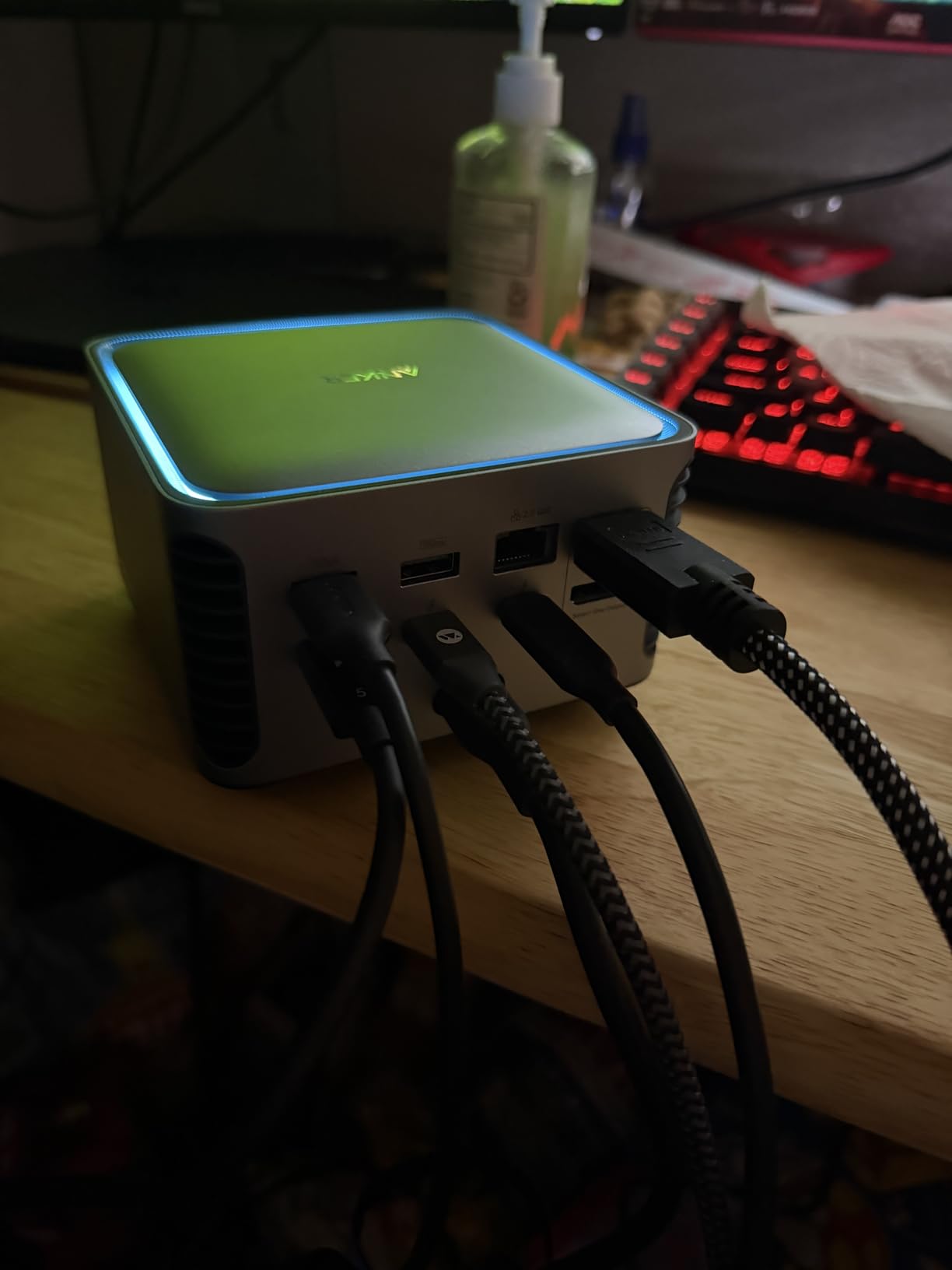
The TB5 is the only Thunderbolt 5 dock here, and the number that matters is bandwidth rather than port count. Maximum data transfer reaches 120Gbps, and buyers report a 150GB file moving in about 25 seconds. On a Thunderbolt 5 Windows laptop it can drive dual 8K at 60Hz displays, which is a capability no other dock in this roundup approaches.
Charging is 140W upstream using Power Delivery 3.1, the highest figure on this list and enough for even demanding workstation-class laptops. The 14-port layout covers HDMI 2.1 or DisplayPort 2.1 output, two Thunderbolt 5 downstream ports, two USB-C and three USB-A ports, SD and TF card readers, 2.5Gbps ethernet, and a 3.5mm audio jack.
Active cooling is unusual at this price and level, and it exists because sustained full-bandwidth transfer on a passively cooled dock generates real heat. For anyone moving large files or running drive arrays for hours rather than minutes, that is a meaningful design decision rather than a spec-sheet line.
Is Thunderbolt 5 worth paying for yet?
If your laptop has a Thunderbolt 5 port, yes, because nothing else on this list will exploit it. Display output reaches 8K at 60Hz on a single display, and dual 8K at 60Hz on Thunderbolt 5 Windows hardware, with 140W of charging in the same cable.
If your laptop only has Thunderbolt 4, the TB5 still works and the active cooling becomes the real argument, but you will not unlock the 8K multi-display paths. In that case a Thunderbolt 4 dock delivers nearly the same everyday experience for less money.
Where the weight and the front ports tell on you?
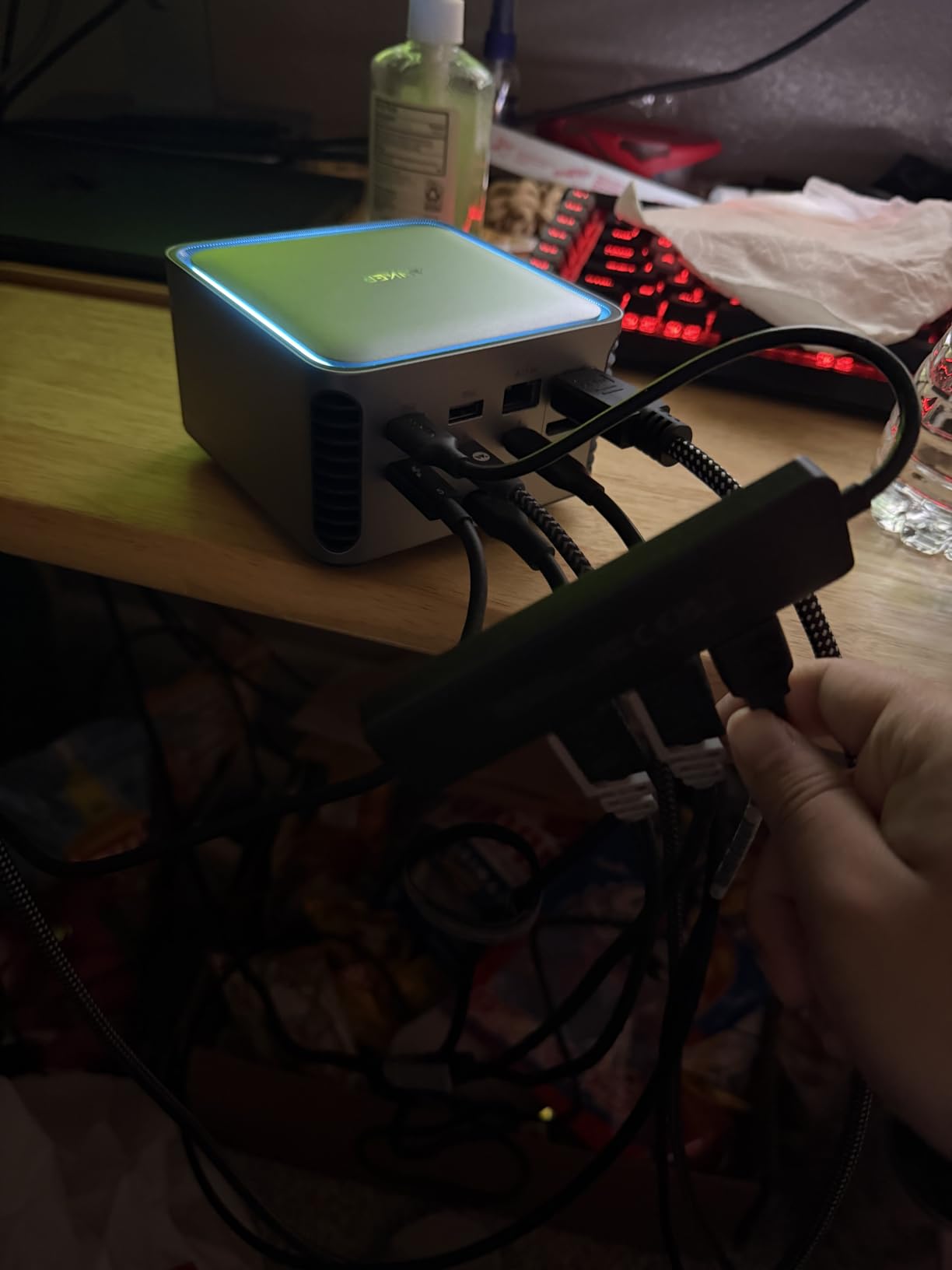
At 2.4 pounds and 4.56 by 4.56 inches, this is a fixed desk accessory rather than something that travels. That is fine if it lives under a monitor arm or on a shelf, and wrong if your dock moves to a different table each day.
The two front-facing USB-C ports share 45W between them, so a phone and a laptop charging simultaneously will not both get full power. The 3.3 foot Thunderbolt 5 cable and 6 foot AC cable are both included, and the listed minimum operating system is Mac OS 15 Sequoia, which is worth checking against your current machine.
12. WAVLINK DisplayLink Dual 4K Dock – Dual 4K Without a Thunderbolt Port
WAVLINK Displaylink Docking Station Dual 4K@60Hz Monitor for Mac, Windows
- Drives two 4K at 60Hz monitors from a single USB connection
- Four display outputs allow dual HDMI
- HDMI plus DisplayPort or dual DisplayPort
- Six USB 3.0 ports
- gigabit ethernet and audio cover everyday accessories
- 24-month warranty with lifelong technical support
- DisplayLink driver must be installed for video output on all supported operating systems
- No laptop charging so a separate power adapter is required
- Not suitable for gaming
- high-frame-rate editing or protected streaming
- Not compatible with Linux
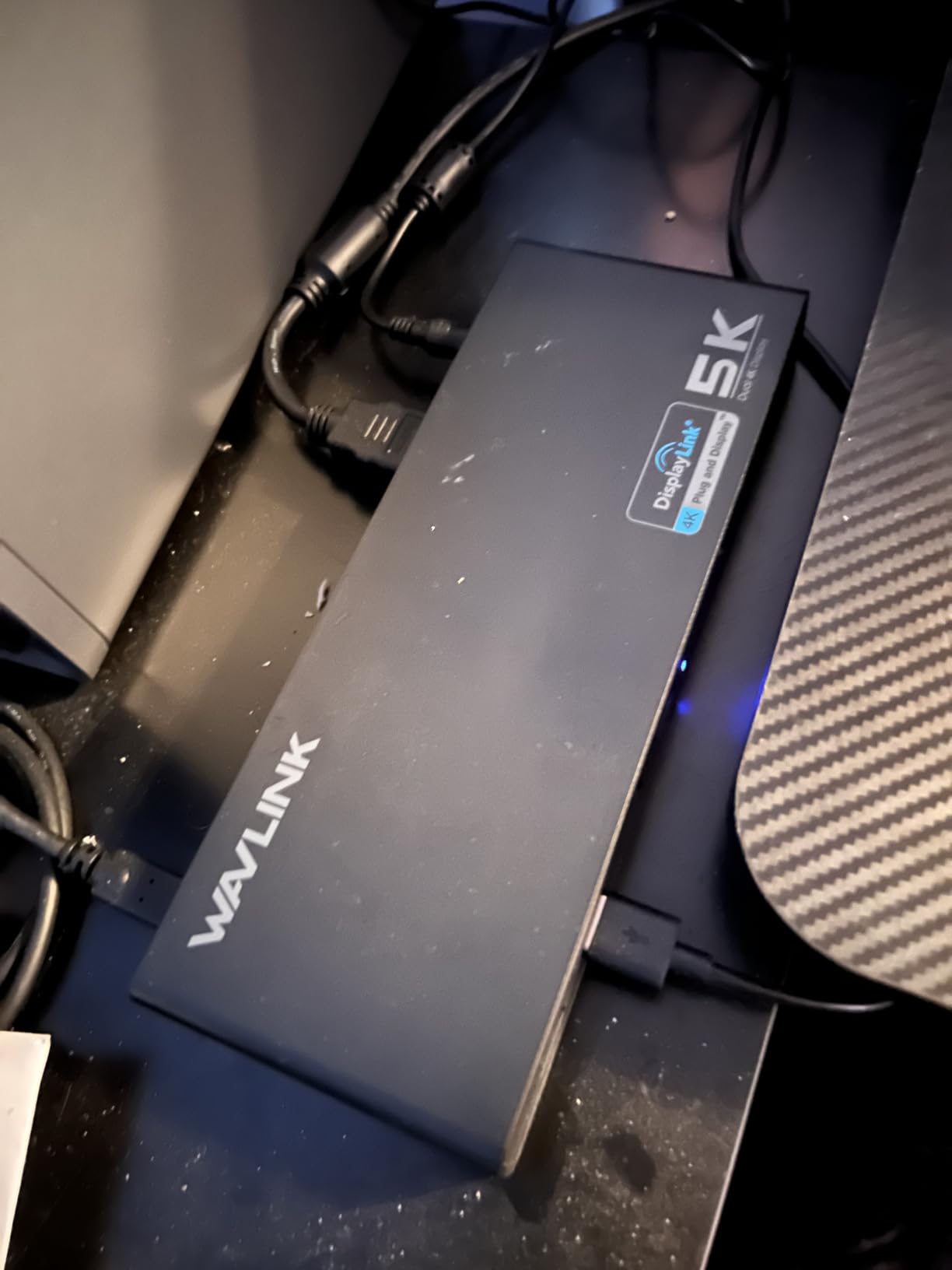
This is the dock for a Windows user on a laptop without Thunderbolt. It drives two 4K at 60Hz monitors over a plain USB connection, and the host can be USB-A, USB-C, USB4 or Thunderbolt 3, 4 or 5. That last part is the interesting bit: a machine with only USB-A ports can still get two 4K displays, which on r/sysadmin is described as the simplest answer for an older notebook.
Four video outputs give you real flexibility. You can run dual HDMI, HDMI plus DisplayPort, or dual DisplayPort, which matters when one of your monitors has only DisplayPort and the other only HDMI.
Data and peripherals are covered by six USB 3.0 Type-A ports at 5Gbps, a gigabit ethernet jack, and a 3.5mm audio jack. The 24-month warranty comes with lifelong technical support, and the slim 8.9 by 3.34 by 1.1 inch footprint suits a small desk better than most triple-output docks.
When USB-A is the only port you have?
DisplayLink is the reason this dock exists. Because the video stream is compressed and carried over the USB data path rather than a native display link, a machine with no video-capable port at all can still run two high-resolution panels. For a legacy business laptop that is being asked to do a modern job, there is no alternative.
The same technology brings the usual costs. There is added latency, no HDCP support, and no suitability for gaming or high-frame-rate video editing. The dock is positioned for productivity, and it delivers on that positioning rather than pretending otherwise.
What to know before you commit?
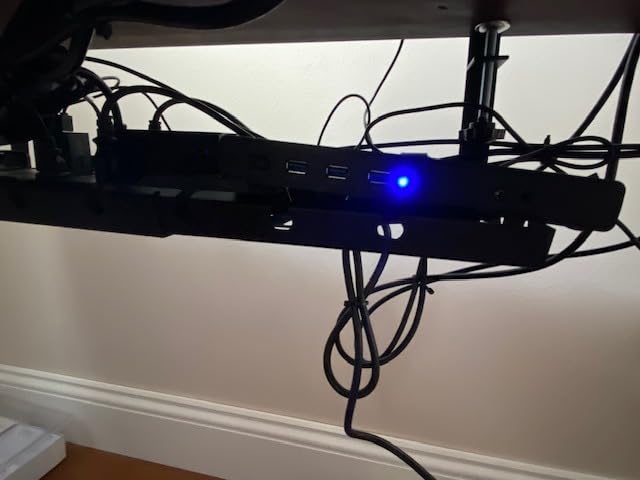
The DisplayLink driver must be installed for video output on every supported operating system, including Windows. On macOS it works with Apple silicon M1 through M5 machines and the MacBook Neo, and ChromeOS 100 and later is supported. Linux is not.
There is no laptop charging, so you keep your own power adapter. For some people that is a feature on a shared or hot-desk station. For everyone else it means one more cable at the desk, which is the trade you accept to get two 4K displays from a USB-A port.
How to Choose a Laptop Docking Station for a Home Office?
Work through these four steps in order. The first one eliminates more bad purchases than everything else combined, because a dock cannot add capability your laptop does not have.
Step 1: Start from the laptop’s ports, not the dock’s port count
Check what your laptop actually has. A Thunderbolt 4 or 5 port unlocks the full range of docks in this guide, including dual 4K at 60Hz and high-speed storage. A plain USB-C port that supports DisplayPort Alternate Mode supports video and data but has far less bandwidth. A USB-A port limits you to DisplayLink solutions such as the WAVLINK dock on this list.
Port count is a marketing figure, and it is the least reliable number on any product page. A dock advertising 10 or 13 ports may include several 480Mbps USB 2.0 ports that will make an external SSD crawl. Check the speed of the individual ports you plan to use, not the total.
Step 2: Decide how many displays you actually need
One 4K display needs about 17.28Gbps of video bandwidth. Two need roughly 34.56Gbps, which is why Thunderbolt 4’s 40Gbps budget can carry dual 4K at 60Hz with headroom left for data and charging, while a DisplayPort Alternate Mode connection often cannot sustain it at full refresh.
Treat 4K at 60Hz as the floor for a primary monitor and do not accept 4K at 30Hz. The difference in cursor movement and scrolling is immediate and permanent, and it is the single most common reason a cheap dock feels bad after a week. For three displays, expect to move to a DisplayLink dock and accept the tradeoffs we listed for it.
Step 3: Match power delivery to the laptop class
Thin and light laptops generally need 60W to 65W, and most mainstream models sit comfortably at 85W to 100W. Workstation-class machines and large-screen MacBook Pro configurations want 140W or more, particularly while driving two external displays at high brightness.
Then check the AC adapter, not the label. Several docks here advertise a figure the included power supply cannot sustain with all ports occupied, and one charges at 85W despite a 100W label because 15W is reserved for the hub itself. A dock that cannot deliver its rating will charge your laptop more slowly with peripherals attached, and it will not tell you it is doing so.
Step 4: Check ethernet, warranty and thermals
If your home Wi-Fi is inconsistent, a gigabit ethernet jack is the cheapest video-call reliability upgrade available. 2.5Gbps, as on the CalDigit TS4 and the Plugable Thunderbolt 4 dock, only pays off if your router and network storage also support it, so do not pay a premium for it on its own.
Warranty length is a reasonable proxy for intended service life. Users on r/UsbCHardware describe keeping a dock for five to ten years, and buying from a brand with longer support coverage is a low-cost hedge. Thermals matter too, since a dock that runs hot sits closer to its failure point.
Two setups that catch people out
If your employer issues your laptop and IT blocks driver installation, DisplayLink docks are not an option, full stop. Check what your organisation already supports before buying anything, and remember that second-hand HP, Dell and Lenovo business docks are a well-regarded path for a personal machine.
If you want a work laptop and a personal laptop on one desk, a docking station alone will not switch between them. You need a KVM switch or a KVM-style dock matched to your exact HDMI and DisplayPort needs, counting how many USB peripherals must follow you across.
Docking Station or USB-C Hub: What the Difference Costs You?
A USB-C hub is a bus-powered adapter that adds ports and usually one display. A docking station is a desk-bound device with its own power supply that adds ports, multiple displays, wired networking and host charging. That difference is the whole question, and the answer depends almost entirely on whether your desk stays put.
If you are still deciding between the two, our [guide to docking stations for dual monitors](https://www.thebrucehighqualityfoundation.com/best-laptop-docking-stations-for-dual-monitors/) works through the monitor-specific requirements in more detail. A hub suits a table you clear away, a single 1080p display, and occasional travel. A station suits a fixed desk with two or more peripherals, and if your setup involves a scanner, a [document scanner for a home office](https://www.thebrucehighqualityfoundation.com/best-document-scanners-for-home-offices/) is one of the many USB peripherals that makes a dedicated dock worthwhile rather than a luxury.
Mac or Windows: Compatibility Traps Worth Knowing Before You Buy
Most USB-C and Thunderbolt docks work on both platforms, but three differences decide whether your setup succeeds. First, base-chip M1, M2 and M3 Macs support only one external display natively, and no dock changes that. Pro, Max and Ultra chips support more. Second, macOS does not support MST, so docks that rely on daisy-chaining to extend will mirror only. Third, DisplayLink needs a driver and a screen-recording permission that alarms people the first time they see it.
On Windows, MST and multi-monitor modes are handled natively, and driverless Thunderbolt docks need nothing at all. USB-C hubs that rely on MST still behave, which is why the UGREEN 10-in-1 extends properly on Windows and mirrors on a MacBook.
Two further warnings belong here. DisplayLink has no HDCP, so protected streaming content will not play, and macOS upgrades have historically disrupted DisplayLink setups. If your work is engineering, trading, or editing, those tradeoffs decide the question before any specification does.
Environment matters more than most guides admit. A fixed desk with wired ethernet, a [cork board](https://www.thebrucehighqualityfoundation.com/best-cork-boards-for-home-offices/) for reference notes, and reasonable [acoustic treatment](https://www.thebrucehighqualityfoundation.com/best-acoustic-panels-for-home-offices/) is where a dock’s capability actually shows up, because that is where you spend the day.
Troubleshooting: Why a Second Monitor Flickers or Disappears?
These are the failures people ask about most, worked in the order we would diagnose them.
Confirm the dock can exceed your laptop’s native display limit. If you are on a base-chip MacBook and the dock is not using DisplayLink, one external display is the ceiling no matter what the packaging says. This accounts for more returns than any other cause.
Swap the host cable. A charge-only USB-C cable carries power and nothing else, and a cable without DisplayPort Alternate Mode will drive data and video at reduced capability. Use the cable supplied with the dock, or a certified Thunderbolt cable.
Check whether the dock depends on MST. If it does and you are on macOS, the second display will mirror the first. That is a platform limitation rather than a fault, and the fix is a dock that drives displays natively or through DisplayLink.
Confirm DisplayLink Manager is installed and permitted. The screen-recording prompt on macOS is expected and legitimate, because the driver captures the screen to compress the video stream. Decline it and the dock falls back to low resolution or no second display.
Test the dock on a second computer. If it fails there too, the dock or the monitor is at fault. If it works, the problem is a driver conflict on the first machine, and a chipset or graphics driver update usually clears it.
Watch for post-update breakage. A graphics driver update can break display restore behaviour on a dock that worked the day before. Reverting the driver or installing the dock vendor’s firmware update is the standard fix.
If you see an error stating that multiple docking stations are not simultaneously supported, the host is treating the second dock as a conflict. Disconnect it, update the host chipset and graphics drivers, connect through a single upstream port rather than two, or use a KVM switch designed for multi-dock desks.
Frequently Asked Questions
Are laptop docking stations worth it?
A dock is worth it if you sit at the same desk daily with two or more peripherals. It turns 60 to 90 seconds of plugging and unplugging at both ends of the day into one cable and about two seconds, and it can let one laptop serve a full multi-monitor workstation. It is not worth it if you move constantly with a single monitor, where a small bus-powered hub is the better tool.
What is the difference between a docking station and a docking hub?
A USB-C hub is a bus-powered adapter that adds ports and usually one display, and it suits a table you clear away. A docking station is a desk-bound device with its own power supply that adds multiple displays, wired ethernet, host charging and far more ports. The station is the right choice for a fixed desk; the hub is right for travel and single-monitor use.
Do I need Thunderbolt for a docking station?
No for most home offices running one or two 4K monitors, and yes if you need dual 4K at 60Hz, multiple high-speed storage devices, an external GPU, or daisy-chained Thunderbolt peripherals. Thunderbolt 4 provides 40Gbps of bandwidth, and each 4K at 60Hz stream takes roughly 17.28Gbps, so two of them consume about 34.56Gbps of that budget.
Can I drive two 4K monitors from a MacBook Air?
It depends on the chip. M-series Pro, Max and Ultra models support two or more native external displays, so a Thunderbolt dock will drive dual 4K at 60Hz. Base M1, M2 and M3 chips support only one external display natively, and the only way to add a second is a DisplayLink dock, which adds a small amount of latency, carries no HDCP, and is unsuitable for gaming.
Will a docking station work with my MacBook?
Most USB-C and Thunderbolt docks do, with three caveats. Base-chip M1, M2 and M3 MacBook Air and MacBook Pro support only one external display natively, macOS does not support MST so daisy-chained multi-display docks mirror only, and DisplayLink docks require a driver plus a screen-recording permission that macOS presents on first launch.
Do docking stations require driver installation?
Thunderbolt 4 and Thunderbolt 5 docks and most native USB-C docks are plug-and-play, including on Windows 10 and 11 and ChromeOS. DisplayLink docks need the DisplayLink Manager download plus screen-recording permission on macOS. If your employer manages your laptop, corporate IT policy may block DisplayLink installs entirely, which rules out every DisplayLink option.
The Best Laptop Docking Stations for Home Offices in 2026
The Plugable UD-3900 is our top pick for most people, because it works with whatever laptop you already own and has the broadest review history of any dock here. Buy the UGREEN 10-in-1 if dual 4K on Windows matters more than charging headroom, and the CalDigit TS4 if you want one dock to last a decade and retire your adapters in the process.
Everything else follows from your constraints rather than from a ranking. A MacBook on a base chip needs DisplayLink. A managed work laptop needs a driverless Thunderbolt or USB-C dock. A desk with two USB-A laptops needs the older universal approach. Get the connection standard right first, because no dock can exceed what your laptop’s ports allow.
Our [guide to docking stations for dual monitors](https://www.thebrucehighqualityfoundation.com/best-laptop-docking-stations-for-dual-monitors/) goes deeper on the monitor side, and it is worth reading before you commit to a three-panel arrangement. Whichever you choose, the payoff is the same one we started with: one cable at the start of the day, one at the end, and a desk that does not need rebuilding every morning.