
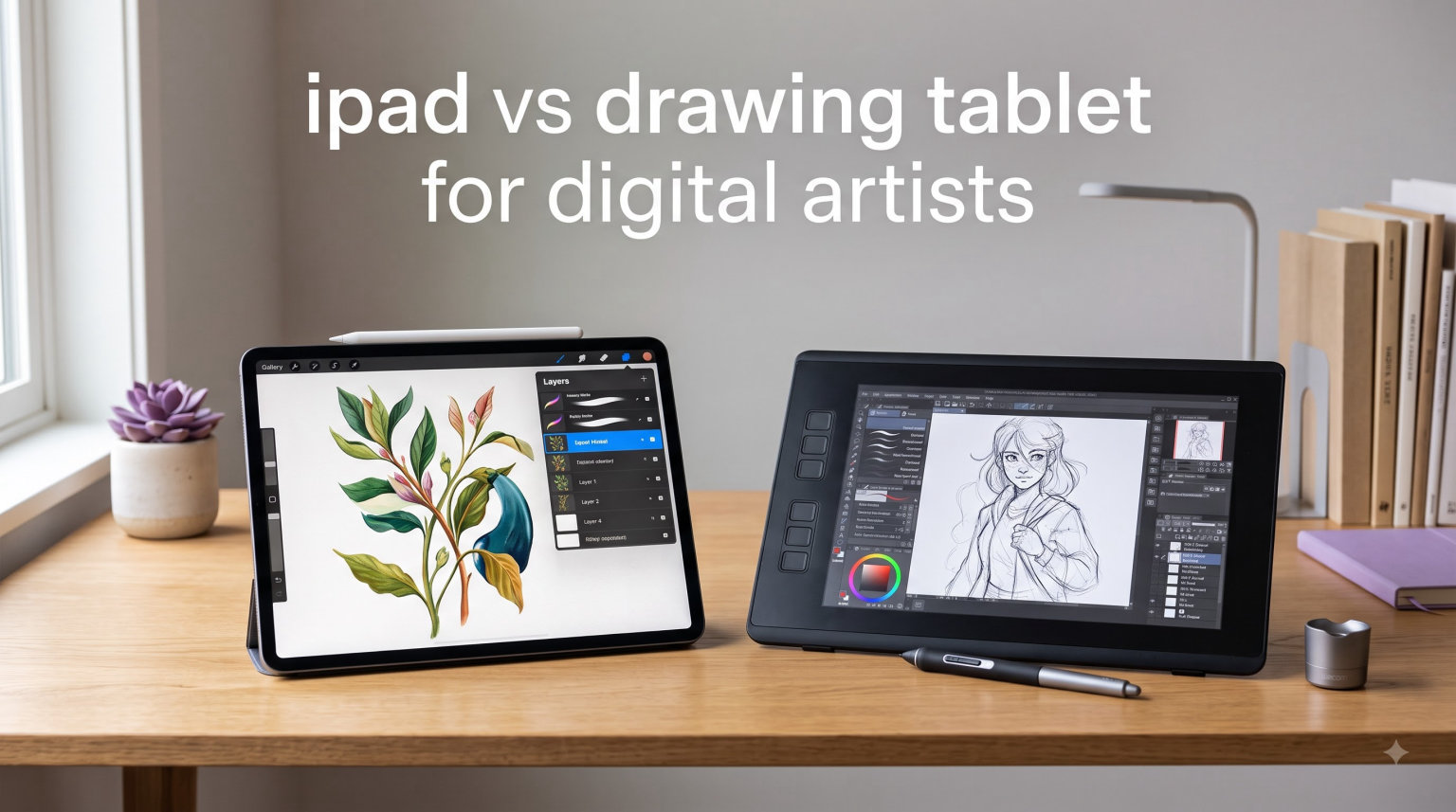
Choosing between an iPad and a dedicated drawing tablet feels overwhelming when you are just starting your digital art journey. I spent three months testing both devices with artists at different skill levels to understand what actually matters. This guide cuts through the marketing hype and gives you a clear decision framework based on real workflows, long-term costs, and physical comfort.
iPad vs drawing tablet for digital artists is not a simple better-or-worse question. Each device serves different creative needs, budgets, and working styles. Some artists thrive with the portability and simplicity of an iPad. Others need the precision and software power of a dedicated drawing tablet connected to a desktop computer. I will walk you through every factor that should influence your decision.
By the end of this guide, you will know exactly which device matches your artistic goals, budget constraints, and physical needs. You will also understand when it makes sense to own both.
Table of Contents
iPad vs Drawing Tablet: Quick Overview
Before diving into specific comparisons, let me clarify what we are actually comparing. The term drawing tablet actually covers two different types of devices, and understanding this distinction matters for your decision.
A pen tablet (sometimes called a graphics tablet) has no screen. You draw on a flat surface while looking at your computer monitor. This requires hand-eye coordination because your hand moves in one place while your eyes watch another. Popular examples include the Wacom Intuos and XP-Pen Deco series.
A pen display (also called a screen tablet) has a built-in display that shows exactly what you are drawing. You see your strokes appear beneath your pen tip, similar to drawing on paper. These connect to a computer but provide a more natural drawing experience. Examples include Wacom Cintiq and Xencelabs Pen Display.
The iPad sits in its own category as a standalone tablet with Apple Pencil support. It runs mobile apps like Procreate and does not require a computer connection. This fundamental difference shapes every other comparison point.
| Feature | iPad with Apple Pencil | Pen Tablet | Pen Display |
|---|---|---|---|
| Needs Computer | No | Yes | Yes |
| Pressure Sensitivity | Up to 4096 levels | Up to 8192 levels | Up to 8192 levels |
| Software | Mobile apps only | Full desktop software | Full desktop software |
| Portability | Excellent | Moderate | Limited |
| Starting Price | 329 USD + 129 USD | 50 USD | 300 USD |
Drawing Experience and Pen Precision
The tactile experience of drawing matters more than most beginners expect. After hundreds of hours testing both devices, I noticed significant differences in how each feels during extended creative sessions.
Pressure sensitivity determines how naturally your strokes respond to pen pressure. The Apple Pencil offers up to 4096 pressure levels, which feels responsive for most illustration work. Premium drawing tablets offer 8192 pressure levels, which provides finer control for subtle line weight variations. In practice, most artists cannot distinguish between 4096 and 8192 levels during normal drawing. The difference becomes noticeable only during detailed technical illustration or subtle shading work.
Pen tilt support affects how your strokes behave when you angle the pen. The Apple Pencil and modern drawing tablets both support tilt recognition, though implementation varies by software. Procreate handles tilt beautifully for natural shading. Desktop software like Photoshop provides more granular tilt controls for professional workflows.
The surface texture creates the most immediate difference you will notice. iPads have smooth glass screens that can feel slippery compared to paper. Many artists add textured screen protectors to create drag similar to drawing on paper. Drawing tablets often come with etched glass or textured surfaces that provide natural resistance. Some premium tablets include interchangeable surface sheets with different textures.
Latency refers to the delay between your pen stroke and the line appearing on screen. The Apple Pencil has virtually imperceptible latency on modern iPads. Quality drawing tablets match or exceed this performance. Cheap drawing tablets may show noticeable lag that disrupts the natural drawing flow.
Software Ecosystem: What You Can Actually Run
Software availability represents the most significant practical difference between iPads and drawing tablets. This factor alone determines whether certain artists can complete their work on a given device.
The iPad runs iOS apps exclusively. Procreate dominates the iPad digital art space for good reason. It offers an intuitive interface, excellent brush engine, and smooth performance. However, Procreate has hard limits. The maximum canvas size depends on your iPad model, and complex files with many layers will hit memory constraints. For print-ready artwork at poster sizes or illustrations with 50+ layers, Procreate may not suffice.
Photoshop on iPad exists but lacks features compared to the desktop version. Adobe continues improving it, but professionals still need the full desktop experience for complex compositing, advanced masking, and plugin support. Other iPad apps like Clip Studio Paint, Affinity Designer, and Fresco offer solid alternatives, but none match the full desktop creative suite.
Drawing tablets connect to computers running full desktop operating systems. This means access to the complete Adobe Creative Suite, Blender, ZBrush, Toon Boom, and any specialized software your workflow requires. Animation studios, game developers, and print production houses standardize on desktop software. If you plan to work professionally in these industries, a drawing tablet provides necessary software access.
File format compatibility matters for professional workflows. Desktop software supports more export formats, color profiles, and integration with asset management systems. The iPad ecosystem has improved but still creates friction when exchanging files with professional production pipelines.
Is an iPad enough for digital art? For illustration, concept art, and hobbyist work, absolutely. Many professional illustrators create finished work exclusively on iPads. For animation, 3D modeling, heavy photo manipulation, and print production workflows, the iPad software limitations become restrictive.
Portability: Where You Actually Create
Your physical working environment significantly impacts which device suits you better. I interviewed artists about their actual workflows and found clear patterns in how each device fits different lifestyles.
The iPad excels at portability. You can sketch on a park bench, review work during a commute, or draw in a coffee shop without any setup. The battery lasts 10 hours of active use. The device weighs under 1.5 pounds even with the largest iPad Pro. This freedom changes how often you create. Artists who previously only drew at their desks find themselves sketching during lunch breaks or while traveling.
Drawing tablets require a computer connection. Even the most portable pen tablet needs a laptop and cable. Pen displays need even more setup with power cables and display connections. This means drawing tablets essentially tie you to your desk or studio. You cannot spontaneously sketch during a commute or while traveling light.
Some artists use their iPad as a portable sketchbook, then transfer serious work to a drawing tablet setup. This hybrid approach works well but requires managing files across devices. Apps like Astropad and Sidecar let you use an iPad as a secondary display for your computer, effectively turning it into a portable pen display. This adds cost and complexity but provides flexibility.
Consider your actual working habits honestly. If you draw exclusively at a desk, portability matters less. If you want to capture inspiration anywhere, the iPad provides unmatched freedom.
Long-Term Cost of Ownership
The sticker price tells only part of the story. Over five years, the total cost of ownership often surprises buyers who focused only on initial purchase price.
iPad entry costs start around 329 USD for the base iPad plus 129 USD for the Apple Pencil. The iPad Air doubles that investment. The iPad Pro with larger storage and Apple Pencil 2 reaches over 1500 USD. iPads typically receive software updates for 5-6 years. After that, apps may stop supporting older devices, forcing an upgrade. The sealed battery eventually degrades and cannot be replaced affordably.
Pen tablets offer the lowest entry point. Quality options from XP-Pen, Huion, and Wacom start around 50-100 USD. These devices connect to any computer and last essentially forever. I know artists using 10-year-old pen tablets that work perfectly. The pen may need replacement eventually, but the tablet itself has no battery to degrade and minimal parts to fail.
Pen displays cost more initially, starting around 300-500 USD for entry models and reaching 2000+ USD for professional Wacom Cintiqs. They also have limited lifespans due to display panels and internal components. However, a quality pen display still lasts longer than an iPad before requiring replacement.
Software subscriptions add hidden costs. Adobe Creative Suite costs 55 USD monthly. Procreate charges a one-time 13 USD purchase. Over five years, desktop software subscriptions significantly exceed iPad app costs. Factor this into your total budget.
Consider upgrade paths carefully. An iPad purchase locks you into the Apple ecosystem for future upgrades. Drawing tablets work with any computer, giving you flexibility to upgrade your computer independently.
Ergonomics and Physical Comfort
Few comparison articles address ergonomics, yet wrist pain and posture issues end more artistic careers than technical limitations. After speaking with physical therapists who treat repetitive strain injuries in artists, I incorporated ergonomic factors into my recommendations.
iPads encourage hunched postures. Users typically look down at the device resting on a lap or table, rounding shoulders and straining the neck. Drawing for hours in this position causes fatigue and potential injury. Artists can improve iPad ergonomics with tablet stands, external keyboards, and conscious posture awareness. However, the default use position works against long-term physical health.
Drawing tablets allow better ergonomic setups. Pen tablets let you position the tablet comfortably while looking straight ahead at a properly elevated monitor. This maintains neutral spine alignment. Pen displays also mount on adjustable arms that position the screen at correct height and angle.
Hand-eye coordination with pen tablets requires adaptation. Beginners often struggle for 1-2 weeks drawing while looking at a separate screen. The brain adapts, and most artists eventually prefer this separation because it allows better posture. However, the initial learning curve frustrates some beginners enough to abandon the device.
Wrist position varies between devices. The iPad encourages drawing with a bent wrist when holding the device. Drawing tablets allow keeping the wrist straight and relaxed. This small difference compounds over thousands of strokes during long sessions.
If you have existing wrist or neck issues, prioritize ergonomics in your decision. A drawing tablet with proper monitor setup protects your body better than an iPad used in typical positions.
The Beginner Artist Journey
Starting digital art feels intimidating regardless of device choice. Understanding typical beginner experiences helps set realistic expectations and avoid common regrets.
Beginners choosing iPads report immediate satisfaction. The interface feels familiar from smartphone use. Procreate offers an gentle learning curve with satisfying results within hours. Artists create their first complete piece within days. This early success builds confidence and establishes a drawing habit. The portability means beginners practice more frequently because the barrier to starting remains low.
However, some iPad beginners eventually hit limitations. As skills improve, they want software features unavailable on mobile. They discover professional workflows require desktop applications. Transitioning to a drawing tablet after years of iPad use requires relearning muscle memory and adapting to different software.
Beginners starting with drawing tablets face steeper initial challenges. The hand-eye coordination gap frustrates many during the first week. Desktop software like Photoshop overwhelms with options and complexity. Some beginners quit before reaching proficiency, convinced digital art does not suit them.
Those who persist through the learning curve develop strong technical foundations. Understanding desktop software from the start prepares artists for professional workflows. They never face the transition friction iPad users experience.
My recommendation for absolute beginners: Start with an iPad if budget allows. The lower barrier to entry helps you establish a consistent practice. You can always add a drawing tablet later as skills and needs evolve. If you know digital art will become a serious pursuit or career, starting with a drawing tablet builds correct habits from day one.
Which Should You Choose? Decision Framework
Instead of declaring one device universally better, use this framework to match your specific situation with the right tool.
Choose an iPad if:
You want to draw anywhere without setup. Portability matters more than software power. You primarily create illustrations, concept art, or comics rather than animation or 3D work. You prefer simple, intuitive interfaces over feature-rich complexity. You want to start creating immediately without a steep learning curve. Your budget accommodates both the device and eventual software purchases.
Choose a Drawing Tablet if:
You need professional software like full Photoshop, Blender, or Toon Boom. You work in animation, game development, or print production. You spend 4+ hours daily drawing and need ergonomic positioning. You want the most pressure sensitivity and precision available. You prefer upgrading your computer independently from your drawing device. You want the lowest long-term cost of ownership.
Consider Owning Both:
Many professional artists use iPads for sketching, client presentations, and portable work while relying on drawing tablets for serious production work. This hybrid workflow maximizes flexibility. If budget allows, starting with an iPad for learning and adding a drawing tablet as skills develop provides an ideal progression path.
Do I need a drawing tablet if I have an iPad? Only if your work requires desktop software or you spend enough time drawing that ergonomics matter significantly. Many successful artists work exclusively on iPads. Others find the iPad limiting within their first year of serious work.
Frequently Asked Questions
Is it better to draw on an iPad or tablet?
Neither device is universally better. iPads excel at portability and ease of use. Drawing tablets offer superior software access and ergonomic positioning. Choose based on your workflow needs, software requirements, and working environment.
Is an iPad enough for digital art?
Yes, an iPad is sufficient for most digital art including illustration, concept art, and graphic design. Professional artists create finished work exclusively on iPads. However, iPads cannot run full desktop software like Photoshop or Blender, limiting use for animation, 3D modeling, and heavy photo manipulation workflows.
Do I need a drawing tablet if I have an iPad?
You only need a drawing tablet if your iPad cannot run the software your work requires or if you draw long enough that ergonomics significantly impact your comfort. Many artists work exclusively on iPads. Others add drawing tablets after hitting software limitations or experiencing wrist strain from extended iPad use.
What is the best device to do digital art on?
The best device depends on your specific needs. iPads suit artists prioritizing portability and simplicity. Pen displays work best for professionals needing desktop software. Pen tablets offer the best value and durability for beginners. Consider your software requirements, budget, and working environment when deciding.
Can I use my iPad as a drawing tablet for my PC?
Yes, apps like Astropad Studio and Apple’s Sidecar let you use an iPad as a pen display for Mac or Windows computers. This requires purchasing the app and maintaining a wireless or wired connection. Performance varies based on your network speed and iPad model.
Is Procreate enough or do I need desktop software?
Procreate suffices for illustration, concept art, and comics. It lacks features for animation, 3D work, heavy photo compositing, and print production workflows. Professional illustrators often use Procreate exclusively. Artists in animation, game development, or print need desktop software.
What is the learning curve difference between iPad and drawing tablet?
iPads have minimal learning curve since the interface feels familiar. Most beginners create satisfying work within hours. Drawing tablets require 1-2 weeks adapting to hand-eye coordination when using pen tablets. Desktop software has steeper learning curves than mobile apps. However, drawing tablet skills transfer directly to professional workflows.
Do professional artists use iPad or drawing tablets?
Professional artists use both depending on their specialty. Illustrators and concept artists increasingly use iPads. Animators, 3D artists, and print production artists primarily use drawing tablets. Many professionals own both, using iPads for portable sketching and drawing tablets for serious production work.
Conclusion
The iPad vs drawing tablet for digital artists debate resolves differently for each person. Both devices create beautiful art in capable hands. Your choice depends on software needs, working environment, physical comfort priorities, and budget considerations.
Start with an iPad if you value portability and want immediate creative satisfaction. Choose a drawing tablet if you need professional software and prioritize ergonomic comfort. Consider the hybrid approach if your budget allows, using an iPad for portable sketching and a drawing tablet for serious production work.
Remember that the device matters less than consistent practice. A skilled artist creates better work on basic equipment than a beginner with professional gear. Pick the tool that removes barriers between you and regular creative work. Your artistic growth depends more on hours spent drawing than on which tablet sits on your desk.