
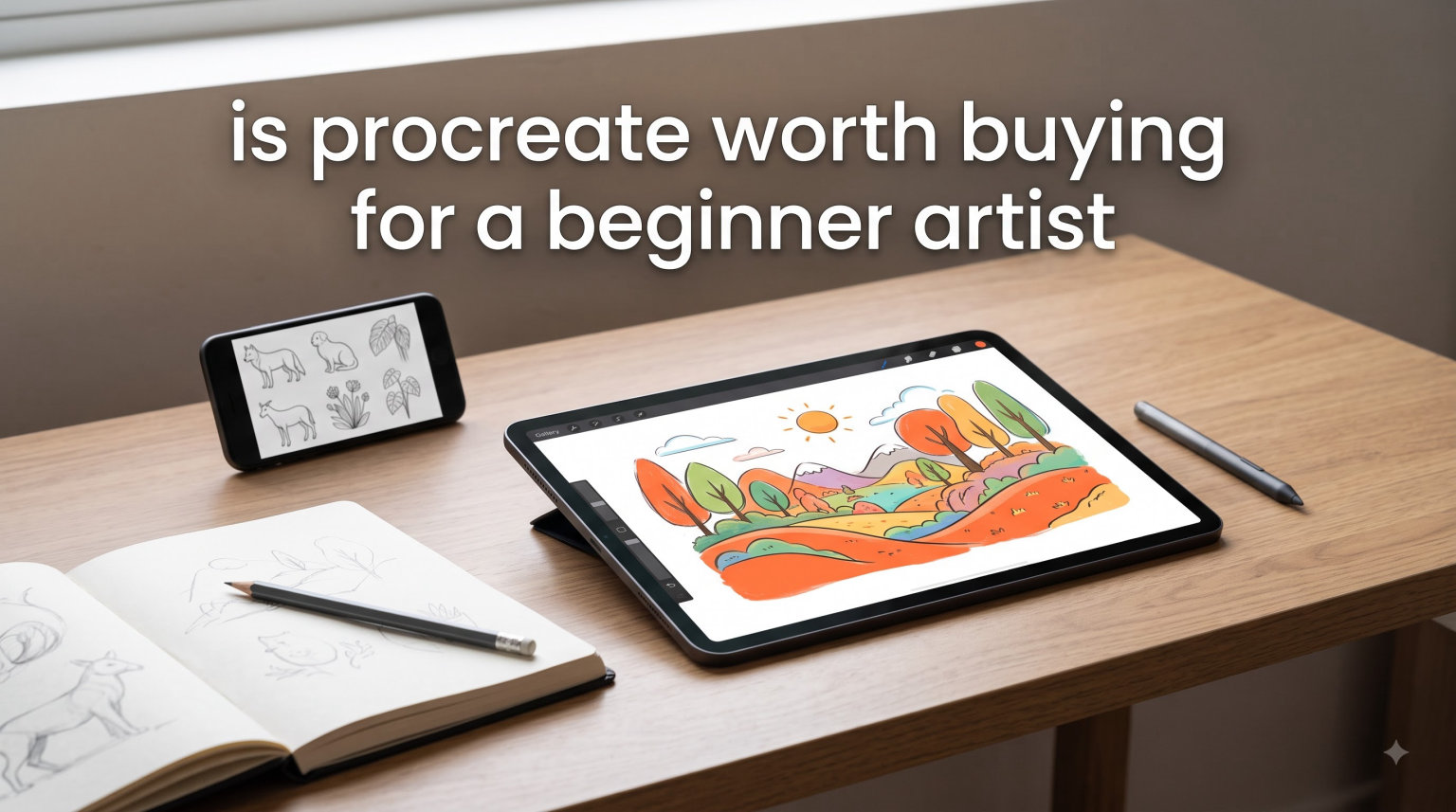
If you’ve been wondering whether Procreate is worth buying for a beginner artist, let me give you the short answer right away: Yes, Procreate is absolutely worth it for beginners. The app costs $12.99 as a one-time purchase, and it gives you professional-grade drawing tools without requiring any prior art experience. But let me dig deeper into why this matters for someone just starting their creative journey.
The fear of not being “artistic enough” stops many people from ever trying digital art. I hear this concern constantly in artist communities, and it’s completely understandable. You might worry that dropping money on an app means you’re committing to something you’ll abandon after a week. That’s a valid concern, and this guide will help you decide whether Procreate is the right choice for your specific situation.
By the time you finish reading, you’ll know exactly what Procreate offers beginners, what equipment you actually need, and how the value compares to what you’d spend on traditional art supplies. Let’s get into it.
Table of Contents
What Is Procreate and Why It Matters for Beginners
Procreate is a digital painting application designed specifically for the iPad. It transforms your tablet into a versatile canvas where you can sketch, illustrate, watercolor, and create hand lettering. The app has been around since 2011 and has grown into one of the most recommended drawing apps for both beginners and professionals.
What makes Procreate special for beginners is how it handles the creative process. Instead of staring at a blank page wondering if you’re doing it right, you get access to over 200 pre-installed brushes, intelligent shape detection, and guided drawing tools that help you create something you’re proud of from day one. The interface feels natural, almost like drawing on paper but with unlimited possibilities.
The app works entirely offline once you download it. You don’t need an internet connection to create, which means you can practice anywhere – on the bus, in a coffee shop, or while traveling. This portability matters more than you might think when you’re building a new habit.
The Real Cost: Procreate Price Breakdown
Here’s the thing about Procreate that surprises most people: it’s a one-time payment of $12.99. No subscription, no monthly fees, no hidden costs. You buy it once through the App Store and it’s yours forever, including all future updates.
Compare this to Adobe’s subscription model where you’re paying $10-20 monthly just to access drawing software. Over two years, that subscription adds up to hundreds of dollars. Procreate’s price model is refreshingly simple, and it makes the app accessible even if you’re on a tight budget.
Let me break down the value proposition another way. A decent set of watercolor paints, quality paper, brushes, and other traditional supplies can easily run $100-200, and those supplies eventually run out. With Procreate, your only real investment is the app and a compatible iPad. Everything else you create costs nothing extra.
The $12.99 price point removes a lot of the financial risk too. If you try Procreate for a few weeks and decide digital art isn’t for you, you’re only out the price of a lunch meal. That’s a much smaller commitment than buying art supplies you might never touch again.
What You Actually Need to Get Started
The most common questions I see from beginners are about what equipment they actually need. Let me clear up the confusion around iPad compatibility and Apple Pencil requirements.
iPad Requirements
Procreate only works on iPads – it’s not available for Android or computers. Your iPad needs to be running iPadOS 14.0 or later. Most iPads released after 2015 support this, including the standard iPad, iPad Air, iPad Pro, and iPad Mini models.
One thing to note is that Procreate performs better on newer iPads with more RAM, especially if you work with lots of layers or large canvases. The M1, M2, and M3 iPad Pro models handle heavy projects without any lag, while older models might slow down with complex pieces.
Do You Need an Apple Pencil?
Here’s the honest truth: you can technically use Procreate with your finger, but the experience is significantly better with the Apple Pencil. The Pencil offers pressure sensitivity, tilt detection, and palm rejection, which together make drawing feel natural and intuitive.
Think of it like the difference between painting with your fingers versus using a quality brush. Both can create art, but the tool makes a huge difference in control and results.
The original Apple Pencil works with most iPads from 2018 onward, while the Apple Pencil 2 (which charges magnetically and has a softer grip) works with newer iPad Pro models. Third-party styluses like the Logitech Crayon also work with Procreate and offer a more affordable alternative, though you lose some features like pressure sensitivity from the sides.
Storage Considerations
Procreate itself takes up about 1-2GB of storage depending on which brushes you install. Your art files also take up space, but canvas sizes are customizable so you can work within your iPad’s available storage. Cloud storage through iCloud or Dropbox helps keep your work backed up without filling your device.
Built-In Tools That Help Beginners Succeed
This is where Procreate really shines for someone just starting out. The app includes features specifically designed to help beginners create satisfying artwork without years of practice.
Quick Shape Tool
Have you ever struggled to draw a perfect circle or a straight line? The Quick Shape tool fixes that automatically. Draw any shape loosely and Procreate recognizes what you meant and perfects it. This single feature makes a huge difference when you’re creating logos, UI mockups, or any project requiring geometric precision.
Drawing Assist and Symmetry
Drawing Assist helps your strokes follow intended paths, which is incredibly helpful when you’re still developing hand-eye coordination. The symmetry tool lets you mirror your drawing across vertical, horizontal, or radial axes, opening up possibilities for mandala designs, character art, and pattern work.
These tools don’t make your art look “fake” or “cheated” – professional artists use them constantly. Think of them as training wheels that help you build confidence while learning fundamentals.
The Brush Library
Procreate comes loaded with over 200 brushes organized into logical categories like Sketching, Inking, Watercolor, and Airbrushing. Each brush responds to Apple Pencil pressure and tilt, making them behave like their traditional counterparts. The Ink brush, for example, thickens when you press harder, just like a real pen.
You don’t need to buy additional brushes to create beautiful art. The built-in selection covers most artistic needs, from detailed illustrations to loose sketches.
Color Palette and Mixing
The Color Palette feature lets you save custom colors and access them easily while working. You can import color palettes, create them from reference images, or mix colors using the software’s mixing engine. This is particularly useful for maintaining consistency across illustration projects or matching specific brand colors.
Time-Lapse Recording
Procreate automatically records your creative process as a time-lapse video. This feature serves two purposes: it lets you review your technique and see how you approached a piece, and it creates shareable content showing your artistic journey. Many Procreate artists share these time-lapses on social media and they can be surprisingly satisfying to watch.
Layers and Masking
Layers let you work on different elements of your artwork separately without affecting other areas. This is fundamental to digital art and Procreate handles it elegantly. You can stack multiple layers, adjust their opacity, and use masking to hide parts without permanently deleting them. These features become essential as your projects grow more complex.
Pros and Cons: An Honest Look
No app is perfect for everyone, and being realistic about limitations helps you make a better decision. Here’s what beginners tell me about their experience after the first few months.
What Beginners Love
The immediate feedback is overwhelming positive. Users consistently mention how intuitive the interface feels, how fun it is to experiment with different brushes, and how satisfying it is to undo mistakes with a simple gesture. The $12.99 price feels negligible once you’ve created your first piece you’re proud of.
People also appreciate how Procreate grows with them. You start using basic features, but as your skills develop, advanced capabilities like layer masks, advanced selection tools, and custom brush creation become available. You never outgrow the app – it adapts to your skill level.
The portability factor can’t be overstated either. Having a full art studio in your bag means you can practice daily during commutes or while waiting for appointments. This accessibility helps beginners build consistent practice habits faster than they might with traditional supplies.
Where Beginners Struggle
The learning curve exists, especially if you’ve never used digital art software before. The interface has hundreds of features, and finding what you need takes time. Most beginners report feeling overwhelmed in the first week before things start clicking.
However, this challenge is significantly reduced by the enormous library of tutorials available for free on YouTube. Channels dedicated to Procreate tutorials exist for every skill level, and watching someone else use the tools while explaining their choices accelerates the learning process dramatically.
Another limitation is that Procreate is iPad-only. If you want to work on a Windows PC or Mac without buying an iPad, you’ll need to look at alternatives like Photoshop or Clip Studio Paint. This isn’t necessarily a dealbreaker, but it’s worth considering if you primarily work on other devices.
How Long Before You See Progress?
This question comes up constantly, and I want to be honest: progress depends on how consistently you practice, not on how talented you feel when starting.
Most beginners report meaningful improvement within 2-4 weeks of regular practice. “Regular” doesn’t mean hours daily – even 15-30 minutes several times per week produces visible results. By the end of your first month, you should be able to look back at your earliest work and see clear growth in your control and understanding.
The key is giving yourself permission to create imperfect work during the learning phase. Every professional artist started where you are now, and the only difference between them and people who quit is that they kept going.
I recommend setting small, achievable goals rather than aiming for gallery-quality work immediately. Your first week might involve learning to draw basic shapes and lines. Week two might introduce you to layer basics. By month two, you could be attempting a simple illustration with multiple elements. This progression keeps you motivated because you’re consistently achieving something.
Comparing Procreate to Alternatives
If you’ve researched digital art apps, you’ve probably encountered Adobe Fresco, Canva, and other drawing applications. Here’s how Procreate stacks up for beginners specifically.
Against Adobe Fresco, Procreate wins on price (Fresco requires a subscription) and interface simplicity. Fresco has some excellent features but the subscription model creates ongoing costs that add up significantly over time.
Against Canva, the comparison is less direct. Canva works in browsers and focuses on template-based designs rather than freehand drawing. If you want to learn actual drawing and illustration techniques, Procreate is the better choice. Canva serves different needs like social media graphics and presentations.
Against free apps like Sketchbook or ibisPaint, Procreate offers a more refined interface and better optimization for Apple Pencil. Free apps serve as decent introductions, but they often include ads, limited features, or watermarks that frustrate serious learners. The $12.99 investment in Procreate removes these friction points entirely.
Addressing Common Beginner Fears
Let me directly tackle the concerns I hear most often from beginners considering Procreate.
“I’m not artistic enough.” Here’s the secret nobody tells you: you don’t need to be “artistic” to use Procreate. The app isn’t about creating masterpieces – it’s about exploring creativity in a way that feels good to you. Many Procreate users describe themselves as “bad at drawing” yet create art they love using the app’s built-in tools and guides. The definition of “artistic” is far broader than you probably think.
“What if I buy it and never use it?” This fear is reasonable, but consider the stakes. The $12.99 loss is nothing compared to the regret of never trying something you were curious about. If you find even mild interest in digital art, Procreate removes enough barriers that you have no excuse not to experiment.
“The app seems too complicated.” Complexity scales with ambition. You can create satisfying artwork using only a handful of basic tools, and you can ignore advanced features until you need them. Nobody expects you to learn everything at once, and Procreate’s interface makes it easy to expand gradually.
“Do I need expensive equipment?” You definitely don’t need the newest iPad or the Apple Pencil 2. An older but functional iPad and original Pencil work perfectly well for learning. Think of initial equipment costs as separate from app costs – you might already have an iPad, making Procreate the only new expense.
FAQs
Is Procreate worth it for beginners?
Yes, Procreate is worth it for beginners. At $12.99 as a one-time purchase, it provides professional-grade drawing tools, over 200 built-in brushes, and beginner-friendly features like Quick Shape and Drawing Assist. The low price point removes financial risk while you explore digital art.
Is the $12.99 for Procreate a one-time fee?
Yes, the $12.99 Procreate price is a one-time payment with no subscription or recurring costs. You own the app forever and receive all future updates included at no additional charge.
Which is better, Canva or Procreate?
Canva and Procreate serve different purposes. Canva focuses on template-based designs and graphics, while Procreate is a freehand drawing and illustration app. For learning actual drawing techniques and creating original artwork, Procreate is the better choice.
Does Procreate require an Apple Pencil?
No, Procreate does not require an Apple Pencil and can be used with your finger. However, the Apple Pencil significantly improves the experience with pressure sensitivity, tilt detection, and palm rejection. A third-party stylus like the Logitech Crayon also works.
Conclusion
So is Procreate worth buying for a beginner artist? After looking at the price, features, equipment requirements, and real user experiences, I believe the answer is a clear yes for anyone curious about digital art. The $12.99 investment is minimal, the tools are genuinely helpful for beginners, and the one-time purchase model means you’re not locked into ongoing costs.
The app removes many traditional barriers to art – no supplies to buy repeatedly, no mess to clean up, and features that help you create satisfying work even as a complete beginner. If you’ve been on the fence about trying digital art, Procreate is the lowest-risk way to find out if it’s something you’ll enjoy.
Your next step is simple: check whether your iPad is compatible, download the app, and spend 15 minutes experimenting. You might discover a creative outlet that fits perfectly into your life, or you might confirm that digital art isn’t for you – either way, you’ll have your answer within a week.