
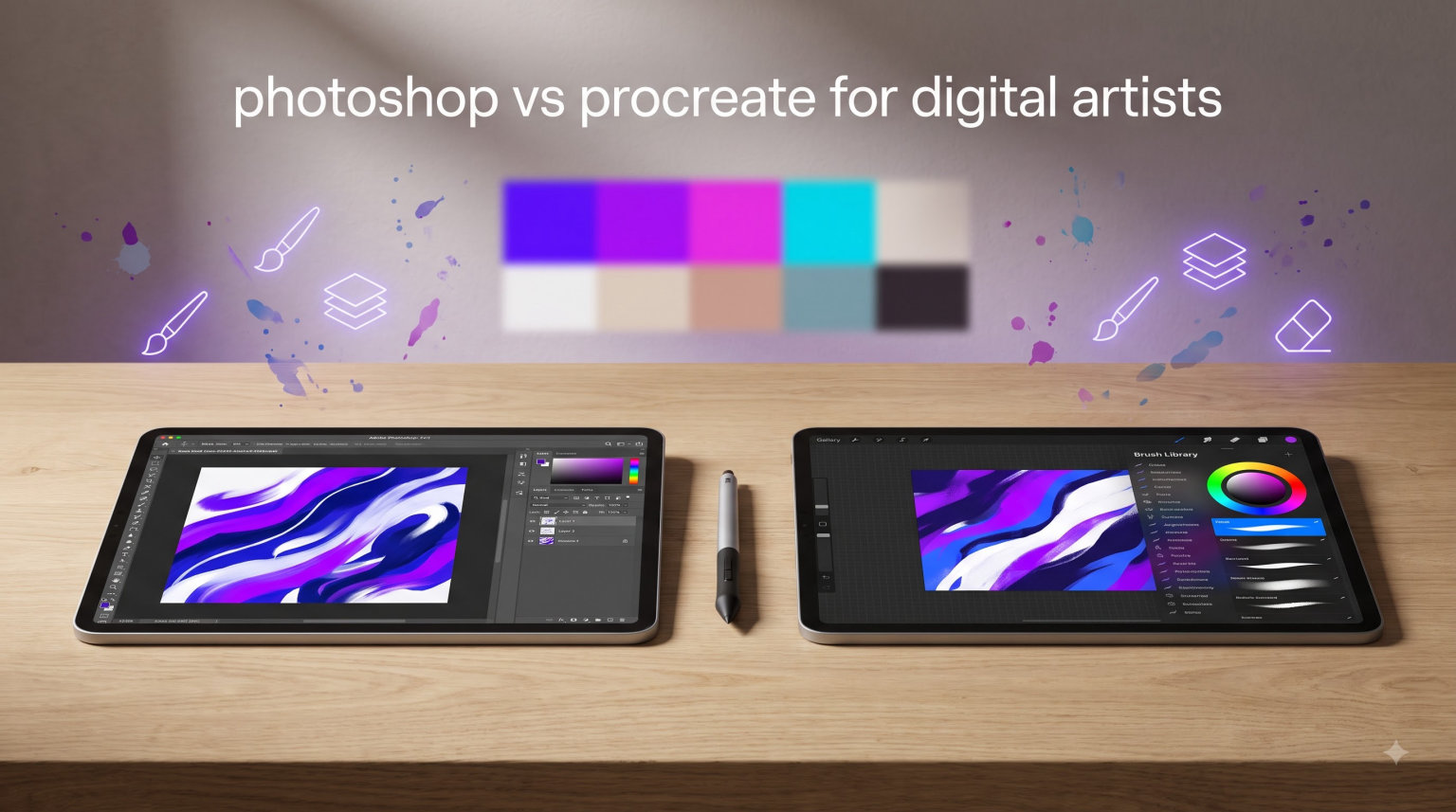
Two names dominate digital art software: Adobe Photoshop and Procreate. If you are a digital artist trying to decide between them, you are not alone. This comparison cuts through the marketing noise to give you a clear picture of what each tool actually delivers.
Photoshop has been the industry standard for decades. Procreate arrived more recently but built a devoted following among illustrators who love its simplicity. Both can produce professional-quality work, but they take very different approaches to getting there.
This guide breaks down every major difference that matters to digital artists in 2026. We cover pricing, features, usability, and which tool fits specific creative workflows. By the end, you will know exactly which one deserves a spot on your devices.
Table of Contents
Adobe Photoshop vs Procreate: Key Differences at a Glance
Photoshop runs on Windows, Mac, and iPad with a monthly subscription fee. Procreate costs a one-time price and runs exclusively on iPad. These fundamental differences shape everything else about the experience.
Here is the quick comparison:
Platform: Photoshop is cross-platform; Procreate is iPad-only
Pricing: Photoshop requires ongoing subscription; Procreate is a single purchase
Target users: Photoshop serves designers, photographers, and artists; Procreate focuses on illustrators and painters
Learning curve: Procreate is generally easier to learn; Photoshop has more depth but more complexity
Brush engine: Both are powerful, but Photoshop offers more third-party support
File compatibility: Photoshop reads and writes PSD files natively; Procreate has limited PSD support
Neither tool is objectively better. The right choice depends entirely on your specific needs, budget, and workflow preferences. Let us look at each one in detail.
Adobe Photoshop: Industry Standard Power
Adobe Photoshop has existed since 1990 and became the default software for digital image editing. Its longevity built an enormous ecosystem of tutorials, plugins, brush packs, and trained professionals. Virtually every design studio, advertising agency, and print shop expects you to know Photoshop.
The cross-platform availability stands as one of its biggest strengths. You can start a project on your desktop at the office, open the same files on your laptop at home, and make quick edits on your iPad during your commute. Your workflow does not depend on a single device type.
Photoshop packs an staggering amount of features into one application. Beyond painting and drawing, you get photo manipulation, typography tools, 3D modeling capabilities, video editing, and AI-powered generative features. The depth is both a strength and a challenge. You can spend years mastering Photoshop and still discover new capabilities.
The Creative Cloud integration means your files sync automatically across devices. Shared libraries let you access custom color palettes, brushes, and graphics from anywhere. If you already use other Adobe apps like Illustrator or InDesign, the integration smooths out your entire creative process.
Photoshop Strengths
Professional versatility sits at the top of the list. Photoshop handles illustration, photo editing, graphic design, and web mockups without needing separate applications. One subscription covers all of these workflows.
The third-party ecosystem is unmatched. Thousands of brush makers, texture creators, and plugin developers built their businesses around Photoshop. Finding specialized tools for specific styles or tasks is usually straightforward.
PSD file format compatibility remains essential for team collaborations. Most professional studios and freelance artists use PSD as their working format. Using Photoshop ensures you can open, edit, and share files without conversion headaches.
Photoshop Weaknesses
The subscription cost adds up significantly over time. At $22.99 per month for the single-app plan, you pay nearly $276 per year. After five years, your one-time equivalent investment exceeds $1,100 in ongoing fees.
The interface feels dated compared to modern applications. Years of feature additions created a cluttered workspace that overwhelms newcomers. Customizing your panels and tools takes time and effort before the environment feels comfortable.
Touch-first design was never part of Photoshop’s DNA. The iPad version works, but it does not feel as natural as applications built from the ground up for touch interaction. Apple Pencil support exists, but it lacks the polish that dedicated iPad apps deliver.
Procreate: The iPad Powerhouse
Procreate launched in 2011 and quickly became the preferred painting application for iPad artists. Its developers focused almost entirely on the creative painting experience, building features that artists actually want rather than trying to be everything to everyone.
The one-time purchase model appeals strongly to artists tired of ongoing subscription fees. You pay once and own Procreate forever, including all future updates. Major version updates occasionally require a new purchase, but pricing stays reasonable compared to cumulative subscription costs.
The interface demonstrates what happens when designers obsess over touch interaction. Every gesture, every menu, every tool placement considers how your hands actually work while holding an iPad. This philosophy produces an application that feels immediately intuitive to most artists.
Canvas sizes in Procreate scale impressively with your iPad model. Newer iPad Pro models support canvases up to 16K resolution, which accommodates large-format print work. Even older iPad models handle comfortable canvas sizes for web and social media content.
Procreate Strengths
Immediate usability stands out above everything else. Artists with no prior digital art experience can open Procreate, select a brush, and produce satisfying results within minutes. The learning curve stays gentle compared to professional software designed for cross-platform deployment.
The brush engine delivers satisfying, responsive painting. Natural media simulation in Procreate impresses even professional artists who spent years with other applications. Brush stability and pressure sensitivity feel dialed-in for the Apple Pencil experience.
Time-lapse recording built directly into Procreate produces shareable process videos without additional software. Artists share these animations on social media, and the feature has become part of Procreate’s cultural identity in the digital art community.
Lightweight file sizes compared to PSD files make storage and sharing more manageable. Procreate’s native file format compresses artwork efficiently while retaining layer information.
Procreate Weaknesses
iPad exclusivity limits your options if you ever want to work on Windows, Mac, or Android devices. Your entire workflow becomes tied to Apple’s ecosystem. If you prefer working on a drawing tablet with a large monitor, Procreate simply is not available.
Limited file format support creates friction when collaborating with Photoshop users. Procreate can export PSD files with layers intact, but some features do not translate perfectly. Complex layer structures with advanced blending modes may require manual adjustments after import.
Animation capabilities exist but remain basic compared to dedicated motion graphics software. Procreate’s animation assist handles simple projects adequately, but professionals needing complex timeline-based work will outgrow it quickly.
Pricing Comparison: Subscription vs One-Time Purchase
Money often drives the initial decision between these two applications. The pricing structures differ fundamentally, and understanding the long-term financial impact matters more than many artists initially realize.
Adobe Photoshop Pricing (2026)
Adobe offers several Creative Cloud plans. The Photography Plan with Photoshop and Lightroom costs $10.99 per month. The single-app Photoshop plan runs $22.99 per month. The full Creative Cloud All Apps plan costs $59.99 per month.
Annual commitment plans reduce the monthly cost slightly, but you still pay every month to maintain access. If you cancel your subscription, you lose access to the software when you stop paying. Your work remains stored locally, but you cannot open new project files until resubscribing.
For artists who use Photoshop occasionally, the subscription model can feel wasteful. You pay the same monthly fee whether you open the software once or work daily. The value proposition depends heavily on how frequently you need Photoshop versus alternatives.
Procreate Pricing (2026)
Procreate costs $12.99 as a one-time purchase from the iOS App Store. This single price includes the application, all standard brushes, and all features at the time of purchase. Minor updates arrive free indefinitely.
When Procreate releases major version upgrades (Procreate 6, for example), existing users may need to purchase again at a discounted upgrade price. However, cumulative upgrade costs still fall far below equivalent Photoshop subscription fees over the same period.
The math is straightforward. After one year, Photoshop costs roughly $276. Procreate costs $13. After five years, Photoshop approaches $1,380 while Procreate remains under $50 for users who purchased at launch. Budget-conscious artists notice this difference quickly.
Brush Library and Customization
Brushes define your painting experience more than almost any other feature. Both applications offer capable brush engines, but their approaches differ significantly.
Photoshop Brushes
Photoshop’s brush engine supports extensive customization through the Brush Settings panel. You control shape dynamics, transfer properties, texture overlays, and more. Creating bespoke brushes for specific artistic styles is entirely possible within the application.
The third-party marketplace for Photoshop brushes is enormous. Artists like Kyle T. Webster (now part of Adobe), Cartoonist, and many others sell professional-quality brush sets. Free brush packs circulate widely across the internet. Finding brushes for any style rarely takes more than a quick search.
Installing custom brushes involves downloading ABR files and loading them through the Brushes panel. The process works smoothly after the first time, and Photoshop organizes custom brushes alongside default options without confusion.
Procreate Brushes
Procreate’s Brush Studio lets you create and modify brushes with a tactile, visual interface. Adjusting brush settings feels more intuitive because you see changes immediately rather than toggling through nested menus. Artists without technical backgrounds often prefer this approach.
Pre-installed brushes in Procreate are surprisingly capable. The default set covers most artistic needs without additional purchases. Gouache, watercolor, airbrush, ink, and pencil options all perform at professional levels.
Importing brushes from other artists requires finding Procreate-compatible brush sets (typically .brushpack files) and installing them through the app’s interface. The selection is smaller than Photoshop’s marketplace, but quality artists like Steven Universe illustrators and popular YouTube creators share their custom brushes regularly.
Layer Capabilities and Management
Layer-based editing forms the foundation of professional digital art workflows. Both applications handle layers, but their limits and features vary.
Photoshop Layer Features
Photoshop supports thousands of layers depending on your available RAM. Layer groups, adjustment layers, smart objects, and vector layers all coexist in the same project. Advanced features like clipping masks, layer styles, and blend modes offer precise control over how artwork composites.
Non-destructive editing through smart objects and adjustment layers lets you modify decisions later without degrading original image quality. This capability becomes essential for complex compositions and client revision workflows.
Layer comps in Photoshop allow you to preview different layout variations within a single file. This feature benefits designers working through multiple concepts without maintaining separate files.
Procreate Layer Features
Procreate’s layer limits depend on your iPad model. Newer iPad Pro models support hundreds of layers, while older devices may cap out around 50 to 100 layers. For most illustration projects, these limits prove sufficient.
Alpha lock and clipping masks in Procreate work similarly to Photoshop. You can lock transparency on a layer to paint within existing pixels, or clip a layer to the content of the layer below. These techniques feel intuitive in Procreate’s interface.
Procreate lacks true adjustment layers. Instead, you apply effects through the Adjustments menu, which modifies the current layer non-destructively but does not appear as a separate layer in your layer stack. This difference matters for complex compositing work.
Platform Compatibility and Workflow
Where you can work matters almost as much as what you can do when working. Device compatibility shapes which tool fits your existing setup and future plans.
Photoshop Platform Support
Photoshop runs natively on Windows, macOS, and iPadOS. Desktop versions require reasonably powerful hardware but handle demanding projects well. The iPad version works adequately for touch painting, though it lacks some desktop features.
File synchronization through Creative Cloud keeps your projects available across devices. Starting work on your desktop and continuing on your iPad works, though the experience feels less seamless than Procreate’s iPad-only simplicity.
Hardware requirements for Photoshop desktop versions demand dedicated graphics cards for optimal performance. Integrated graphics processors work for basic tasks but struggle with large canvases and complex filters.
Procreate Platform Support
Procreate runs only on iPad devices, including iPad Pro, iPad Air, and iPad Mini models. It does not run on Mac, Windows, or Android. This exclusivity simplifies development but limits your hardware options.
The iPad form factor enables entirely different working positions compared to desktop software. Artists paint on couches, during travel, in coffee shops, and in other locations where traditional computer setups would be impractical.
Apple Pencil 2 support in Procreate includes pressure sensitivity, tilt recognition, and palm rejection. The scribble feature lets you write notes in text fields without switching tools. Apple Pencil integration feels natural rather than bolted-on.
Who Should Choose Photoshop
Photoshop serves specific artist profiles better than others. Understanding these profiles helps you evaluate whether the subscription cost aligns with your actual needs.
Professional Designers and Photographers
Anyone whose work spans multiple disciplines benefits from Photoshop’s versatility. Photo editing, graphic design, web mockups, and typography all live in the same application. You avoid purchasing separate tools for related workflows.
Team environments almost universally expect Photoshop competency. If you collaborate with agencies, studios, or clients, using Photoshop ensures file compatibility. PSD format remains the lingua franca for professional digital art exchange.
Artists who need advanced features like color-managed printing workflows, extensive plugin support, or complex video integration find Photoshop necessary. These capabilities exist in the desktop version and do not have Procreate equivalents.
Multi-Platform Artists
If you work across Windows, Mac, and iPad, Photoshop provides consistent file access everywhere. You are not locked into a single device type, which matters for artists with mixed hardware setups.
Artists who anticipate growing beyond illustration into adjacent fields like motion graphics, 3D visualization, or extensive photo manipulation should consider Photoshop’s depth. You can expand into these areas without learning new software.
Who Should Choose Procreate
Procreate excels for artists with specific needs and working styles. Evaluating your actual requirements reveals whether Procreate’s strengths match your priorities.
Illustrators and Concept Artists
Artists focused primarily on digital painting and illustration often prefer Procreate’s streamlined interface. The application stays out of your way and lets you focus on drawing rather than managing software complexity.
Concept artists working in entertainment industries use Procreate for its speed and natural feel. Quick sketches, color roughs, and finished illustrations flow quickly in an environment optimized for painting. Layer management simplifies for projects without complex compositing needs.
Artists who sell on platforms like Etsy, Society6, or Redbubble appreciate Procreate’s straightforward export options. Creating print-ready files requires minimal technical knowledge.
iPad-First Artists and Hobbyists
Artists who love the iPad form factor and want powerful creative tools without computer setup complexity find Procreate ideal. You can produce gallery-quality artwork from a tablet without a desk setup.
Hobbyists appreciate the one-time purchase model. You pay once, own the app, and never worry about subscription costs. If your art remains a casual pursuit, expensive monthly fees feel disproportionate to your enjoyment.
Beginners intimidated by Photoshop’s complexity often achieve better results faster in Procreate. The gentler learning curve lets new artists focus on developing drawing skills rather than fighting software conventions.
Can Procreate Replace Photoshop?
This question appears constantly in digital art communities, and the honest answer is “it depends on what you do.”
For illustrators focused purely on digital painting, Procreate often can replace Photoshop for day-to-day work. The brush engine, layer management, and export options handle typical illustration workflows adequately.
Procreate cannot fully replace Photoshop for work involving photo manipulation, graphic design, print production with color management, or complex post-processing. These workflows require features that exist only in Photoshop.
Many professional artists use both applications in their workflow. They paint in Procreate for its natural feel, then export PSD files for finishing work in Photoshop. This hybrid approach leverages each tool’s strengths.
FAQs: Common Questions About Photoshop and Procreate
What are the main differences between Procreate and Photoshop?
Procreate is an iPad-exclusive painting app with a one-time purchase price, while Photoshop is cross-platform software that requires a monthly subscription. Photoshop serves multiple disciplines including photo editing and graphic design, while Procreate focuses specifically on digital painting and illustration.
Which tool is better for beginners?
Procreate is generally better for beginners due to its simpler interface and gentler learning curve. New artists can produce satisfying results quickly without wading through complex menus. Photoshop’s extensive features can overwhelm newcomers, though dedicated learners eventually master it.
Can I use Photoshop brushes in Procreate?
Directly importing Photoshop brushes into Procreate is not straightforward because the formats differ. However, artists can recreate similar effects by adjusting Procreate’s Brush Studio settings. Some third-party brush sets are available in Procreate-compatible formats.
Is the subscription model of Photoshop worth it?
The Photoshop subscription becomes worth it for professionals who rely on Photoshop regularly and need cross-platform access, PSD compatibility, and advanced features. Casual artists or hobbyists may find the ongoing cost difficult to justify compared to Procreate’s one-time purchase.
Can I animate in Procreate?
Procreate includes basic animation capabilities through its Animation Assist feature. You can create simple frame-by-frame animations and GIF exports. However, for complex timeline-based animation work, dedicated software like After Effects or Clip Studio Paint offers more robust tools.
Which app has better community support and resources?
Photoshop has a larger overall community due to its longer history and wider user base, providing more tutorials, plugins, and third-party resources. Procreate has a dedicated and passionate community, particularly among iPad artists, with active forums, YouTube tutorials, and shared brush packs.
What are the pricing differences between Procreate and Photoshop?
Procreate costs $12.99 as a one-time purchase. Photoshop requires $22.99 per month for the single-app subscription plan. After one year, Photoshop costs approximately $276 while Procreate remains around $13. After five years, Photoshop cumulative costs exceed $1,300 compared to Procreate’s one-time fee.
Is Procreate better than Photoshop?
Neither application is objectively better. Procreate excels at digital painting on iPad with intuitive controls and one-time pricing. Photoshop offers broader functionality, cross-platform access, and industry-standard PSD compatibility. The better choice depends entirely on your specific workflow, budget, and artistic needs.
Can Procreate replace Photoshop?
Procreate can replace Photoshop for artists focused purely on digital illustration and painting. However, for photo editing, graphic design, print production, or complex compositing work, Photoshop’s advanced features remain necessary. Many professionals use both tools in their workflow.
Can you draw on an iPad in Photoshop?
Yes, Adobe offers Photoshop for iPadOS, which supports Apple Pencil input for drawing. The iPad version is not as touch-optimized as Procreate, but it provides basic drawing and painting capabilities with full PSD file compatibility. Some features available on desktop are missing from the iPad version.
Conclusion: Your 2026 Decision Guide
Choosing between Photoshop and Procreate comes down to understanding your specific situation. Neither tool dominates the other universally. The decision involves your budget, your platform preferences, your artistic focus, and your workflow goals.
If you need cross-platform access, work in team environments, or require photo editing and graphic design capabilities alongside illustration, Photoshop delivers the versatility that justifies its subscription cost. The ecosystem depth and PSD compatibility open professional doors that Procreate cannot match.
If you paint primarily on iPad, value the one-time purchase model, and want the most intuitive digital painting experience available, Procreate wins your decision. Your money works harder, your tools feel more natural, and your creative process stays uncluttered.
Many digital artists eventually use both. Starting with Procreate builds your illustration skills without subscription pressure. Adding Photoshop later expands your capabilities when you need features beyond Procreate’s scope.
The best tool is the one that fits your life and helps you create art you are proud of. Both applications deliver professional results in the right hands. Your choice should serve your specific path as an artist.